

5 Android Auto Settings And Features That Are Messing With Your Experience
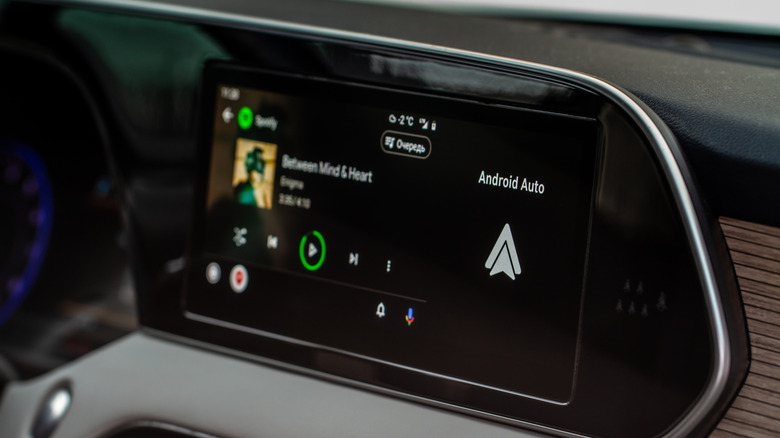
Android Auto is the default co-pilot for millions of cars worldwide. It allows you to access most of your smartphone's features on your car's infotainment screen, including music, navigation, and calls with voice commands. The Google platform is designed to let drivers keep their eyes on the road and hands on the wheel. You can even play some games on your car's display when your car is parked, a perfect option to kill time.
However, the default configuration isn't ideal for everyone. Some may not prefer music automatically playing as soon as they enter their car, while others may struggle to locate the specific apps in a cluttered list. Ultimately, because of these settings, you may not get the seamless experience Android Auto is designed to provide. The good thing about Android Auto is that you don't have to settle for default settings. Just as there are so many apps that you might not realize work with Android Auto, you get a lot of customization options. The only thing is that you should know where to look.
From decluttering your apps list to stopping automatic audio playback, you need to manually tweak a few settings to improve your in-car experience. In this guide, we will walk you through five Android Auto settings and features that are likely messing with your drive and show you exactly how you can fix them for a smoother and more personalized ride.
Change Android Auto home screen appearance
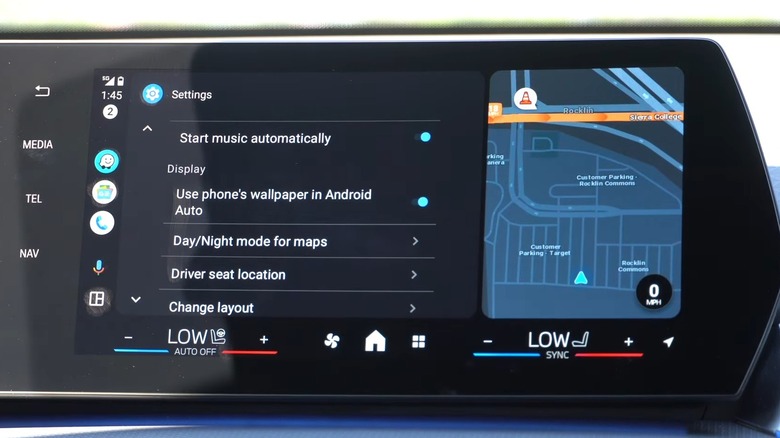
The interface is more or less clean, providing access to important apps. They have dark grey backgrounds, which may not suit some modern car interiors. Thankfully, Google lets you customize the display and change the wallpaper. You can choose from various preset wallpapers. Additionally, if the built-in wallpapers don't match your taste, you can also use your phone's wallpaper as the Android Auto background.
To change the Android Auto home screen background, tap on the App Launcher icon on your car's display. Tap the Settings icon, scroll down and select General, and then tap Choose wallpaper. You will see a lot of wallpaper options, such as Mountains, Fibre, Amp, Stitches, Pleats, Dusk, Forest, Ether, etc. If you like any of these, you can tap on it, and the background will instantly change.
If you want to use your phone's wallpaper, choose the "Use phone's wallpaper in Android Auto" option. For now, you cannot upload your own photos and use them as wallpaper, likely to prevent visibility issues while driving. There is a workaround, though. If you use a personal image as your phone's wallpaper and turn on the option to use your phone's wallpaper as the Android Auto background, then it will show up as wallpaper.
Use shortcuts
Android Auto is designed to streamline driver access to phone functions, and it generally does a good job. You can use voice commands to play your favorite track, place a call, or reply to a message. However, it is not always 100% accurate, and if the assistant mishears anything or there is background noise, it does something else or nothing at all. This usually happens when using navigation apps or calling a specific contact.
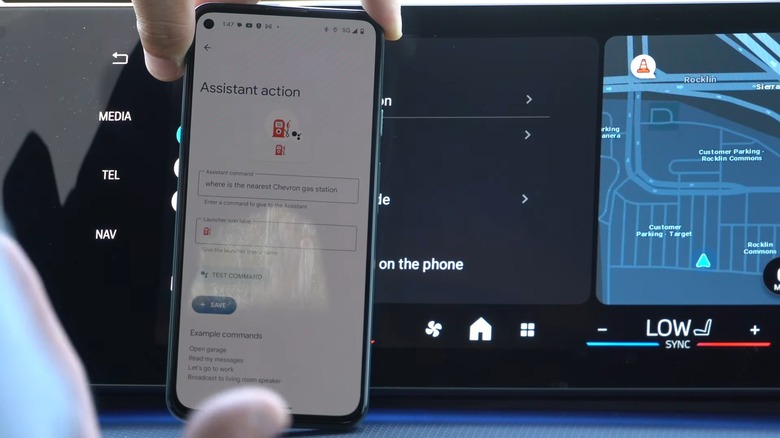
Android Auto lets you add custom shortcuts that you can access directly from your Android Auto app drawer. These shortcuts look like regular icons, which, when tapped, execute the Google Assistant command. You can use this feature to set a shortcut to call your mom, drive to work, or control smart home devices like opening your smart garage. The best thing about this is that it will do the task without any talking required.
To use shortcuts, you will need your Android phone. Simply head over to your phone's Settings, search for Android Auto, and under the Display section, tap on Customize Launcher. Finally, tap on the Add a shortcut to the Launcher option. You will see two options: Call a contact or A Gemini action. When you choose Call a contact, it asks you to select a contact. However, when you choose A Gemini action, you will be asked to enter the command to select the launcher icon.
Disable automatic music playback
If you use Android Auto in the default settings, then you will find that the music automatically starts playing from your favorite streaming music app as soon as your Android phone connects to your car. This happens because of Android Auto's resume media function, which resumes media playback at the same volume you had it last on. While this shouldn't be an issue when you are alone, it could be an issue when you are going on a ride with some co-passengers. Automatic media playback can be a good thing for those who need to make multiple stops throughout their trips.
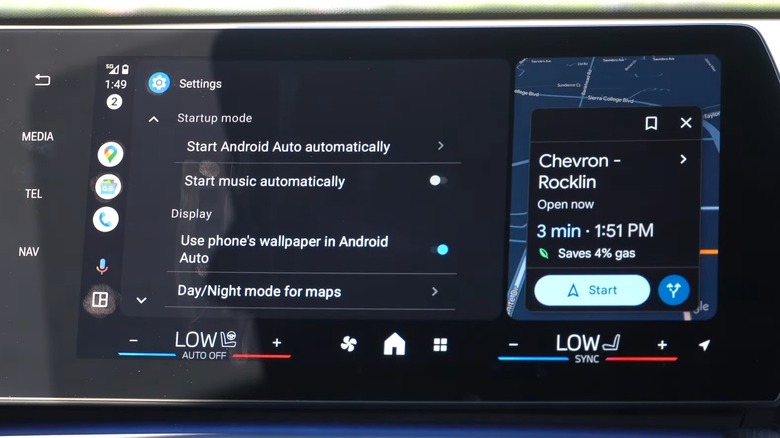
If you prefer silence or want to have control over what media should play and when, you can easily turn this feature off. Android Auto allows you the flexibility to take the controls back into your own hands. To disable the automatic media playback feature, open the Settings app on your phone, search for and select Android Auto, and under the General section, toggle off the Start music automatically option.
Even after turning off the option, if the music playback automatically starts upon connection, then you might need to check app-specific settings and make sure that autoplay functionality is turned off. Sometimes, in-app settings override Android Auto settings.
Get rid of unwanted apps from the home screen

The default layout, especially the app drawer of the Android Auto screen, shows you all the apps that are supported. This can be a mess, as this leads to the Android Auto having a cluttered interface, with apps that you never intend to use while driving. On top of this, you have to scroll through the apps list to find your preferred navigation or music streaming app that you actually want to use. This is not only frustrating but can be quite risky, especially when you are driving.
However, while some apps may appear useless on the Android Auto interface, they may be essential on your phone. Thankfully, you don't have to uninstall those apps only to make them disappear from your Android Auto's home screen interface. Android Auto has a built-in option that lets you choose apps that should appear on your car's display.
All you need to do is open the Settings app on your phone, search for and open Android Auto, and select Customize Launcher. Now, uncheck the box next to the apps that you wish to hide in the car. Apart from hiding, you also get the option to reorder the apps by dragging them up and down. Apps at the top of the list will show up on the first page of the home screen, and ones at the bottom will show up on the last page.
Use taskbar widgets
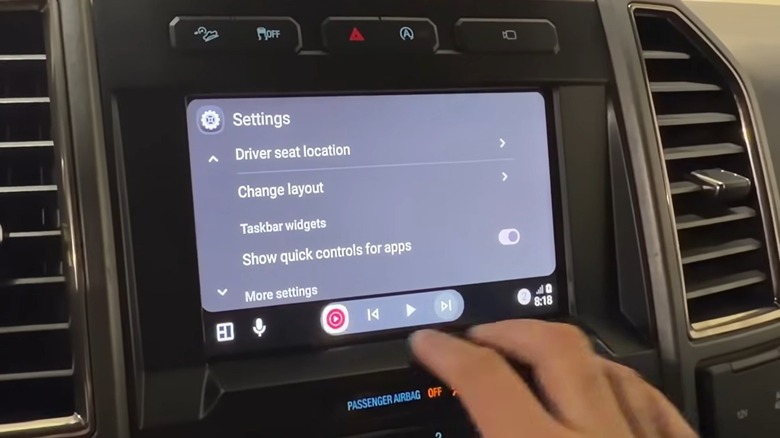
Android Auto is all about making driving much easier and providing you with entertainment on the move. Although multitasking while driving can be a bad idea, sometimes you might have to pause a track without losing sight of your GPS navigation. Until now, you had to switch between apps to do this simple thing, where you would briefly lose your turn-by-turn view on the navigation app to change the music. Fortunately, Google has introduced a new feature called taskbar widgets.
The taskbar widget settings basically add a mini-player to the bottom of the taskbar. Using this widget, you can easily control the music, as it provides you with access to play, pause, and skip controls. The widgets appear on top of other apps, such as navigation apps, giving you an unobstructed view of your navigation along with controls for your music.
To enable this, you need to open Settings on your phone, search for and select Android Auto, scroll down, and under the General section, toggle on the Taskbar widgets option. You can also do this on your car's display by heading over to Android Auto Settings and toggling on the Show quick controls for apps option.