

5 Apps That Can Breathe New Life Into Your Old Windows PC

It has happened to all of us: You press the power button on your PC to start your day, go make a cup of coffee, come back, and see that it's still booting up. This can be really frustrating and can spoil your productive mood. Over time, Windows PCs tend to accumulate a lot of unnecessary digital data, such as leftover files from uninstalled apps, unused registry entries, background apps that run unnecessarily, and system indexes that use your device's precious processing power and storage space. All these factors collectively make your PC sluggish and prone to freezes.
Now, before you frantically decide to spend hundreds of dollars on a new PC, you should know that the hardware might not be the problem. It could be due to software bloat weighing your system down. Also, purchasing a new device should be your last resort after trying everything else, including optimizing your current software setup.
The good news is that you don't need an IT expert to do that. We are here to help you gather a suite of lightweight, free tools that specifically exist to trim the fat from your aging Windows PC and squeeze every last drop of performance out of it. The suite includes a PC booster, a superfast search tool, an all-in-one debloater utility, an optimized browser, and a robust app uninstaller.
Microsoft PC Manager
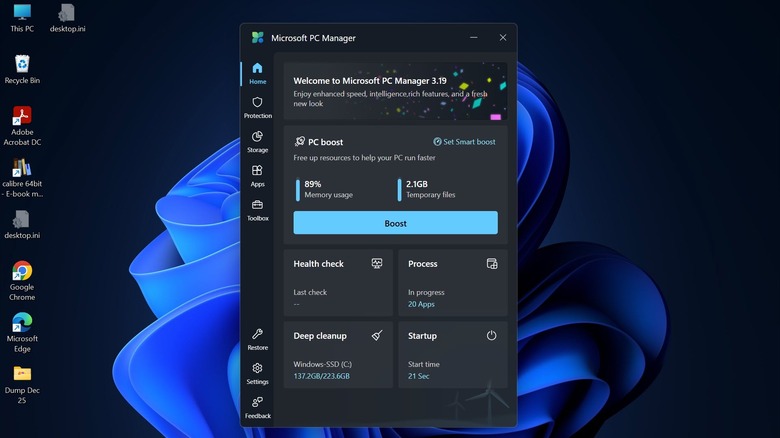
Sometimes the best way to fix a slow Windows OS is to use a tool developed by Microsoft itself. If you rely on a third-party tool for PC optimization and cleanup to speed up your system, Microsoft offers an excellent tool called Microsoft PC Manager. It is a surprisingly effective utility designed to streamline performance without the aggressive upsell prompts that other so-called optimization tools display.
Unlike heavy third-party boosters, which ironically sit in the background and unnecessarily use your system resources while claiming to optimize them, PC Manager is lightweight and straightforward. And since it's from Microsoft, it is perfectly integrated with Windows, which makes it even better at optimization and cleanup. It features a "Boost" button that can instantly clear temporary files and free up system RAM that was being needlessly occupied.
Apart from that, Microsoft PC Manager also has dedicated sections for System Protection, which includes Virus & Threat Protection, Windows Update, Taskbar Repair, Browser settings, and more; Storage Management, which features Disk Cleanup, management of Downloads and large files; App Management, which includes a Deep Uninstall tool that removes applications and their residual files, Process Management, and Startup apps management; and finally, a Toolbox section containing useful tools like a Screenshot taker, Calculator, Currency converter, Recorder, and more. All these features make it an essential application for reviving an old laptop.
Everything
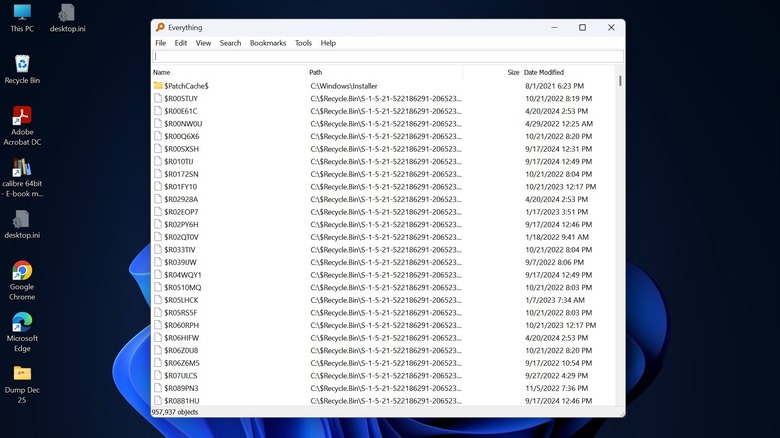
If you have ever searched for a file on your Windows PC and were forced to wait a full minute, you have been a victim of the snail-paced native Windows Search Indexer. This background service constantly crawls your hard disk to update its database and, in the process, slows down the whole search, especially on older systems without SSDs. For such systems, the best solution is the Everything app by voidtools.
Everything — as its name suggests — finds everything on your PC almost instantly, irrespective of its size or location. Unlike Windows search, Everything doesn't scan for file contents in the background to produce results. Instead, it reads the Master File Table (MFT) of your drive, allowing it to build a database of every single file in mere seconds. This results in superfast search results.
For older PCs, the benefit is resource savings. Since Everything is so efficient, it uses almost negligible RAM and CPU. You can completely disable the built-in Windows search and rely on this tool. Everything can also be customized as per your preference. For example, you can configure settings to exclude specific folders from search results and control whether hidden folders and files appear. There are also various operators and filters to optimize your search further or locate specific file types. The tool also offers a portable version.
Chris Titus Tech's Windows Utility
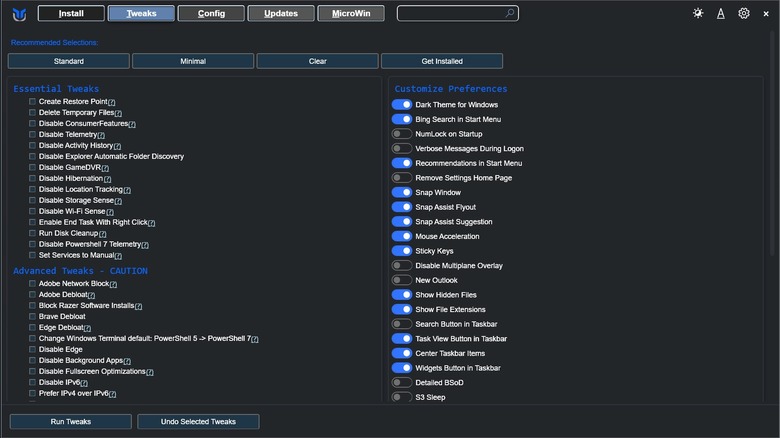
Sometimes, cleanup isn't enough. You require a proper renovation of your PC, and that's where this tool excels. Chris Titus Tech's Windows Utility has earned a legendary reputation among tech enthusiasts as one of the most complete system-debloater tools. At first glance, it looks like a hacking tool, but it's actually a simple, user-friendly utility that strips away the telemetry, tracking, and bloatware that Microsoft packs into Windows 10 or 11.
To launch this tool, open Windows PowerShell with administrative rights and run a single-line command (irm "https://christitus.com/win" | iex) that will open a graphical interface. From here, you can perform and tweak numerous things and take greater control over your OS. The "Tweaks" tab is a boon for older PCs, where you can disable some standard to advanced resource-intensive settings and apps such as diagnostic tracking, activity history, and various other Microsoft telemetry agents.
Stopping these hidden background processes not only makes your Windows PC more private but also frees up a surprising amount of CPU cycles, improving performance. Apart from that, this tool provides more options like installing or uninstalling apps — even the stubborn ones that Microsoft usually grays out — controlling Windows updates, and more. Just be very careful with this powerful tool and stick to only essential tweaks unless you know exactly what you're doing, as such tools can easily break a properly running feature or even the whole system.
Thorium Browser
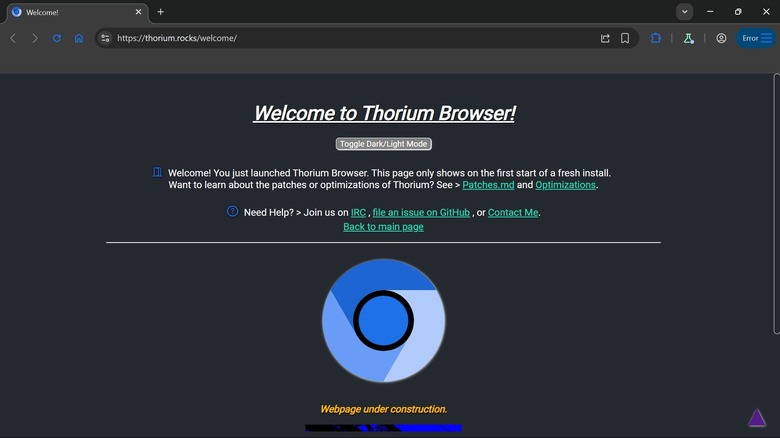
Modern browsers have become equivalent to an operating system, especially given the amount of resources they consume. Sure, browsers like Chrome and Edge are feature-rich and handle many of your tasks, but on an older PC with just 4 or 8 GB of RAM, even opening multiple tabs can slow the whole system down. It's difficult to use any other big application when an instance of Chrome is already active. Enter the Thorium browser, which proves that not all Chromium-based browsers are resource hogs.
If you are a regular Chrome user but want to replace it with a lighter alternative, Thorium is your answer. Like Google Chrome, it's also Chromium-based but uses advanced compiler optimizations that Chrome doesn't, maintaining compatibility with older hardware. This makes it a browser that looks and functions exactly like Chrome, including support for extensions, but runs significantly faster without slowdowns. Switching to Thorium is one of the easiest ways to boost web browsing on your older system.
Bulk Crap Uninstaller
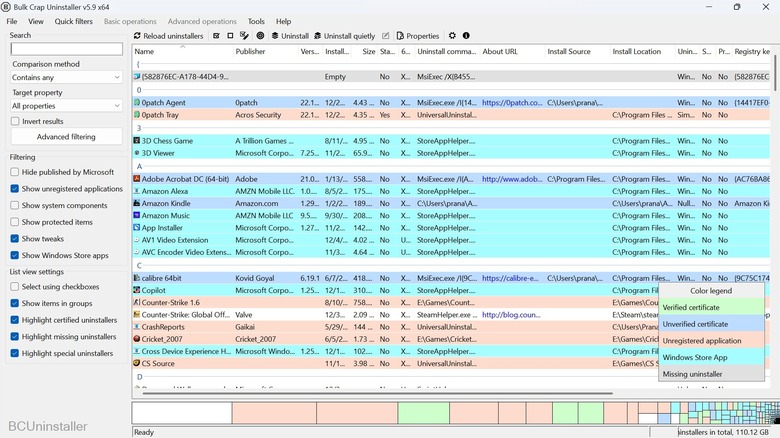
Uninstalling apps from your Windows PC should be simple, but let's be honest: the built-in "Add or Remove Programs" tool is pretty incompetent. Ideally, when uninstalling an app, all its residue, such as empty folders, registry entries, temporary files, etc., should be removed along with it. However, the default Windows uninstaller often misses these, leaving a big mess behind. So, for a truly clean uninstallation and to prevent your older PC from filling up with unnecessary files, you need Bulk Crap Uninstaller (BCU).
BCU is a lightweight yet powerful app designed to track and clear every trace of software when it's uninstalled. It is particularly useful for breathing new life into old PCs, as it can scan and identify "orphaned" applications — ones that occupy space but don't appear in the Windows uninstaller list. It also makes uninstalling apps easier by color-coding them under categories like Verified or Unverified Certificates, Unregistered Application, Microsoft Store App, or Missing Uninstaller.
If you are optimizing an old PC with tons of applications accumulated over the years, BCU's "Quiet Uninstall" feature is a godsend. Instead of manually uninstalling each application by going through its uninstaller wizard (clicking Next, Next, Uninstall ...), you can simply select them all in BCU and let it uninstall them silently. It automates the whole process and removes all selected applications quietly. The tool also lets you create a restore point before attempting a large uninstallation. This acts as a safety net, restoring the PC to its original state if something goes wrong during the process.