

Common Mistakes People Make With Docking Stations (And How To Avoid Them)
We may receive a commission on purchases made from links.
Docking stations are pretty useful accessories for laptops (and even some small desktop and mini PCs), potentially turning a thin-and-light device like the MacBook Air into a powerful workstation just by plugging into your USB-C or Thunderbolt port. And when you need to get going with your computer or tablet, packing up your computer will take you less than a minute.
But even though most docks plug into a USB port, it doesn't mean that they'll automatically work 100% with your system. That's because of the different specifications, technologies, plugs, and ports manufacturers can choose from to add to a dock. So, when you're out shopping for a gadget that will give you more ports for your laptop, you can't just buy the first one that will appear on Amazon. Instead, you have to carefully consider your needs, your wants, what your computer can do, and what you intend to do with it in the future.
I've been using a dock with my devices for several years now, and it has allowed me to turn my laptop into a battle station with three external monitors. I also carry a smaller dock with my MacBook Air, allowing me to turn it into a portable workstation wherever I want to take a working holiday. More than that, I've also reviewed several docks and hubs, so I know what mistakes you should avoid whenever you're choosing an accessory to give your device the ports you need.
Not checking if it has the ports you need
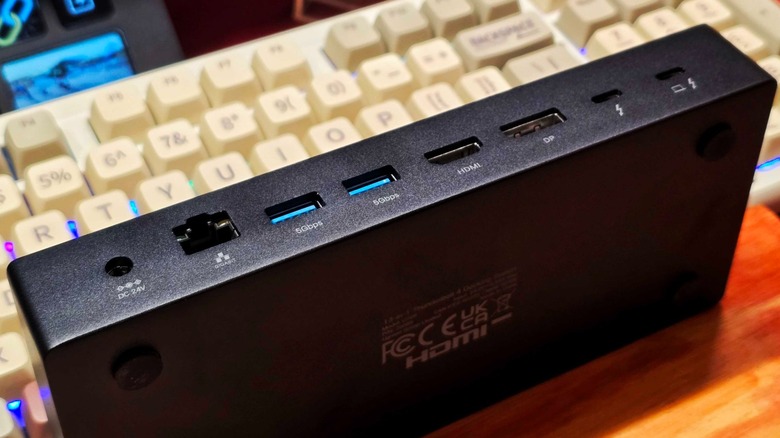
Never assume every dock will have exactly the ports you're looking for. Many docks will give you several USB Type-A ports but only a couple of USB Type-C ones. That might not be an immediate issue, but USB-C accessories are rapidly becoming the dominant standard, and it could mean being unable to use future peripherals simultaneously.
If you've got external monitors, you must also consider what connection they use. Modern displays mostly use HDMI or DisplayPort, and you'll find lots of docks with those ports. But if you have an older monitor, it might still use VGA or DVI, and finding a dock that supports them could be tough. Otherwise, you'll have to purchase an adapter just to ensure that they'll work.
Many new laptops have also dropped the Ethernet port, so Wi-Fi is your only option to connect to the internet. This is pretty convenient, especially with the arrival of faster technologies like Wi-Fi 7, but a physical connection will always be more reliable and is usually faster than a wireless one. So, if you want to take advantage of that, you may need a dock with an RJ45 port.
My work setup has several USB-A and USB-C ports, three monitor outputs for my displays, an audio jack for my speaker, and an Ethernet port to directly connect my system to my router, and I run almost every connection through my dock. It also has an easy-to-reach spare USB-C and USB-A port for quickly attaching external storage to my workstation.
Picking something that does not match your computer's specs

Even though a dock may have the ports that you need, you must also consider its specifications. Not all ports are made equal — there have already been several generations of USB, all of which have differing speeds. There's also Thunderbolt and its numerous versions, so you must ensure that the dock you're getting is compatible with what you have on your PC or Mac.
Suppose your computer has Thunderbolt 5 — if you get a dock that only supports Thunderbolt 4 or USB 3, then you're missing out on your computer's capabilities. This can result in slower transfer speeds or lower resolution, especially if you're using higher-end equipment. This is also true with the HDMI or DisplayPort ports on the dock. If your device has a relatively powerful GPU, you must ensure that the video output port on the dock can support it. You'll see this in the number after the HDMI label: a higher number usually means it's compatible with higher resolutions with a higher refresh rate.
To ensure that you're getting the right accessory for your current computer, you should check what USB or Thunderbolt version it has and match it with the dock you want to buy. You can also get one with a higher specification, especially if you plan to upgrade your laptop soon anyway.
Getting an underpowered docking station
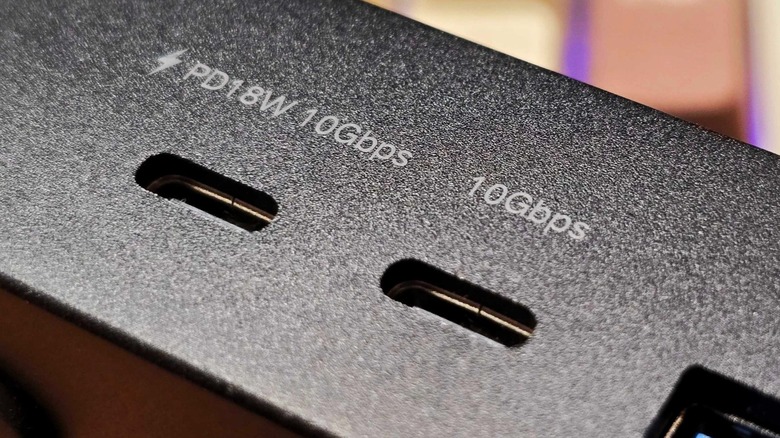
Another thing you should know about docks is that they can sometimes deliver power, too. So, instead of having to use both a charger and a dock, you'd only need to attach it the latter to keep it running all day long. However, if you want to do that, you need to know a couple of things — your laptop's support for USB-C with power delivery (PD) and how much power can it receive through that port.
Not all laptops support charging via USB-C, so if your computer does not have that feature, then you don't need to worry about this. But because my 15-inch M2 MacBook Air supports USB-PD, I had to make sure that my dock can fully charge it while I'm using it. For this reason, I picked the Baseus SpaceMate Docking Station for Mac (which, incidentally, also works with my Windows laptop). Since it outputs up to 100 watts, it can juice up the battery in my MacBook (which can fast charge at 67 watts) while I use it all day, ensuring that I have a full battery anytime I want to go out.
If you get a dock that does not have this feature, you'll have to plug your computer separately, making it a bit more inconvenient to use. Or you might get one that supports a lower power delivery standard; sure, it will charge your computer rather slowly, but it might not be enough to give you a full battery at the end of the workday.
Choosing an incompatible accessory for multiple monitor setups

The biggest reason I use a dock is to use a multi-monitor setup for both my computers. Since these devices have a limited number of ports, I had to ensure that my dock supported three HDMI output ports so I can connect my existing displays. However, having those three ports is not a guarantee that I will get that functionality, as my computer should also be compatible with outputting multiple screens via its USB-C port.
Unfortunately, both my Acer Predator Helios 300 gaming laptop and MacBook Air does not have this feature. To make three monitors possible on these devices, I had to ensure that the dock I'm using is DisplayLink-compatible. This software allows both my computers to output video data via the dock, giving me the ability to use multiple displays simultaneously on my MacBook and Windows laptop.
You cannot expect low-latency high-resolution gaming on three screens with this setup, but it's good enough for more productivity purposes, allowing me to run multiple apps side-by-side.
Buying a dock that does not fit your purpose
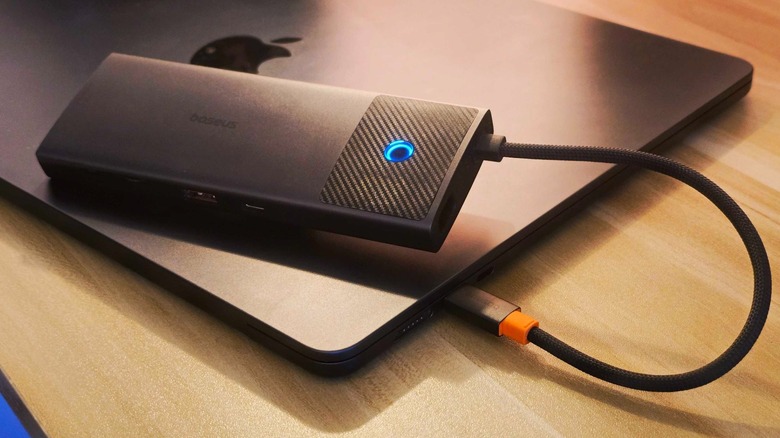
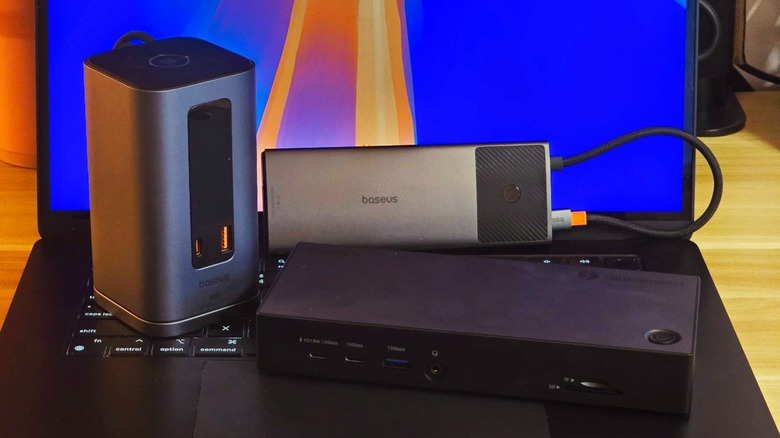
Aside from all the technical parameters we mentioned above, you should also consider the shape and size of the dock you're getting for how and where you will use it. Some docks are tall with a small footprint, meant to permanently stand in one corner of your desk. Other docks could be shaped like an old laptop charger and are better placed under your monitor. You can even find some docks meant to sit under the computer, like this Ugreen dock designed for the Mac mini, or portable docks you can easily carry around anywhere.
You also shouldn't mistake a hub for a dock. Some manufacturers and sellers freely interchange the two terms, but the Kensington Computer Company said that the main difference between a hub and dock is that the latter is powered, while the former gets its juice from your laptop or PC. So, choose a hub if you need something portable so you can attach a USB drive or two to your computer. But if you want to expand your port selection for display, internet, and more, a dock is the best option for you.