

Can You Use HDMI And DisplayPort At The Same Time?
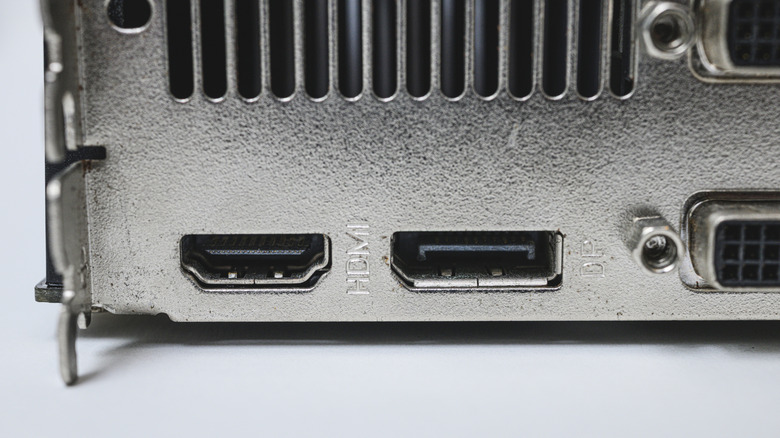
A majority of PCs and some laptops include multiple video outputs spanning HDMI to DisplayPort, giving you additional options to connect external monitors and displays. With a PC especially, if you have a GPU installed, you'll have access to several extra ports for multi-monitor setups. In most cases, it makes sense to use one of those outputs or the other, like HDMI versus anything else. But what if your computer only has a single HDMI port, and you want to connect more than one display? Can you actually use two different types of ports at the same time, like say, HDMI and DisplayPort?
Yes, you can, and with most modern computers it's fairly simple and intuitive. You can just plug everything in like normal. It doesn't matter what operating system you're using either. Windows, Linux, and macOS all support this feature, as long as the hardware can handle it. The exception is if you have a much older computer, as sometimes they have design limitations that prevent dual output usage. Keep in mind, you may also have to do some further troubleshooting or tinkering to get things working the way you want.
A great way to do this is to use DisplayPort for your primary or high fidelity monitor to take advantage of enhancements like variable refresh rates and beyond, and then connect to additional monitors via HDMI. That's because there is a difference between DisplayPort and HDMI capabilities in terms of signal. This is precisely how I have my desktop PC hooked up; DisplayPort to my primary, and HDMI to my second and third monitors.
There's more than one way to set this all up
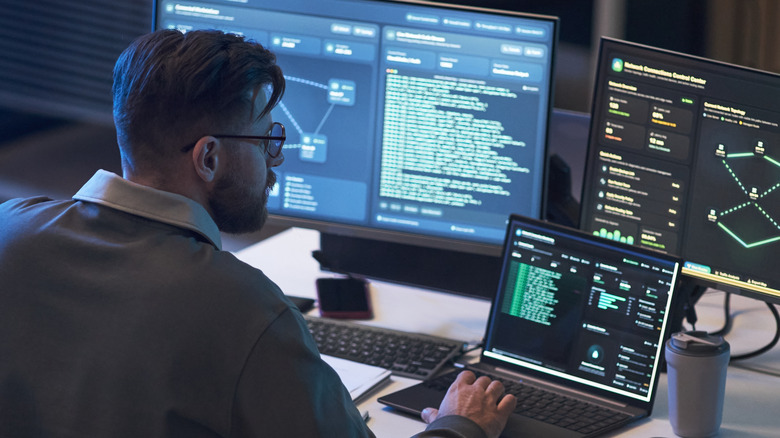
Did you know, you can run multiple monitors from a single DisplayPort connection? It's fairly easy to set up, provided they support the technology. With DisplayPort 1.2 or above, "daisy-chaining" is possible, where you essentially connect monitors in a single line. You can also connect multiple displays via a single HDMI, though that configuration is different, and you'll need an adapter or hub — you can't daisy-chain HDMI.
There are drawbacks to consider for all of these scenarios. When daisy-chaining, you can lock yourself out of using higher resolutions or higher refresh rates because the total bandwidth is split between all connected monitors — it has to send the signal to two monitors through a single connection. That can affect both signal performance and display capabilities.
When mixing outputs, limitations may also appear, but for different reasons. You can be locked into using the lowest common resolution and refresh rate denominators, meaning it can cause discrepancies between monitors. This is not always the case, it depends on your PC, laptop, or graphics card and troubleshooting is likely in order. Ultimately, it can lead to two or more displays that aren't performing to the same levels, which isn't a big deal if the secondary monitor is only used for readouts or small tasks. But if you want to split a full view between displays for ultra-widescreen gaming, if the panels are performing independently, things are going to get real weird fast. Other software quirks might pop up, as well, like color or brightness variations, inconsistent window sizing, and so on.