

What Does A Flashing Ethernet Symbol On Your Windows PC Mean?
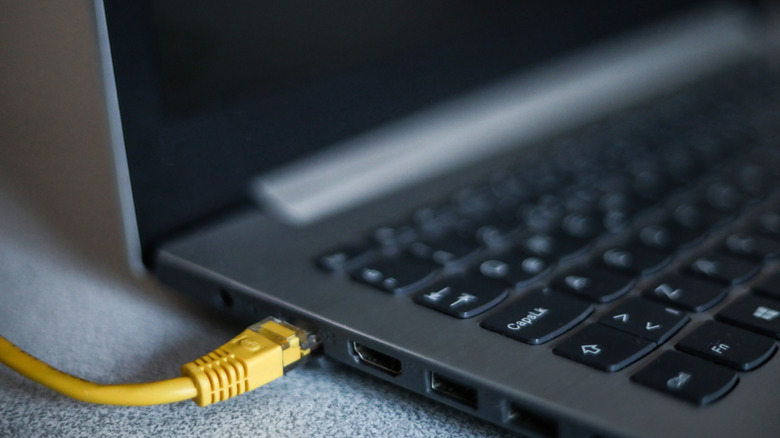
Ethernet undoubtedly offers a more reliable connection than Wi-Fi, at least for the vast majority of users, provided they have the correct setup and are using the right Ethernet cables. But like Wi-Fi, it, too, is prone to issues. Generally speaking, most Ethernet problems are easy to fix, while a few require a little more effort. One such issue that you might come across is a flashing Ethernet symbol in the taskbar on a Windows PC. This particular problem is easily fixable.
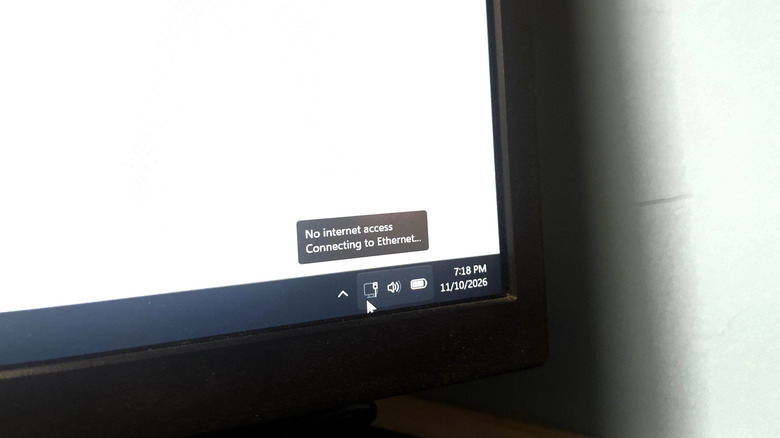
When you notice a blinking Ethernet icon in the system tray after turning on your computer, it usually means the system is trying to establish a connection. If you hover the cursor over the flashing icon, it should read "No internet access. Connecting to Ethernet." And that's generally not a problem. Windows may sometimes take 15-20 seconds to establish an Ethernet connection. So, as long as the system successfully connects to the internet and the Ethernet symbol stops flashing, there's nothing you need to do. It's also worth noting that this can happen even when a Wi-Fi connection is available. Depending on your network settings, your PC may connect to a known wireless network automatically.
However, if the Ethernet icon keeps blinking and your computer doesn't establish a wired connection, it could indicate network issues or problems with your wired setup. These include misconfigured network settings, issues with the Ethernet adapter's driver, conflicts triggered by a VPN, or something as simple as using the wrong Ethernet port or a damaged cable. Since your Windows PC doesn't really tell you what the underlying cause is, it makes sense to run a few simple checks and then proceed with the slightly more complex solutions.
Basic checks to resolve the problem
The first thing you should do if the Ethernet symbol keeps blinking in Windows is to reboot the entire setup. This means restarting both the computer and the modem/router. If that doesn't help, try connecting the Ethernet cable to another port on your modem/router or using another working Ethernet cable. Sometimes, a router reset can also fix the problem. However, given what happens when you reset the router, it's smart to reserve this solution for a little later, after you have exhausted the other options. If you are using a VPN to connect to the internet, turn it off and on again. Also, for VPNs with a kill switch, this could happen if the system crashes, doesn't shut down properly, or a software bug causes the VPN to trigger conflicts. Several users on the r/pchelp subreddit reported that reconnecting to their VPN and then disconnecting fixed what appeared to be a kill switch issue.
For driver-related problems, you should reinstall or update the Ethernet adapter driver. Before uninstalling the driver, download a backup copy from your PC manufacturer's website. To uninstall the driver, open the Search menu, type "Device Manager," launch the utility, expand "Network Adapters," right-click the Ethernet adapter, select "Uninstall device," and confirm the change. Once done, restart your computer, and Windows should automatically install a fresh copy of the driver. If that doesn't work, the next option is to update the Ethernet driver. For that, go to your PC manufacturer's website, locate the downloads section, and if an update for the Ethernet adapter's driver is available, download and install it. Before installing the update, make sure to create a restore point, as it allows you to revert your computer to a stable state if things go wrong.