

What Does An R Symbol On An Android Phone Mean?
We may receive a commission on purchases made from links.
A lot of carriers in the U.S. don't really own the hardware their network runs on — some of it, sure, but plenty of gaps are filled by renting towers off other carriers. So when you cross over from one network's territory onto another's, the phone switches over to "Roaming," which then manifests as an R on your status bar up top, right next to the network icon — and a bunch of other icons and symbols on an Android, like H+. In other words, it's just an indication that your phone is now on a mobile network outside your carrier's, and isn't anything to worry about.
But roaming doesn't always show up domestically. There are two types of roaming: domestic and international, which Verizon describes pretty clearly on its support page. According to the carrier, domestic roaming is when your phone borrows connectivity from another carrier — think a rural area where only AT&T has coverage while you're a Verizon user. Meanwhile, international roaming is when you're traveling outside of the U.S. and its territories like Puerto Rico or the U.S. Virgin Islands. Either way, both can trigger the R on the status bar.
That said, just because you aren't seeing an R doesn't always mean you aren't roaming. The thing is, while your Android tries its best to determine whether you're roaming or not based on the carrier you're currently connected to, the final word rests with the carrier. So if you ever find yourself stuck with the R, that's because of the carrier, and usually, nothing's broken on your phone.
Roaming can quickly turn pricey

Data consumption while roaming is something you need to watch on your phone when traveling, especially internationally. While domestic roaming almost certainly won't cost you extra in the U.S., traveling internationally typically does. That's because domestically, big carriers treat your roaming around as part of your normal service. While T-Mobile outright says you won't be charged extra across the States, Verizon includes the same perks on all its newer plans as well.
That said, free isn't the same as unlimited. Carriers often impose strict data limits when your network is borrowed. T-Mobile, for one, offers just 200 MB per billing cycle while you're roaming, which should be enough for texting and for perhaps a couple of Instagram Reels, nothing more. Other carriers impose similar caps, so if you're seeing the R, you might want to hold off on streaming that 4K movie.
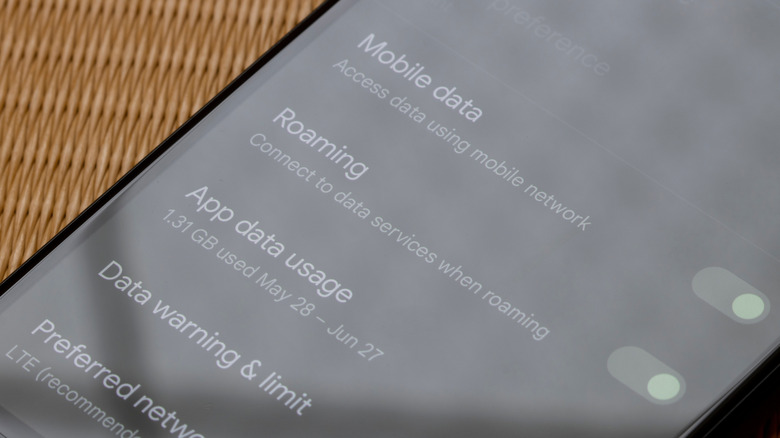
That's why you'd want to head over to your Android settings to enable data caps. On the Google Pixel, for instance, you can navigate to Settings > Network & internet > SIMs > Data warning & limit and set a specific cap. Once it runs out, mobile data switches off automatically, and you get a notification. Abroad is a different story. Since plans most people are subscribed to only cover domestic use, you will likely see significantly higher rates for all services, whether that's calls, voicemail, texts, or internet.
How to manage roaming on your Android phone
If you don't want to deal with data usage when roaming and the associated troubles, you can also simply turn it off. The setting for it is present on all Android phones, though getting there can vary between phones. On the Google Pixel, you navigate to Settings > Network & internet > SIMs, while on Samsung, you head to Settings > Connections > Mobile networks. Note that this turns off roaming data only, so calls and SMS can still incur charges.
It's also worth noting that sometimes you may not see the R at all when roaming (typically domestically). Instead, you may see the carrier name — usually located in the top-left corner of your quick settings panel — switch to something else. On Verizon, you may see Extended replace Verizon in that same area. The carrier says that this means the device is connected to another carrier, while also warning that data speeds may slow down. On Cricket, that same label may switch from "Cricket" to the roaming carrier's name.
On your Android, you can also prevent carrier switching by turning off this setting called "Automatically select network." On the Google Pixel, you can find it under Settings > Network & internet > SIMs > your SIM. This is also the most reliable way to get rid of that R icon if it bothers you. Alternatively, you can route your calls through Wi-Fi instead of a roaming network, too, if your carrier allows it. This is on by default, but just in case you wish to check its status, on a Samsung, you can go to Settings > Connections > Wi-Fi Calling.