

Using This Port Is Making Your Ethernet Adapters Slower Than Wi-Fi: Here's Why
We may receive a commission on purchases made from links.
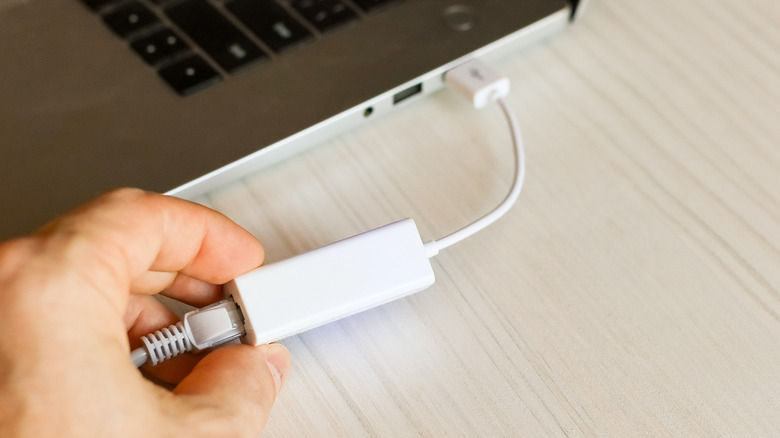
Wi-Fi has pretty much caught up and, in some cases, even exceeded the standard 1 Gbps, 2.5 Gbps, 5 Gbps, and 10 Gbps Ethernet in terms of raw speed. That's because Wi-Fi 6 and Wi-Fi 7 have maximum throughput of 9.6 Gbps and 46 Gbps, respectively. However, it still can't beat Ethernet when it comes to stability and low-latency connections. One major problem is that some laptops lack RJ45 ports because they have an ultra-thin profile. But you can still connect these devices to your router using an Ethernet cable. You just need a USB-to-Ethernet adapter to act as the middleman.
The port you insert the adapter into matters greatly, because if it's a USB 2.0 port or lower, it will effectively bottleneck your network. USB 2.0 has a maximum throughput of 480 Mbps, but Gigabit Ethernet can achieve a maximum throughput of 1,000 Mbps. This means USB 2.0 effectively cuts the speed in half. This is especially true if you're using something like the Ugreen USB-C to Ethernet 2.5 GbE Adapter. It costs $24.99 and supports USB 3.0 (this has a maximum throughput of 5 Gbps) and 2.5 Gigabit Ethernet. It can even work on phones.
At USB 2.0 speeds, Ethernet can become slower than Wi-Fi, with Gigabit internet on Wi-Fi 6 and 7 routers averaging around 600-900 Mbps. Gigabit Ethernet has a real-world throughput of around 900 Mbps. So it helps to know which ports are USB 3.0 and above to best take advantage of it.
How to identify USB 2.0 ports
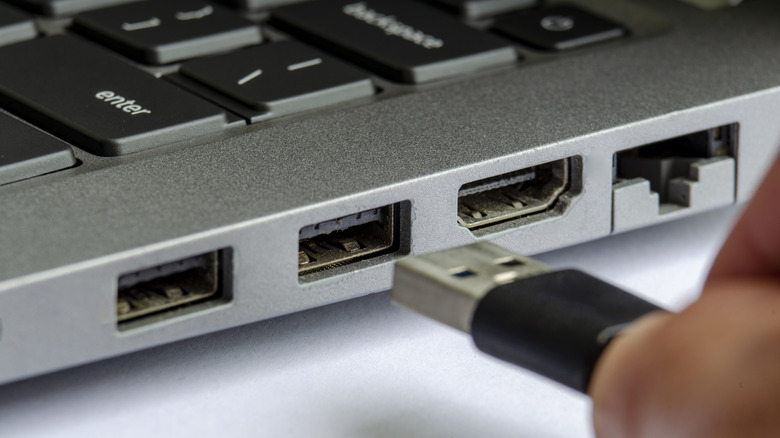
There are several signs that can tell you what protocol a USB port uses, so you don't mistakenly plug the Ethernet adapter into a USB 2.0 port. For example, some USB-A ports are color-coded for this exact reason. If the plastic insert is black or white, it's probably a USB 2.0 or USB 1.0 port. Those are the ports you should avoid. But if it's blue, teal, or red, those probably support USB 3.0 or higher. USB-C ports, on the other hand, are not color-coded.
If you want to be extra sure, look next to the port for a USB icon. If it's just the icon without words like SS, which stands for SuperSpeed, on it, then it could be a slower USB 2.0 or USB 1.0 port. You can also check the specification sheet or product page of the laptop, desktop case, motherboard, USB hub, or dock for information on the ports.
If you're using a Mac, then it gets simpler. All M-Series Macs, including MacBooks, Mac minis, and iMacs, do not have ports capped at USB 2.0. On the other hand, the second port on the MacBook Neo is a USB 2.0 port. So if you want to get good speeds, use the first USB port, which is a USB 3.0 port.