

Why Some USB Ports Are Color-Coded, But USB-C Ports Aren't
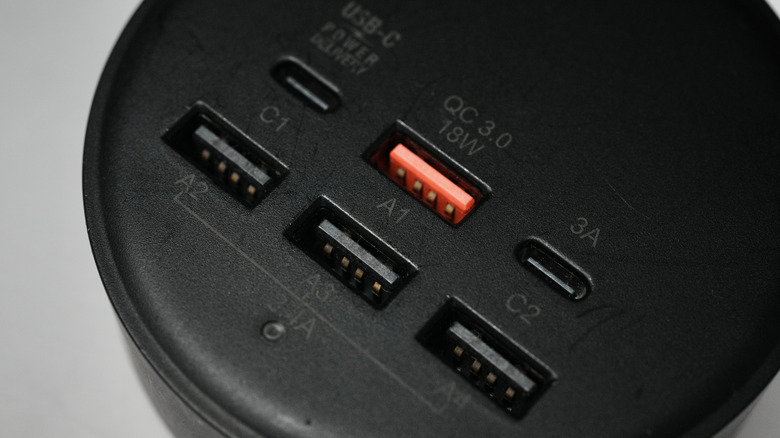
Since its inception in 1996, the Universal Serial Bus (USB) industry standard has sought to simplify and standardize the interface between computers and peripherals. The standard has evolved to encompass a wide gamut of consumer electronics beyond just computers –- like smartphones, game consoles, and external SSDs –- to bring them under the umbrella of a universal data and power connection. USB has changed over multiple generations, starting with the modest USB 1.x and moving on to USB4, one of the fastest USB ports available.
And while USB ports have simplified plugging in our favorite devices without the need for configuration (usually), deciphering which port is which is admittedly less easy. The waters get even muddier by the time you add in "generations" and market names like "SuperSpeed," with all of the associated logos and packaging that manufacturers may or may not use on devices. Traditionally, USB-A ports are color-coded, but USB-C ports aren't, which fragments identification even further.
USB-A port colors usually denote the connection type, but not always

The USB-IF — the organization that maintains the USB standard — does not standardize the color-coding on USB ports; this has become more of an unspoken rule between manufacturers and vendors. And while the color-coding is fairly consistent between companies, there are outliers. Corsair and Razer are both notorious for using yellow and green, respectively, as part of their brand identity.
As a general reference:
- White: represents USB 1.x (1996) with a speed of 1.5 Mbps to 12 Mbps. By modern standards, this is a legacy connection.
- Black: represents USB 2.0 Hi-Speed (2000) with a speed of up to 480 Mbps. These ports are still common.
- Blue: represents USB 3.0 SuperSpeed (2008) and also covers USB 3.1 Gen 1 and USB 3.2 Gen 1, with a speed of up to 5 Gbps. The most common color, and the only exception where the USB-IF recommends a certain color (Pantone 300C) to distinguish them from older ports.
- Teal: This is a tricky color, and it's less common. Teal has been used more as a manufacturer preference. In the past, it has usually indicated the original USB 3.1 Gen 2, but has been folded into the 2019-era USB 3.2 Gen 2 "SuperSpeed 10Gbps."
- Red: A common color representing USB 3.1 Gen 2 and USB 3.2, with speeds of 10 Gbps to 20 Gbps. Depending on how the manufacturer implements them, these ports are also sometimes "always on," meaning they can deliver passive power to a connected device if the host device isn't powered on.
- Orange/Yellow: These colors are less common, and usually reserved for laptops. They usually represent USB 2.0 and USB 3.0, with passive power delivery for charging devices if the host is in sleep or standby mode.
USB-C is too complicated for a single color
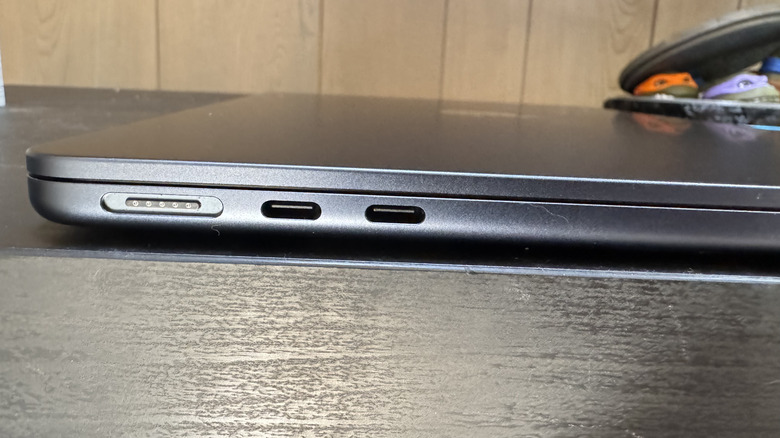
If this wasn't confusing enough, USB-C exacerbates the problem by forgoing colors completely. The reason for this is that the USB-C port can do a multitude of things, and has become a common connection for several different technologies and protocols like Thunderbolt, DisplayPort, HDMI, and USB4. There is also the baked-in Alternate Mode technology inside the USB-C spec, which supports a mixture of power and data delivery, as well as audio and video transmission, and can eliminate the need for multiple cables. Designating one color for everything USB-C can do simply isn't practical, so manufacturers and the USB-IF are increasingly relying on logos for identification.
So rather than looking for colors on a USB-C port, users are better off looking for symbols designating its capabilities – symbols to look for are the SuperSpeed (SS) logo, the Thunderbolt logo, a lightning bolt symbol (typically indicating fast charging or higher power delivery), among others. Even this isn't foolproof, though, as some manufacturers (like Apple) prefer to omit any labels on the ports. As an example, my 2025 MacBook Air M4 has two Thunderbolt 4 USB-C ports, but they're not identified visually. The best course of action for determining the port you're dealing with is to refer to the device's documentation, such as a user manual or product listing page.