

What Does It Mean When Your Ethernet Port Is Blinking Orange?
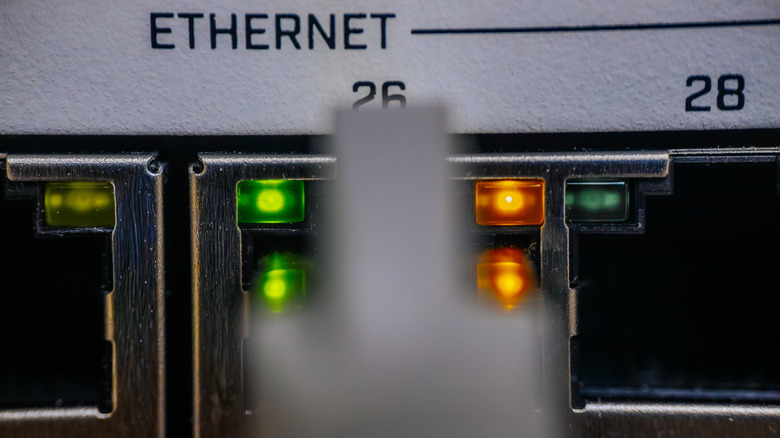
Ethernet is undoubtedly faster and more reliable than Wi-Fi, making it the preferred choice for gamers, power users, and anyone who prioritizes low latency. But things are not always as simple as they seem to be. There are several factors to consider, whether it's the type of Ethernet cable to use, the router port to connect to, or the addition of a switch to the network. Even the lights on the Ethernet ports have different meanings, which can be confusing to people who have just switched to wired connectivity. And one such scenario involves a blinking orange light on the Ethernet port.
When the LED light on your Ethernet port blinks orange, the first thing you need to verify is what that particular LED indicates. On many Ethernet ports, there are two LEDs, one indicating activity or link and the other highlighting speed. Generally speaking, you are likely to see the speed LED blinking orange, and this means that the connection isn't running at its full potential. For instance, if a network device, like a switch, is capable of delivering 1 Gbps speeds but has to negotiate to 100Mbps due to one of the slower links in the setup, you will notice the Ethernet port blinking orange. On the other hand, if the activity LED is blinking orange, it's completely normal. It's simply a sign that the port is actively transferring data.
Keep in mind that a blinking orange LED doesn't always mean the same thing. More importantly, it comes down to how the manufacturer has designed the LED indicators to function. So, the best way to find out what it means is to check the device's manual.
Fixing the blinking orange LED on Ethernet port
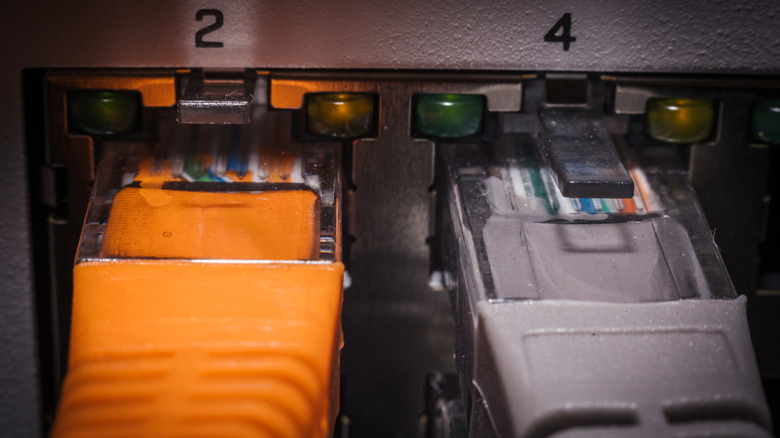
Once you have established that the blinking orange light indicates connection speed and that the internet speed is actually slow, there are some easy fixes for it. First, check the cable and ensure it's capable of delivering the speeds you are trying to achieve. For instance, a Cat5 cable doesn't support Gigabit Ethernet, and you will instead have to use a Cat5e or Cat6 cable.
When the cable is not the problem, the next step is to inspect the connections. If the cable is connected to a 100 Mbps port, that's the speed you will get, irrespective of what the ISP delivers or what the different devices are capable of. So, make sure you are using the fastest available port, especially if the setup involves a network switch. In case you have a USB-to-Ethernet adapter, verify its rated speeds as well.
Sometimes, a loose connection can also be to blame for the blinking orange LED on the Ethernet port, and firmly reconnecting the cable should do the trick. Or if the cable itself is damaged, you should replace it immediately. While Ethernet cables don't have an expiry date, prolonged use and improper handling can affect their performance over time. If nothing works, the last option is to contact the device's manufacturer. Since the LED's role varies by device, the manufacturer will help you identify the underlying cause and possible solutions.