

How Long Will Your TCL Smart TV Get Software Updates?
We may receive a commission on purchases made from links.
Some of the key factors to consider when buying a new TV include picture quality, screen size, sound quality, and price. In addition to these, it's also important to consider how long your TV will be supported because software updates are essential. Software updates can help improve the performance of your set, add new features, and also ensure that you can have a smooth user experience for as long as possible. TCL makes some of the cheapest TVs, but before you go ahead and get a model from the company, it only makes sense that you consider the brand's software update policy for its smart TVs, especially if you plan to keep it for a long time.
So, how long will your TCL smart TV receive software updates? According to a TCL support page, the company says it usually provides security updates for its devices for at least two years from the first shipment date. However, in certain cases, it might offer three or more years of updates and can also send out key security patches even if the device in question has reached its end of life. In case that isn't convincing enough, the company's 2026 update should be enough proof that it does keep its models up to date.
Earlier this year, TCL sent out an update to its models with the Pentonic 700 chip running Google TV that were released in 2023, 2024, and 2025, such as the QM8K and QM6K. The new update, which is already baked into its 2026 sets, adds Dolby Filmmaker Vision mode, extends support for Dolby Atmos FlexConnect, and fixes a Disney+-related bug.
How to update your TCL smart TV's software
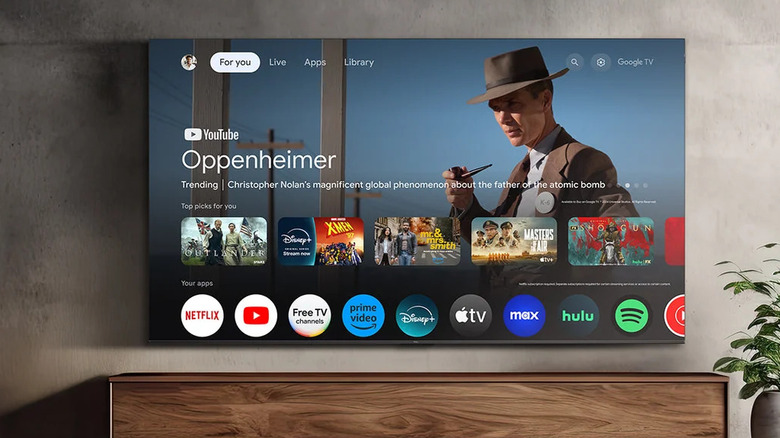
The process of updating your TV will vary depending on your model. TCL's TV lineup doesn't run a single operating system, so the interface isn't the same across the board. Some of the company's sets run Google TV, others have Fire TV OS, while others come with Roku's smart TV OS. If your set uses Google TV, you can check for updates by navigating to Settings > System > About > System Update, then press the Check for Update option if displayed. Next, your set will check for an update, and if one is available, it will give you an option to download and install it.
For those with TCL Roku TVs, the process is a bit similar; go to Settings > System > System Update and select Check Now. If an update is available, you'll be presented with an Update Now button to download and install it. The process is different for TCL sets with Fire TV. If yours runs Fire TV, go to Settings, then navigate to My Fire TV (or Device & Software), select About, and then press Check for System Update (or Check for Updates). You should see an Install Update option if there is a pending update available. But before you go through the steps we've highlighted for updating your TCL TV, you'll need to be connected to the internet first.