

Don't Pay For A PC Optimizer – Windows Has Better Tools Built In
Most Windows users have, at some point, tried a third-party PC optimizer, basically an app or tool that optimizes your computer's performance for gaming and other heavy tasks and keeps it healthy. At least that's what these apps claim. And while third-party tools may be helpful to some users, especially those who are not comfortable with the built-in options, it's worth noting that the native tools have improved a lot over the years. You have features like Storage Sense to automate cleanup, utilities like Task Scheduler to run periodic maintenance operations, and PowerShell to run repair commands.
Of the available built-in tools, Task Scheduler remains one of the most useful, even to the average, everyday user. It's been a part of the operating system since the days of Windows 95. Task Scheduler allows you to automate maintenance and repair tasks, from repairing corrupted system files and clearing cache buildup to automating backups and running disk checks, so that you don't have to do it manually.
But why use Task Scheduler instead of any other third-party optimizer? Using built-in tools offers a major benefit. Since these are native to Windows, they are designed to work with the system and are unlikely to make changes that are detrimental to its health or performance. On the other hand, with a third-party tool, there's always a risk that it can mistake system or personal files for junk or reconfigure components that are best left untouched.
Task Scheduler can automate maintenance
Task Scheduler is an often-overlooked Windows utility, but for anyone who wants to automate operations and tasks, it's a good option. By default, Task Scheduler has numerous tasks, some system-related, while others are added by browsers and third-party apps. The best part is that you can create your own tasks and configure them to run on your preferred schedule.
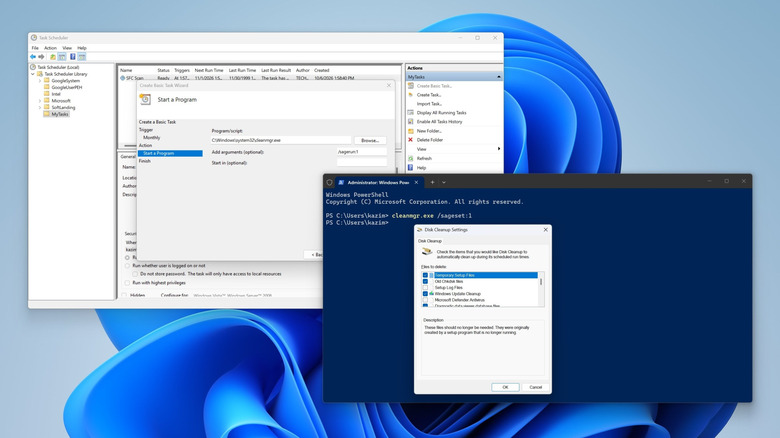
Before we create a task, right-click "Task Scheduler Library" in the left pane, select "New Folder," and name it "MyTasks." Although not mandatory, keeping your personal tasks in a separate folder makes it easier to manage things. Now, within the folder you created, click "Create Basic Task" on the right, add a name and description (not mandatory), select whether the task is triggered by a particular action or runs automatically on a set schedule, and then fill out the additional details, if required. Next, select "Start a program" and add the program's path and any necessary arguments in the following window. Finally, review the details and click "Finish" to create the task.
Now that you know how to create a task, it's time to start with the important ones. For instance, if your PC constantly runs low on storage, you can create a task to automatically run Disk Cleanup on a fixed schedule. To do that, first open PowerShell and run the "cleanmgr.exe /sageset:1" command. In the Disk Cleanup window that opens, check the file categories you want to automatically delete when the task runs, and save your selections. In Task Scheduler, create a new basic task, fill out the initial details and set the frequency, and when asked for the program path and arguments, enter "C:\Windows\System32\cleanmgr.exe" and "/sagerun:1" under the respective fields, and save the changes.
Set up an automatic repair schedule
PC optimization isn't just about freeing up storage or boosting performance. An important part of it is keeping your system healthy, and that's another thing Task Scheduler can help you with. By automating built-in tools like Deployment Image Servicing and Management (DISM), which repairs the system image, System File Checker (SFC), which repairs corrupted system files, and Check Disk (CHKDSK), which detects drive-related issues, you can keep your computer running smoothly.
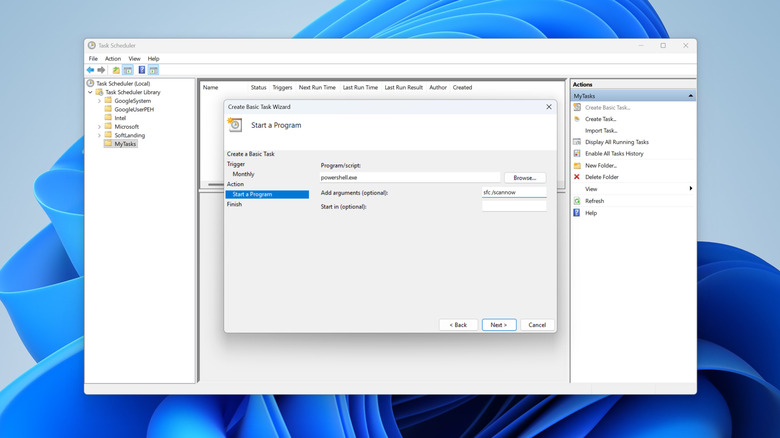
To automate SFC using Task Scheduler, click "Create Basic Task," enter a name for the task, and set the frequency, preferably every other month. Then choose "Start a program" as the action, enter "powershell.exe" as the program/script and "sfc /scannow" as the argument, and save the changes. You can similarly create tasks that run DISM and Check Disk. After creating the tasks, right-click each individually, open Properties, and tick the checkbox that reads "Run with highest privileges." This is important as both tools require system-level permissions to fix the problems and keep your computer healthy.
Likewise, you can create a task to defragment the drive if you are using an HDD or automate backups to keep your data safe. There are other things too, like a prompt telling you to wind down and power off the PC at the end of the day, clearing cache, or automatically optimizing your system for performance as soon as you launch a resource-intensive app. The possibilities are limitless, and you don't have to pay a penny because these capabilities are native to Windows.