

What It Means If A USB Port Has A 'D' Symbol Next To It
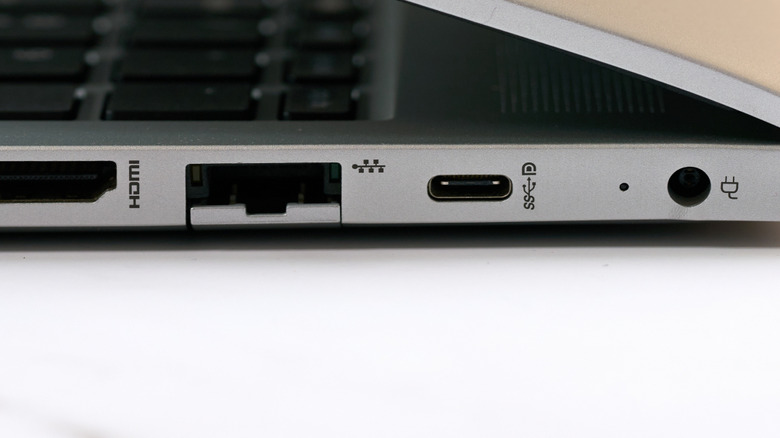
Identifying USB port symbols and icons can be tough, especially when you're trying to connect a specific device to your computer. Thankfully, a D-shaped symbol with a P inside it next to a USB-C port is simple: it indicates that the connection supports DisplayPort Alt Mode. This means that port can carry audio and video over DisplayPort.
The technology is based on the DisplayPort standard overseen by the Video Electronics Standards Association (VESA). A DisplayPort-capable USB-C port supports audio, video, USB data, and USB Power Delivery at the same time. That means you can use it to connect and power a compatible USB-C display, for example, cutting down on cable clutter. But while the DisplayPort logo guarantees support for DisplayPort Alt Mode, not all USB-C ports that support it will have the logo. Thus, the best way to confirm if your computer's USB-C port supports DisplayPort Alt Mode is to check its documentation.
If a USB-C port supports DisplayPort but lacks the logo, the manufacturer likely didn't go through the process required to use the iconography. VESA states that companies must be members of the organization, pass compliance testing, and submit the results for approval. From there, they'll sign a trademark license agreement, which allows the manufacturer to use the DisplayPort Alt Mode logo.
What you can do with DisplayPort
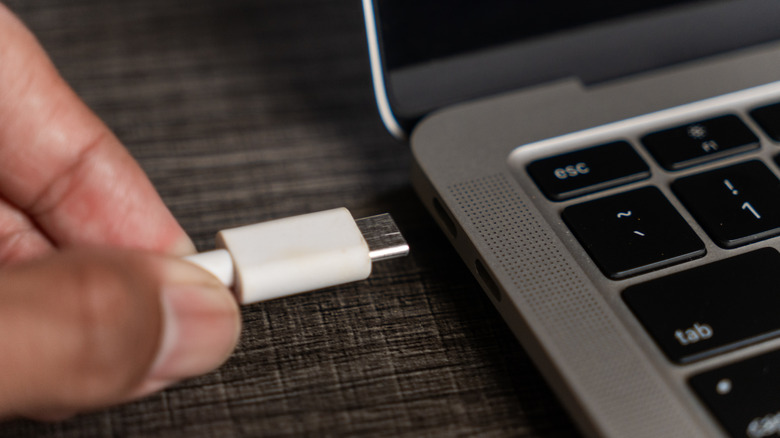
One of the major benefits of DisplayPort over USB-C, aside from reducing cable clutter, is that it's easy to adapt to other protocols. While most smart TVs don't use DisplayPort, you can get USB-C to HDMI adapters that'll address that issue easily. USB-C to DVI and VGA adapters for older displays are also available.
You can also run multiple monitors from a single DisplayPort output, though the number of screens, resolutions, and refresh rates available depend on the hardware and the protocol being used. For example, the current DisplayPort standard, DisplayPort 2.1b, can provide up to 80 Gbps across four signal lanes. This allows for very high resolutions and refresh rates, such as 8K at 240 Hz, but requires a device with a Thunderbolt or USB4 port and a GPU that supports the latest DisplayPort standard.
If you don't know whether your computer has DisplayPort-capable USB-C ports and can't find documentation, don't worry. You can try connecting a display to the ports, as doing so won't damage the computer or the display. The port won't send video to the connected screen, and you'll get an on-screen warning.