

How To Update Your PlayStation 5 Pulse Elite Headset
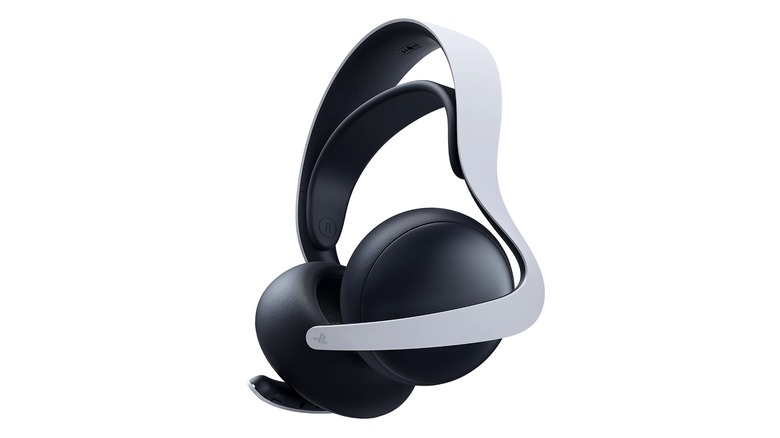
When it comes to gaming hardware like the PlayStation 5, it's well established that you need to keep your console's software updated. PlayStation releases regular patches and updates to improve the PS5's functions and fix problems, and these updates are usually installed automatically. However, in addition to the console, something you may not know is that you also need to keep your peripherals, like gaming headsets, updated, and this doesn't always happen automatically.
Take, for example, the PlayStation 5 Pulse Elite headset. It might not seem like using a gaming headset would require any particularly complicated computing, but just like with the PS5 itself, Sony does periodically release firmware updates for peripherals, including the Pulse Elite. The company usually does this to fix little hiccups like connection problems and generally keep the device's performance in line with the PS5's functionality. If you have your Pulse Elite headset connected to your PS5, updating it may be as simple as updating the console itself, but if you need to perform a manual check, it's also possible to update it through a PC instead.
You can update your headset either through your PlayStation 5 or a PC
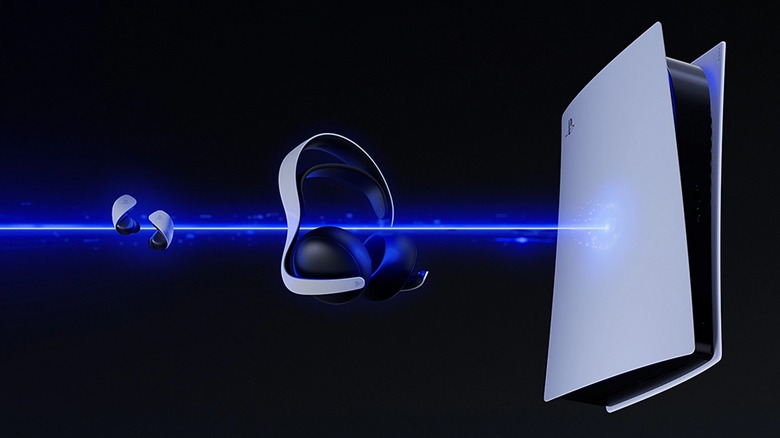
The Pulse Elite headset is connected to your PlayStation 5 console via the PlayStation Link USB adapter. You plug the Link into your console's USB ports, and the headset can sync up with it. While the Link is plugged into your PS5 and the Pulse Elite is connected to it, updates for both devices become available when the PS5 system software is updated, with on-screen instructions appearing when an accessory update is ready to install. If you enable automatic updates on your PS5, your console will install new system software automatically while it's in Rest Mode.
If you're worried you missed an update, you can manually check for them by going to your PS5 settings, followed by the System menu, then System Software and System Software Update and Settings. Your PS5 will quickly check if there are updates available, and if there are, you can click Update System Software to install them. Remember, your Link and Pulse Elite must be connected to get updated as well. If you think there's a specific headset update available, even if there are no system updates, you can instead go to the Accessories menu in Settings, then click Headset and PS Link Device Software Update. This will specifically check for updates to connected Links and accessories like the Pulse Elite.
If, for whatever reason, you don't want to connect your Link and Pulse Elite to your console, you can connect them to your PC instead by downloading the Link PC Driver. After installing it, loading its interface, and connecting your Link and headset, you can open the Firmware settings from the quick menu to check for updates. You need to keep your headset connected to the PC with a USB cable while the firmware is updating.