

3 Sideloaded Apps Worth Installing On Android Auto
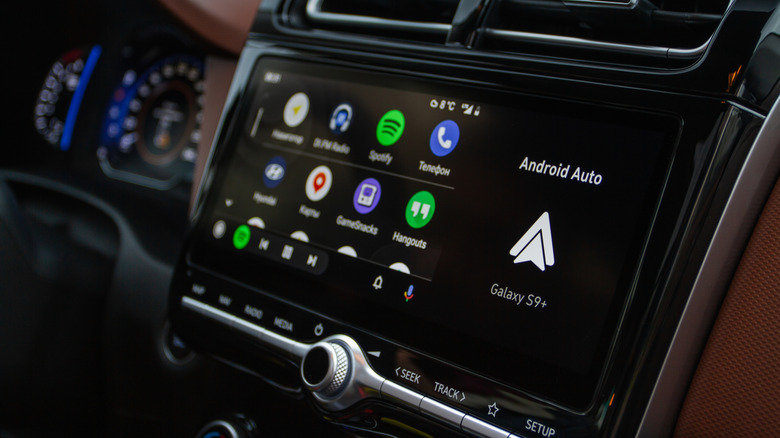
One of the most effective upgrades you can make to your car that doesn't cost a dime is setting up Android Auto. Of course, this is assuming your vehicle supports the feature and you have a smartphone running Android 9.0 or later. With Android Auto, you can load up Google Maps (or Waze), control music playback more easily, and use hands-free controls to handle incoming calls and messages. Some people will stick to a navigation service and a music app, but there are other Android Auto apps you can install from the Google Play Store that add even more functionality to your car's infotainment screen.
In usual Android fashion, though, you can go a step further by sideloading certain apps that aren't officially available through the Play Store. To get started, you'll need to enable Android Auto's developer settings. Go to Apps > See all apps and locate Android Auto in the list of installed apps. Scroll down and tap Additional settings in the app. Scroll down to the bottom once again and tap Version and permission info 10 times. Next, tap on the three-dot icon at the top-right corner of the screen, select Developer Settings, and turn on the Unknown sources toggle. Note that the exact menu names may differ depending on your Android phone's model.
Getting started with Android Auto Apps Downloader
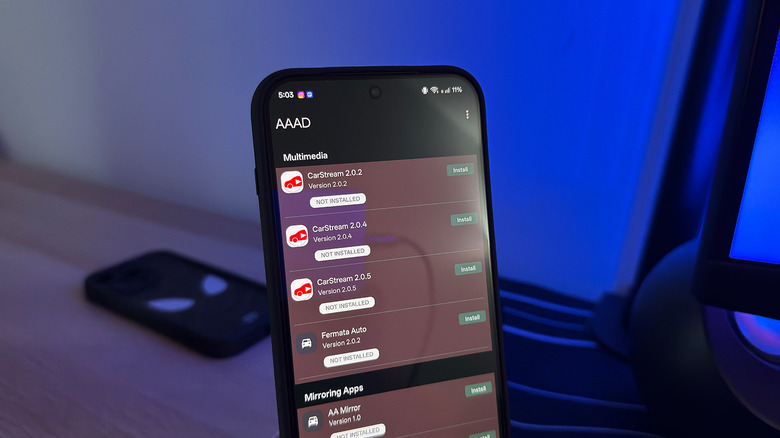
After you've configured Android Auto to trust installations from unknown sources, you'll be able to sideload third-party apps to use with Android Auto. If you've ever installed an APK on your phone before, the process should feel pretty similar. Before you can start sideloading apps to use on your car's infotainment screen, you'll need to install Android Auto Apps Downloader, or AAAD for short.
AAAD handles the discovery and installation of third-party Android Auto apps, and you install it directly on your Android device. Download the latest AAAD APK file from the project's GitHub repository and tap to open the installer. If you haven't already, you will be prompted to allow installations from unknown sources. Tap Allow from this source and follow the on-screen instructions.
You should now be able to find the AAAD app installed on your phone. Launch it, and you'll be asked to grant the app a few permissions. Once done, it'll boot into a list of available third-party apps that you can download and install to use with Android Auto. If you find an app you like, tap on the green "Install" button next to its name, and when prompted, tap on "Allow from this source" again. AAAD will download and install the version of the app you've selected. Unfortunately, the free version restricts you to one app download every 30 days, but you can bypass this by paying a one-time fee of €3.99, or about $4.65.
CarStream
Android Auto has been around since 2015, but Google has only recently said it will bring YouTube support to the platform. However, we still don't have a release date. Watching videos while driving is obviously a terrible idea, but the feature sure would come in handy when you're parked and waiting around in your car — perhaps while charging it or waiting to pick up a friend. In fact, Apple already offers a framework for developers who wish to bring video streaming apps to the CarPlay experience for use while parked.
Currently, if you want to watch YouTube videos on Android Auto, you can install the CarStream app. The next time you connect your phone to your car, you'll find CarStream among your list of installed apps. Launching the app simply takes you to YouTube, where you can search for videos and play them as usual. You can pause videos, create a watch list, and use your car's volume controls to adjust the audio. CarStream is compatible with OS versions going as far back as Android 9. Unfortunately, it's not supported on Android 15 or later versions due to changes Google made to how Android Auto handles third-party apps.
Screen2Auto and AABrowser
Screen2Auto is another app you'll find on AAAD. It's pretty much like CarStream but on steroids. Instead of only being able to stream YouTube videos, you can mirror your Android phone's screen in its entirety. That allows you to basically use just about any app you want on Android Auto. The app is intelligent enough to switch to landscape orientation when you launch it, which makes using apps on your car's display more natural. You can also watch YouTube videos this way, which makes it a solid alternative if you can't get CarStream to work on Android Auto.
AABrowser is a popular third-party Android Auto app as well, although its current version requires Android 15 or later. It adds an entire web browser to your car's infotainment screen, allowing you to visit websites or browse the web without having to reach for your phone. To make things easier, you can use the AABrowser app on your phone to enter a URL and continue browsing on Android Auto. Touchscreen controls work as you'd expect, and there's even a keyboard that shows up in case you need to type something directly from your car's display. It goes without saying that you shouldn't be using either of these apps while you're driving. They're useful additions to the Android Auto experience for when you're safely parked.