

5 Of The Biggest Mistakes People Make When Using Android Auto
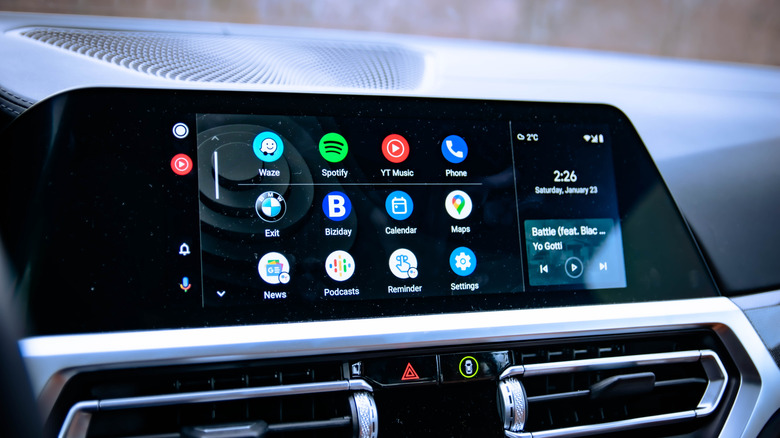
The purpose of the Android Auto framework is to make it easier to connect your Android smartphone to your car and utilize its features through your onboard infotainment system. Compared to manually messing with your phone and car's settings, it's definitely a more streamlined approach, though as with any system meant to facilitate conversation between two devices, things can sometimes get a little lost in translation.
While the whole point of Android Auto is to handle all the minutiae of connecting your phone to your car for you, if you just leave the whole thing to manage itself, you could end up making a handful of different mistakes that would diminish the overall usefulness of the system. Not everyone is comfortable with these kinds of newer systems, and it's normal to experience hiccups, but so long as you avoid these mistakes, your Android Auto experience should be substantially better, as well as more convenient for your particular needs.
Only connecting wirelessly
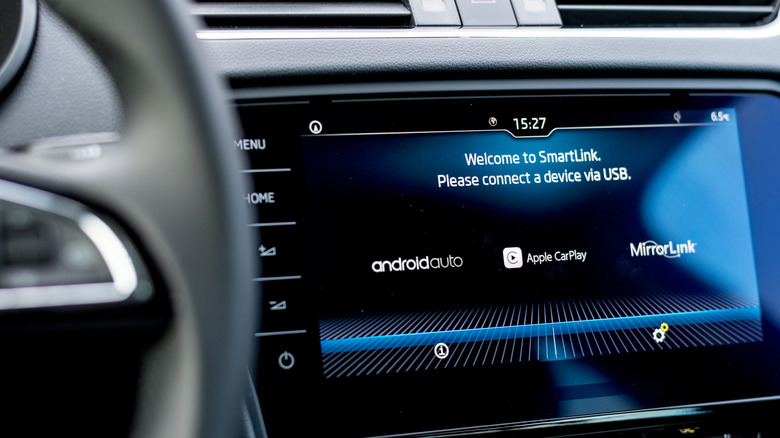
Depending on your vehicle, Android Auto allows you to connect your smartphone to your car in one of two ways: either with a regular USB cable, or via a local wireless signal. Modern convention would dictate the latter to be the optimal option; everything's better when it's wireless, after all, and it does mean you don't need to take your phone out of your pocket. However, in contrast to that sentiment, Android Auto is actually a little better off with a wired connection.
Connecting wirelessly puts more of a strain on your phone's resources, as it requires a constant battery-draining wireless connection to transfer data, and the connection may not always remain stable. On the other hand, plugging your phone in has the dual benefits of charging its battery and facilitating a steady connection, which can help reduce lag or dropouts. If you're just taking a quick jaunt around the corner, wireless is okay, but if you're driving around a lot and using your navigation apps, take the pressure off your phone and plug it in. Just remember to use a good USB cable from a reputable brand, as a bad cable can be even less reliable than wireless..
Unlocking your phone every time you want to use Android Auto
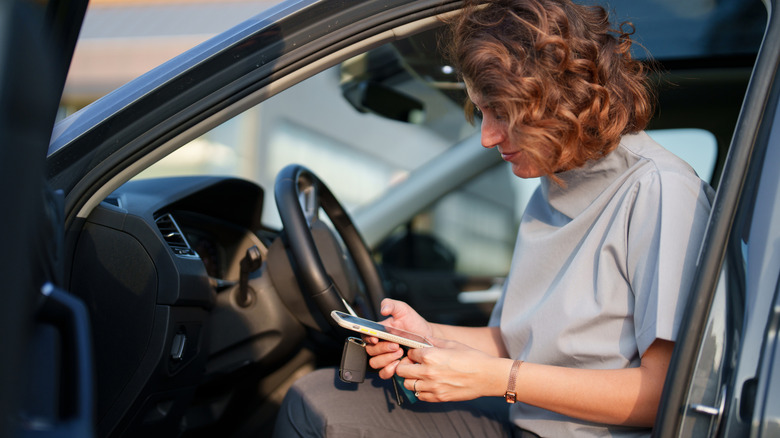
Another bit of conventional wisdom around smartphones is that, whenever you want to use them, you have to unlock them. This makes sense from a security perspective, but if you're using Android Auto in your personal car, you don't really need to worry as much about someone touching your phone and using your apps without your permission. It's not like a stranger is going to swipe your phone while you're in the middle of a drive, after all.
Given that, it's not really efficient to have to unlock your phone every time you want to start up Android Auto and use your apps on the infotainment screen. Instead, go to your Android Auto settings, and under the Startup section, toggle on Start Android Auto while locked. When this option is on, you just have to connect your phone to your car without unlocking it first, and Android Auto can start while your phone stays locked, giving you access to your apps, maps, and music. The only time you might want to turn this option off is when you're sharing your car with someone like a friend or family member, and only if you're really worried about them touching your phone while you're driving.
Not downloading offline maps
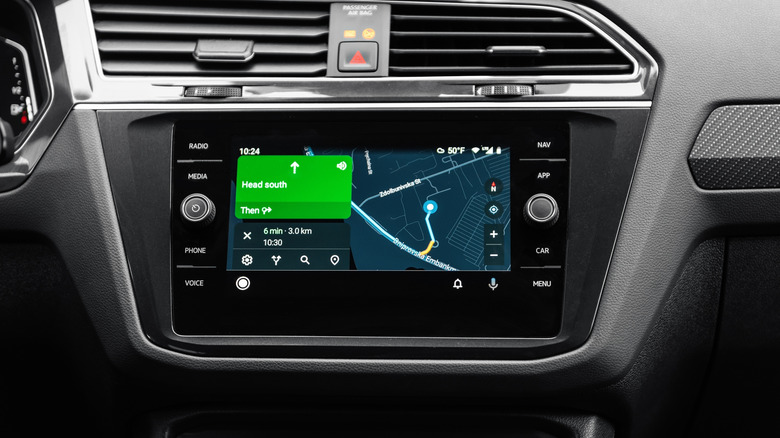
One of the most useful applications of Android Auto is providing quick access to your preferred navigation app like Google Maps, displaying your current heading on your infotainment screen, and providing directions through your car's speakers. However, this useful feature has a single, potentially fatal flaw: it needs an active network connection for live map data. As long as you're getting active map data, it's constantly using your phone's mobile data, and in the event you venture beyond a viable mobile data signal, you'll pretty quickly find yourself dead in the water.
Luckily, this fatal flaw has a fairly simple remedy: offline maps. Google Maps lets you download offline maps of specified areas. In the event your signal drops out, your navigation will automatically flip over to the offline map and continue providing directions, with the main noticeable changes being a lack of live traffic updates and alternative routes. The only catch is that you need to manually select a region and download the map ahead of time. If you're taking a vacation somewhere, for instance, you should scope out your route and destination ahead of time and download an offline map so you're prepared.
Not tailoring notifications
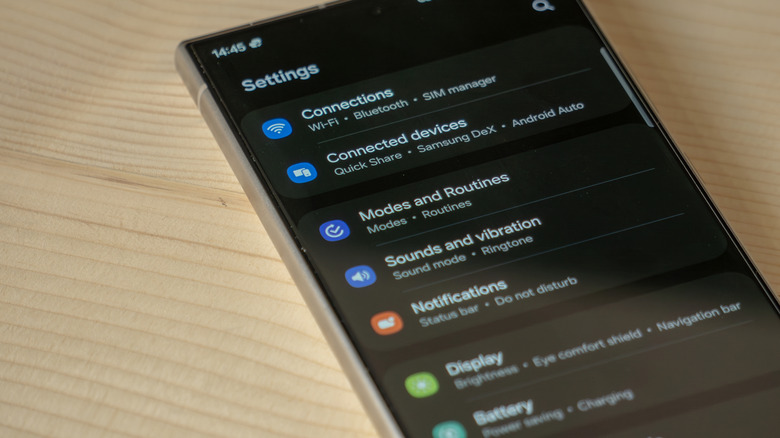
In addition to giving you access to your maps and music, Android Auto also manages notifications coming in from your connected smartphone. Looking at your phone when you get a buzz is one of the most unsafe things you can do while you're driving, so having that managed for you is a big help. That said, if you're getting frequent notifications constantly pinging through your speakers and cluttering your infotainment display, it can be just as much of a hazardous distraction as looking at your phone screen.
If you want to keep things focused while you're driving with Android Auto, the best course of action is to use your Android Auto settings to tailor the extent to which notifications occur and how much they show. If you check the Messaging section of your Android Auto settings, you'll find four sequential toggles: whether you want message notifications at all, whether you want notifications from group chats, whether you want Android Auto to display the first line of messages, and whether to play the notification chime. Use these toggles to determine how insistent your notifications are.
Leaving automatic media resume off
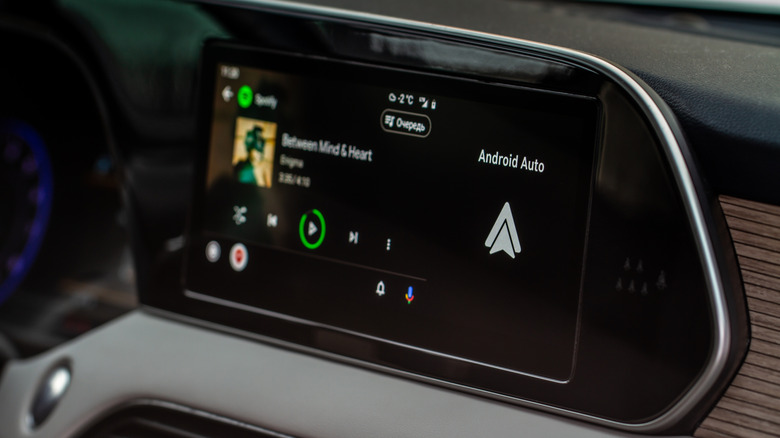
Here's an annoying scenario: you're driving around town, running errands, and every time you get back in your car after a stop, you have to manually unlock your phone and start up the music or podcast you were listening to. Even if your Android Auto is set up to work without your phone having to be unlocked, it's still frustrating to have to do a bunch of clicking before you can get back on the road, especially if you're in a rush. The fewer clicks, the better, which is why you should ensure that automatic media resume is enabled in your Android Auto settings.
Under the Startup section of your Android Auto settings on your smartphone, right under the Start Android Auto while locked toggle, you'll find another toggle marked Start music automatically. When this toggle is enabled, as soon as your phone is connected to Android Auto, such as when you start your car, it'll automatically resume playback on whatever you were listening to before you stopped. It's a small feature, but it's nice when you can just connect your phone and get right back on the road instead of having to manually open an app and press play.