

7 Ways Microsoft Is Finally Fixing Windows 11 In 2026
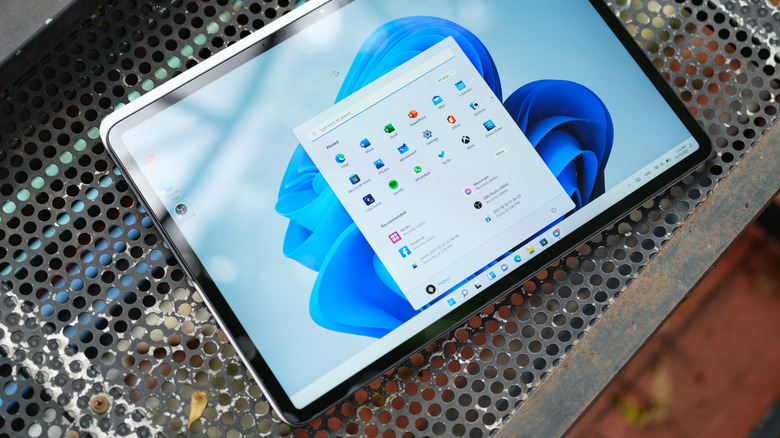
The year 2025 wasn't the best for Microsoft. Between performance issues and stuffing Copilot in all corners, Windows users weren't pleased. They wanted real feature upgrades and fixes instead of more AI. Microsoft spent 2025 adding popups and ads, instead of addressing the core issues.
After the online outcry and what became the "microslop" meme, Microsoft finally pivoted. In the beginning of the year, it made a public commitment to fixing Windows, down to the core issues. Windows did not need yet another AI button that did nothing. Windows 11 users have been complaining about the bloated nature of the OS, sluggishness, and reliability issues for years now.
And now, slowly but surely, Microsoft is starting to resolve these issues. Increasing the bootup speeds, making the menus faster, removing Copilot buttons, and even giving users options to remove web results for Windows Search, and ads from the Start menu (imagine that!). Here are just a few ways that the Windows 11 experience has improved this year.
1. Pause updates forever
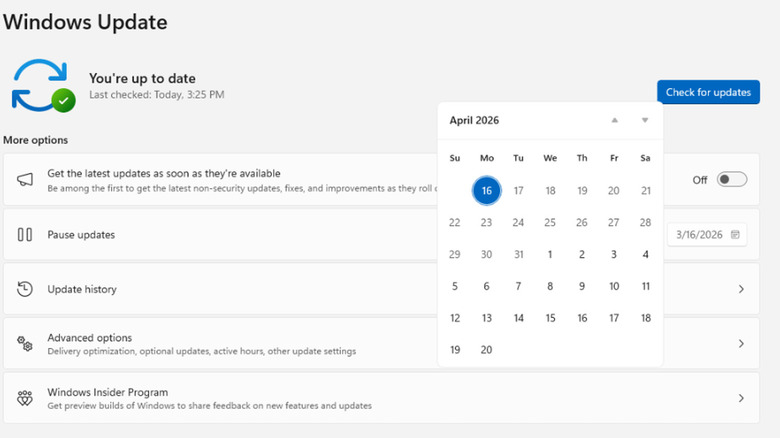
Windows updates were an inevitability. Sure, you could pause an update for a week or two, but once the time was up, your computer would reboot itself, and install the updates, sometimes at the most inconvenient times. With the latest 2026 updates, this is no longer an issue.
Microsoft now lets you pause updates for as long as you want, just in 35-day increments. And this pause is real. As long as you remember to renew the timeframe, Microsoft won't suddenly force an update on your machine.
This is useful in two ways. If you're traveling, or if you have an important work project going on, you can choose the specific date when updates can resume. And if you're a bit of a Windows skeptic, and you want to wait a couple of weeks before installing updates (just to make sure it doesn't screw up your Windows PC), you can now keep delaying updates for more than a month.
You can access the new pause feature from Settings > Windows Update > Pause updates. Here you will now see a date picker with up to 35 days of grace period. Select a date, and that's it.
2. Move and resize the taskbar
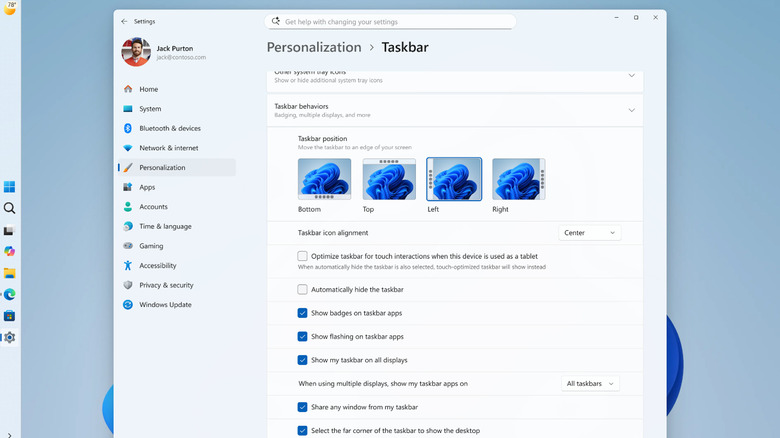
Windows 10 featured a free-flowing taskbar. You could dock it to the top, or the sides. Windows 11, though, didn't. You could use workarounds and registry hacks to move the taskbar to the top, but it never gave you a native feel. Years later, Microsoft is finally fixing this oversight.
You can now put the taskbar on the left, right, or top of the screen if you like. And Microsoft has done the work to automatically adapt the taskbar design accordingly (the Start menu will drop when the taskbar is docked to the top of the screen). And, you will get a couple of customization options as well. For example, if you're using a left-aligned dock, you can align the taskbar icons to the top or keep them in the center.
Even in left-aligned view, there's an option to always show both the icons and the window labels so you don't feel lost. To customize all the taskbar features, go to Settings > Personalization > Taskbar > Taskbar behaviors.
3. Windows Search is faster and cleaner
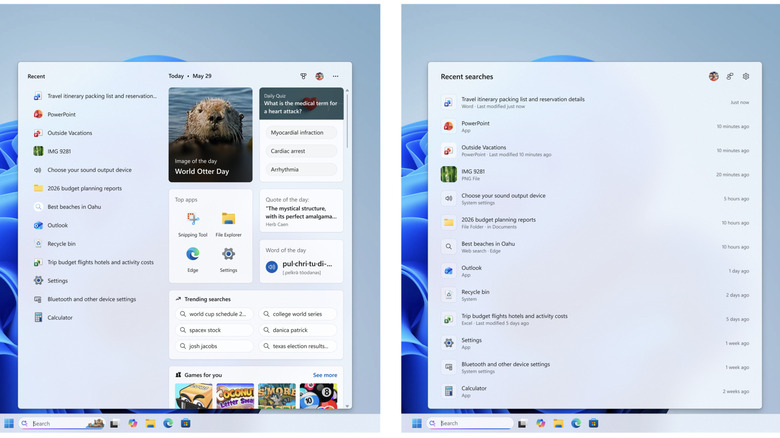
Over the past couple of years, Windows Search stopped being about local search, and started to focus on everything else, including recommended posts, ads, and Bing search. Instead of showing a file or an app, it was more likely to show a web result. Microsoft is now setting things straight. The difference is stark in the image above, which compares the cluttered Windows Search before (left) and the new minimal and fast Windows Search in the latest updates (right).
The Windows Search screen has been redesigned to give it a calmer look, focused on the actual search results. Local apps and files are prioritized, and now show up quickly even after typing just a couple of letters. Search results are also clearly labeled so you know where they're coming from: the local storage, Microsoft Store, settings, or web results.
And the biggest update yet: You can actually turn off web results and the Microsoft Store results completely by going to Settings > Privacy & Security > Search. And even if you do keep web results enabled (it can still be useful), Windows Search shows the results directly, instead of showing promoted content at the top.
4. A customizable start menu
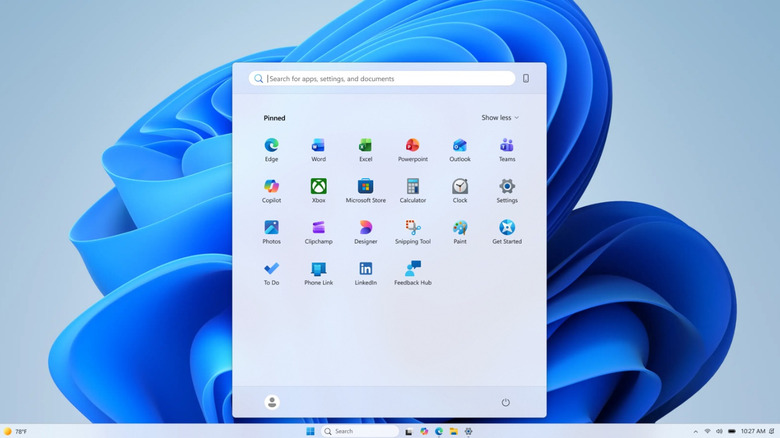
With the new Start menu update, Windows fixed one of its biggest problems. Instead of viewing recommended apps and shortcuts front and center, your own apps get the limelight. You now have access to section-level customization.
For example, you can completely disable the Recommended section in the Start menu. And if you like, you can make the Start menu smaller or bigger. There's also an option to go super minimal and disable every element other than your own selection of pinned apps. You can disable the Recent panel that shows recently added apps (along with tips and suggestions), and you can disable the All section that shows a list of all installed apps.
Your best setup might be somewhere in the middle. You could turn off suggestions, but keep the section for recently added apps. You could disable recent apps altogether, but keep the panel to manage your smartphone. The point is, all of that is now possible by going to Settings > Personalization > Start.
5. Reduced Copilot buttons
Microsoft's Copilot push across Windows 11 was getting a bit much. After listening to feedback, Microsoft is starting to remove Copilot buttons from apps where it doesn't make sense. It's still in the taskbar by default (though you can always remove that by going to Settings > Personalization > Taskbar > Copilot). Perhaps the crest of the AI-integration tide has reached its zenith. Or at least is trending toward subtlety.
Copilot buttons are disappearing from Notepad and Snipping Tool. Nature is healing. Instead of the Copilot button, the Notepad now features a Writing Tools menu with AI options instead. And these can be disabled as well from Settings > Writing Tools. If you use the Photos app for quickly viewing and editing photos, you'll be glad to know that Microsoft is removing the Copilot button from the Photos app as well. The Copilot button is also disappearing from the Widgets section.
6. Faster, less ad-filled setup experience
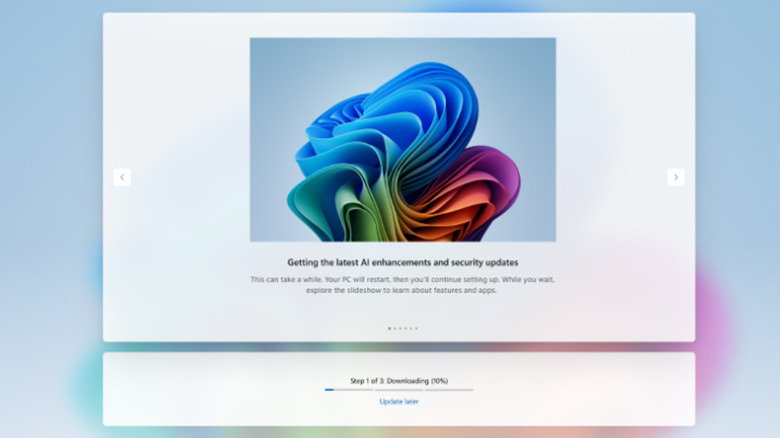
Setting up a Windows PC (or reinstalling Windows on an old PC) can sometimes feel like an ordeal itself, lasting close to an hour. There are dozens of buttons to click, menus to skip, Microsoft services to either install or ignore. If there are any updates pending (and there most certainly are), you can't get in without completing the update process.
Microsoft realized that its setup process has become a bit bloated, and has already sought to implement some changes to streamline it. Some quality of life features include the ability to skip updates altogether, choosing to install them after the setup is complete. The setup flow itself is faster, with fewer clicks, ads, and Microsoft account prompts. The entire system seems to be more streamlined than before, which is wonderful for users. If there's anything people need less of in their lives, its complexity.
7. Point-in-time restore as a failsafe
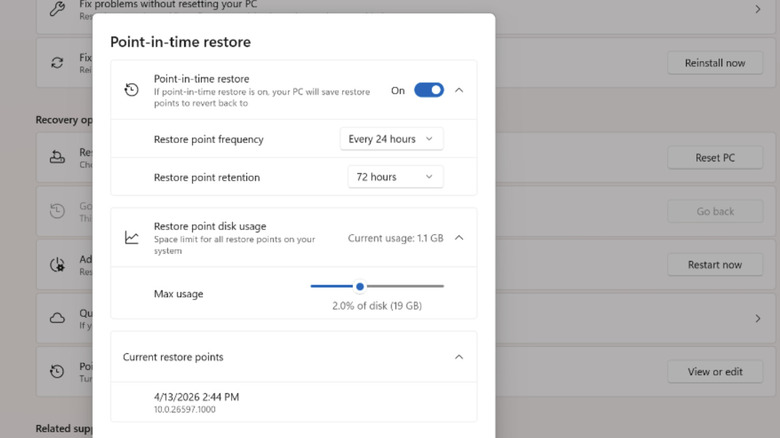
Point-in-time restore is one of the new features from Windows that you don't wish you'll need to use, but you'll be glad that it exists if the time comes. A Windows PC is frequently updated with new drivers, software, and OS updates. If one of those malfunctions, you might be locked out of your PC. Usually recovering a PC back to a usable state along with the saved data can take hours.
Using this new point-in-time restore feature, Microsoft aims to get you there in minutes. Once it's enabled from Settings > System > Recovery > Point-in-time restore. The feature creates a comprehensive backup of your computer and saves it at regular intervals. This isn't limited to just your settings, but includes the entire Windows OS, apps, system files, app files, and more. If something goes wrong, you can access this feature from the Windows Recovery Environment and roll back your PC to how it was before things went south.