

5 Wireless Android Auto Issues That Don't Exist With USB
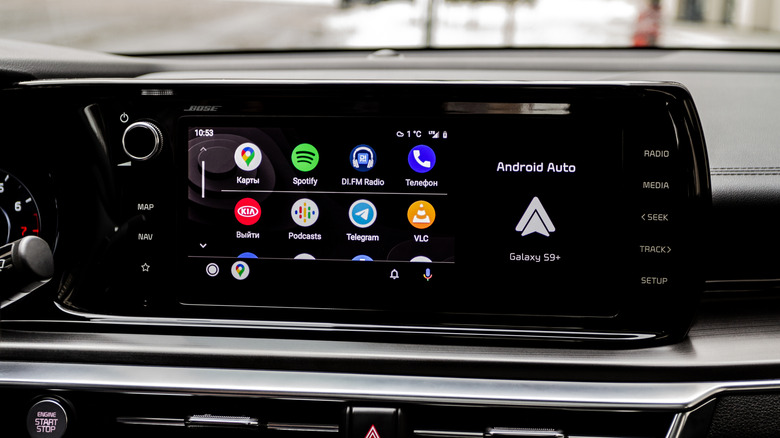
When it comes to driving convenience, Android Auto and Apple CarPlay make it easier for you to focus on the road while still enjoying your favorite tracks and navigating to your destination. What makes it better is that both Android Auto and Apple CarPlay work wirelessly with your vehicle's head unit. As soon as you get into your car, you should be able to use the interface seamlessly without connecting any cables or playing around with manual settings. While this is true to a certain extent, using wireless Android Auto can sometimes be a pain. Frequent and random disconnections, audio drop-offs, rapid battery drain, and whatnot are all quirks faced by wireless Android Auto users regardless of the phone or car they're using.
While these issues may not be too annoying when they happen occasionally, they can ruin the experience and can even potentially be dangerous if they recur frequently. Owing to this, you may want to consider plugging your phone into your car to use Android Auto via the wired method. This way, you don't have to be reliant on a wireless signal to transmit your data. Using a USB cord ensures your connection stays stable and you have a smooth experience when driving. Here are some of the most prominent issues that users complain about when using Android Auto, and why you may want to consider switching to a good old-fashioned USB cable.
Frequent disconnections
Imagine you're running late, you're coming up at a complicated junction on a freeway trying to figure out an exit, you're following the maps connected to your car's infotainment console, and boom — wireless Android Auto suddenly decides to give up. You're now stuck trying to fix your maps and simultaneously figure your way out of the highway. Does this ring a bell? There is a good chance this is happening due to your wireless Android Auto link. These frequent disconnections are one of the most frustrating issues with wireless Android Auto, and Google doesn't seem to have figured out a fix yet. There is almost nothing quite as panic-inducing as driving in a completely unfamiliar place, relying entirely on Google Maps for directions, and having your car's screen suddenly go totally blank.
While you are connected via wireless Android Auto, your phone is constantly talking to your car through a delicate link. Due to reasons best known to Google (or God), this link often breaks, especially during long drives. We've faced no such issue with wireless CarPlay, which makes us believe it's on Google to fix the issue with Android Auto. Nonetheless, using a USB cord locks the connection with your car since you're not relying on a potentially unstable wireless connection. Your phone knows exactly what is happening and prioritizes the physical cord over everything else. The connection stays rock solid from the moment you plug it in until the moment you park in your driveway.
Audio stutters
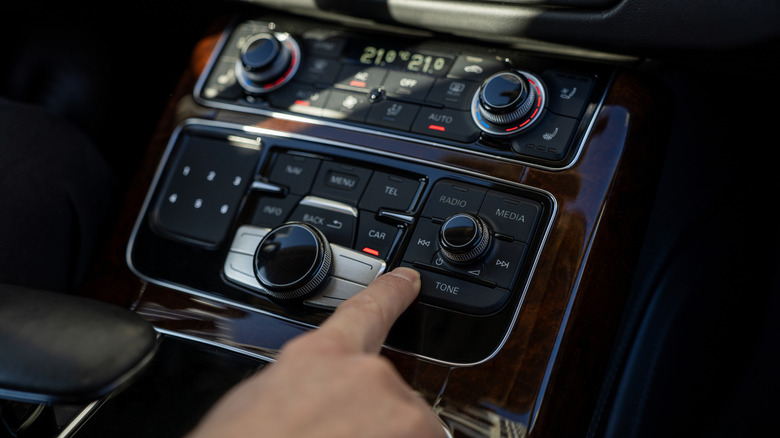
Do you also absolutely hate it if you're on a long drive, listening to a song you enjoy, and the music suddenly gets interrupted? Sometimes it sounds like you are playing a scratched record, or maybe there is a really annoying lag between the moment you press the next track button and when the new song actually starts playing. Oh, did we already mention that sometimes the album displayed on the screen doesn't even match what you are actually hearing? If you face these issues like we have with our own personal experiences, chances are that you need to blame your wireless Android Auto.
While these audio lags could happen due to too much load on your phone, your wireless Android Auto connection can definitely contribute as it uses Bluetooth to connect your car's infotainment system to your smartphone. Transmitting data via Bluetooth involves some latency, which could be causing these issues. Let's say you are using Android Auto for navigation and streaming music on Spotify at the same time. If your phone starts to feel the heat (quite literally), the audio playback may suffer. Now, connecting your phone via a USB cable completely takes latency out of the equation, since all that data is now being transferred via that cable. Here, too, make sure you use a high-quality cable for Android Auto, since using the wrong USB cable can ruin your Android Auto experience.
External RF interference
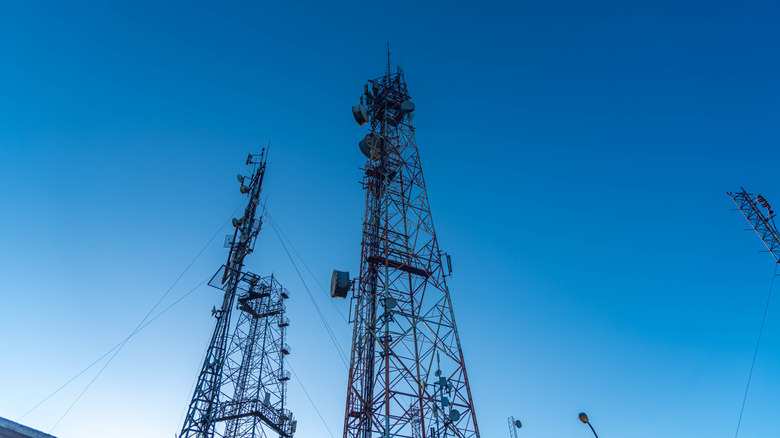
As weird as it may sound, you may have noticed that your wireless Android Auto's connection drops at the exact same spot on your daily commute. It could be possible that your screen freezes while you drive through the electronic toll booth on the highway. Or, it could also happen that your music completely stops every time you drive past a really busy street. At first glance, this might feel like an issue with your Android Auto head unit or smartphone. However, the real reason behind this often external; it's likely the invisible "noise" from the outside world interfering with Android Auto's wireless connection.
When you drive through a toll booth, giant overhead scanners are shooting invisible signals to read the toll tags on everyone's windshields. Likewise, airport radars are blasting out massive radio waves to track airplanes. Even sitting in a traffic jam next to a bunch of other cars using their own mobile hotspots creates a chaotic mess of invisible noise. When your phone's little wireless signal bumps into these louder, stronger signals, it may get confused and cause a disturbance. The connection drops, and you just have to wait in silence until you drive a few yards away to get it back. A physical USB cord completely solves this issue because there's no interference when there's no wireless connection to begin with. Your maps and music are being transmitted via a secure method, completely safe from the chaotic noise of the outside world. That way, you can enjoy unbroken music or a phone conversation with your partner on the drive to work.
Thermal throttling
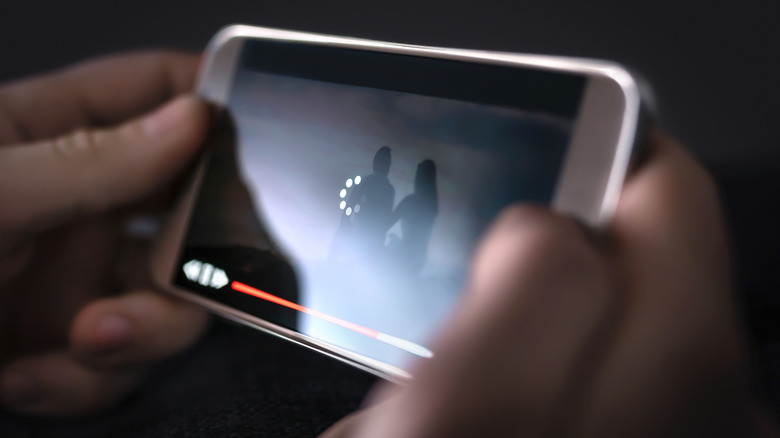
Have you observed that your phone feels like it just came out of an oven after a long drive? Whether it's the harsh sun or heavy tasks running on the handset, both can be causes for an increase in your phone's temperature. When you use wireless Android Auto, you are technically asking your phone to display your map route, track where you are using GPS, play your music album, answer phone calls, respond to messages, and whatnot — your car's head unit isn't doing any of this work. Doing these heavy tasks and chores simultaneously while maintaining a wireless connection with your car via Wi-Fi and Bluetooth definitely strains the internals of your phone.
Moreover, placing your phone on a wireless charging pad in your car on a sunny day can make your phone hotter. Wireless charging has its own set of cons, the primary one being its inefficiency. If your phone's temperature increases, it tries to bring it down in the quickest possible way. That is when your phone starts to throttle its performance to cool off. For you, this means the maps displayed on your dashboard may get laggy or your phone's screen may get dim and not register your touch on some occasions. If you just use a plain USB cable, you won't have to deal with these issues. The USB cord is helpful as your phone no longer needs to work at the behest of wireless signals anymore, thereby reducing the pressure on it. Plus, charging your phone via a cable is more efficient than using a wireless charging pad, so it remains cooler even during long drives.
Massive battery drain
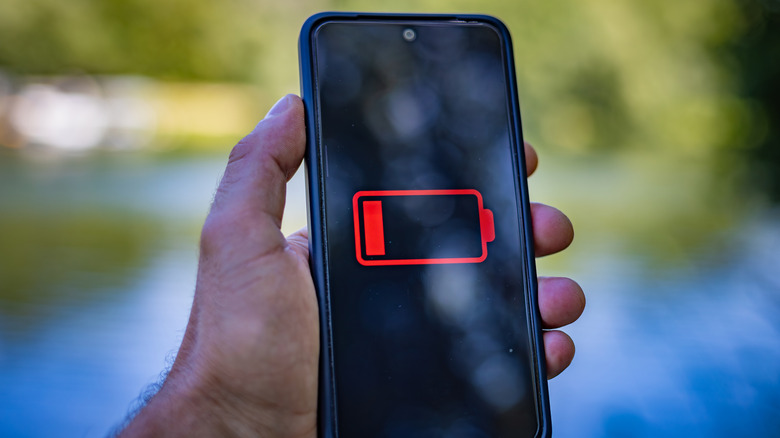
The idea of getting into your car and leaving your phone in your pocket or handbag without having to manually connect it to your vehicle's infotainment system via an external cable sounds convenient. But that convenience comes at a cost. Have you noticed that your phone's battery drains faster when you use Android Auto wirelessly? Enjoying music in your car without pulling your phone out is certainly cool, but the charm quickly wears off when you arrive at your office, take your phone out of your pocket, and realize its battery is much lower than it should be. Keeping a constant wireless connection while simultaneously using maps for navigation and streaming music is quite taxing on the phone's battery.
Even during a normal thirty-minute commute, you are at risk of losing 5 to 10 percent of your battery with wireless Android Auto. If you try to fix this by using the wireless charging pad in your car, you are potentially in for another huge disappointment: Most car wireless chargers are slow. Because wireless Android Auto burns through power so quickly, your phone is actually draining energy faster than the wireless charger can replenish it. You can leave your phone on the charging pad for a whole hour, and the battery percentage will still go down while the phone gets uncomfortably hot. The second you plug your phone into a USB port, this battery anxiety disappears. So next time around, consider simply plugging your phone in. That way, you can enjoy your music and maps the entire trip and step out of your car with a well-charged phone.