

10 Ways To Steer Clear Of AI With Your New Mobile Phone

The AI boom is the biggest development in the tech landscape right now, with companies spending eye-watering sums of money setting up data centers and acquiring all the expensive parts they need to make their models as accurate as possible. It's a shift that has worried many people — gamers lament the high cost of hardware resulting from the emergence of artificial intelligence, the shift to chatbots has made customer service more of a pain to get through in some instances, and the ever-present threat of jobs being taken over by AI worries pretty much everyone.
So, with all these caveats making it harder for users to adopt AI freely, it's easy to see why some people would want to go the extra mile and avoid this burgeoning tech altogether on their devices. This is easier said than done. Computers, mobiles, and even smart TVs come with pre-integrated AI tech in a bid to try and stay ahead of the curve. This can be a pain, especially on a smartphone that's on you 24x7. If you don't want to use any of the AI features on your phone, then this list is for you.
Turn off any AI assistant functionality
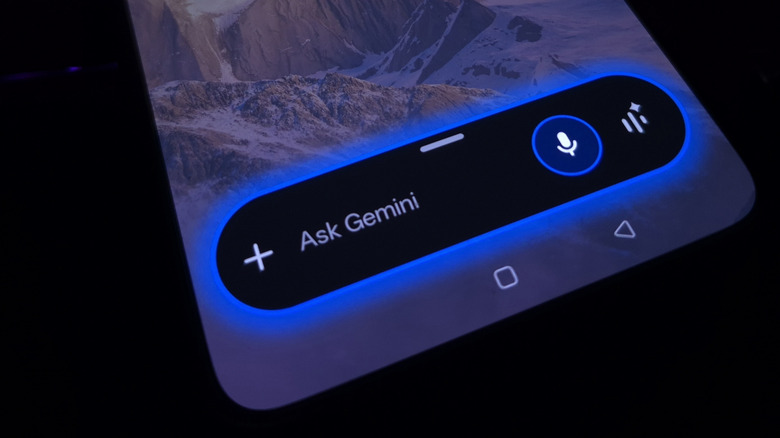
With Google's intentions to phase out Google Assistant in favor of Gemini being laid bare to the public, anyone reliant on voice commands will have to decide if they're willing to tolerate interacting with artificial intelligence on a daily basis. If your answer is "not even a little," then it's time to dive into your phone's settings and bring your favorite Google Assistant back.
On most Android phones, these steps are simple. Go to the "Apps" section in your device's settings, find the "Assistant" option, and tap it to choose the digital assistant of your choice — which, in this case, will be Google Assistant. However, if you're using a phone from manufacturers like Samsung or Xiaomi, you may not find these options. In this case, you'll need to open the Google app itself to change your preferred assistant. Tap on your profile icon and access the settings, where you should find the "Google Assistant" option. From here, you'll be able to switch out your preferred assistant to a non-AI variant.
On iPhones, Siri uses Apple Intelligence to integrate AI tech into Siri. Disabling this is rather simple — just open your phone's settings, head over to the "Apple Intelligence & Siri" option, and disable Apple Intelligence. Alternatively, if you just want to disable any AI optimizations for Siri, check out all the options under the "Siri Requests" page to turn off or reduce its reliance on AI.
Mitigate any AI camera enhancements
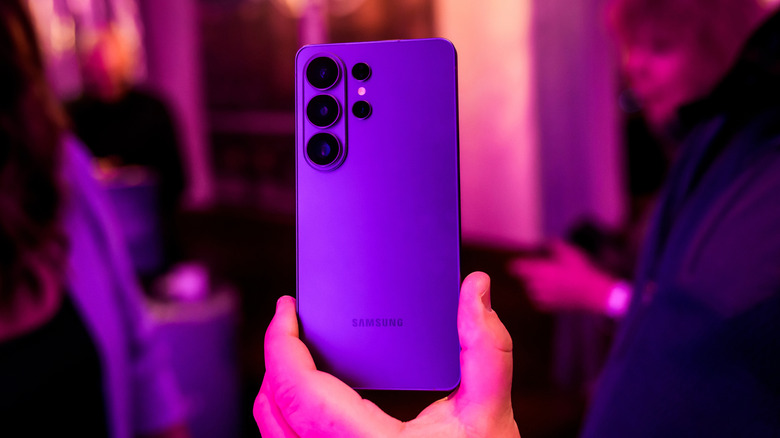
Most flagship smartphones come equipped with state-of-the-art cameras, while also using digital enhancements to breathe new life into your captures. This isn't unheard of — there's a reason why DSLR stands for digital single-lens reflex — but some phones go overboard in this department. The AI-based post-processing used by these phones can be a bit too much for some, and not all phones have options to disable them.
Honor smartphones provide a convenient option: From the Camera app's preview, tap on the AI button at the top to toggle any image enhancements powered by artificial intelligence. Meanwhile, Samsung has an "Intelligent optimization" in the settings of its camera app. We highly suggest you minimize this feature to prevent any AI shenanigans from making your photos look overly artificial.
For most other smartphone models, you need to be creative and limit the amount of time that it spends bombarding your shot with a bunch of post-processing effects. Making your camera click pictures faster from its settings, like with the "Prioritize Faster Shooting" option in iPhones, doesn't give the AI enough time, if any, to alter your photos. Along with this, you can also switch your photo format from JPEG to RAW. It may seem like an inconvenient change at first, but this removes any AI camera post-processing (along with regular post-processing).
Don't use the AI features of your Photos app
Simply altering the way your phone handles any photos shot from the Camera app isn't the only way to avoid AI in your pictures. Most picture apps now come packaged with AI features that are supposed to be cool and convenient, but end up being a bit too invasive for the many users who don't want AI on their phone.
Take Google Photos. This app integrates with Gemini to add artificial intelligence features, including Ask Photos to find pictures "in a natural way," memory recaps powered by AI, and even suggestions for what titles to give to your photo albums. You can turn off these options individually by tapping on your profile picture on the top-right of Google Photos, heading to "Photos settings," navigating to "Preferences," and selecting "Gemini features in Photos." And if you don't want AI to be a part of your Photos app whatsoever, just turn off the "Use Gemini in Photos" option in the same menu.
Unfortunately, Apple doesn't have a dedicated option to disable Apple Intelligence from affecting your Photos. To prevent any possibility of your images being compromised by AI, you have to disable Apple Intelligence altogether in settings. Keep in mind that the Clean Up feature won't disappear if you've already used it, since Apple downloads the data for this tool on your phone and doesn't delete it even after Apple Intelligence is turned off.
Switch off Pixel's AI-enabled call assist tech

While many people commend Google's Pixel phones for their smart software integration, a lot of their current inclusions are heavily reliant on AI. Magic Cue's predictive information is useful, but a bit intrusive. The device's camera is loaded with AI features, including Add Me, Best Take, Camera Coach, and Video Boost. Circle to Search uses this AI tech to carry out quick searches, translate anything on your screen instantly, and even identify music. Even phone calls have been injected with a heavy dose of AI, providing call assist features that may be helpful but may not be up everyone's alley... especially anyone who doesn't want to be a part of the growing AI trend.
Open your Phone app and press the hamburger menu on the top left. From here, access the settings. The first subsection you'll see is for "Call Assist." This is where you can select all the features you don't want (Hold for Me, Direct a Call, Call Screen, and Take a Message) disable them. Depending on your region, you may only see a few of these options or none of them, since the features are not available everywhere.
Don't rely on AI-powered search
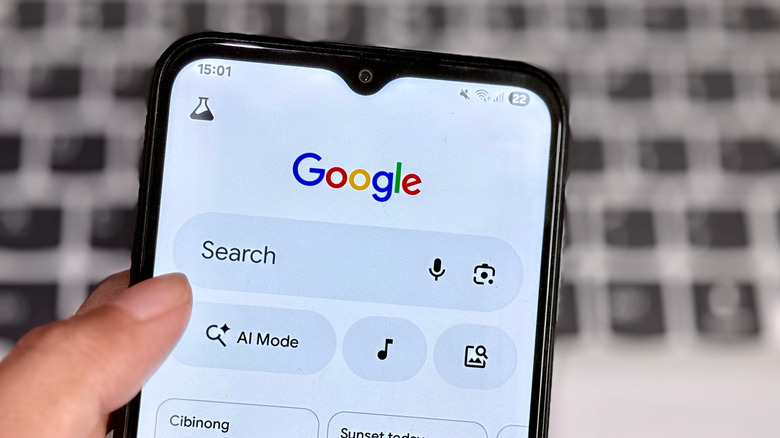
At this point, everyone is aware of how artificial intelligence has wormed its way into a basic search function. Open your browser to search for a query, and Google provides an AI overview before you can even see any links. This can be a bit irritating to deal with, and what makes things worse is that disabling these overviews on desktop is far, far easier than doing the same on mobile.
Still, for people who don't want to interact with search AI on mobile, the steps are worth following. First of all, you need to visit tenbluelinks.org from Chrome — you can achieve the same result on some other mobile browsers by creating a custom search engine. Open a new tab and carry out a search on Google, then tap the hamburger menu on your screen and select "Search engine." You'll see a bunch of search engines at the top and a Recently Visited section that shows the tenbluelinks.org link as "Google Web." Make this your default search engine, and you can initiate a Google Search via the URL section of Chrome without having to worry about seeing any AI overviews. Just keep in mind that searching directly from the Google app or via its site in the browser will still force you to deal with AI.
And while you're at it, you can turn off Circle to Search as well from the navigation section in settings. The exact method varies based on the Android phone you have, but a quick search will reveal how.
Disable any smart AI features on your mail apps
Gmail is the most popular digital mail service used by individuals and corporations across the globe. It boasts around 1.8 billion users, almost double that of its closest competitor, iCloud Mail. It's also owned by Google, so it's loaded with several Gemini features that are useful for some, and loathed by others.
Thankfully, disabling them is pretty straightforward. Tap the menu button on the top left in Gmail and scroll down to access the app's settings. Select "Google Workspace smart features" and turn off both "Smart features in Google Workspace" and "Smart features in other Google products." After this, disable "Smart Compose" and "Smart Reply" to enjoy the good-old-fashioned feeling of penning emails on your own without relying on AI.
Don't worry, Apple users! You can disable any tacked-on AI features from your Mail app, as well. Open your iPhone's settings and scroll down all the way to the "Apps" section. Tap on Mail to see "Apple Intelligence & Siri" front and center. Disable every option in there to enjoy an AI-free Mail app.
Prevent any apps from using your data to train their AI

At this point, every tech company under the sun is going out of its way to integrate AI into the package it provides. Google and Microsoft are the most notorious examples of this, but there are other guilty parties that are putting all their chips into this AI boom. Not everyone is a fan of this development, and what makes it even worse is how these companies train their AI based on your data. In fact, you might not even be aware that you've signed up to let your data be used!
To correct this mistake with Google, open the app, tap your profile picture on the top-right, and select "Search History." You'll see an option redirecting you to your Search Services History settings. Turn this off, delete your previous activity, and also uncheck the "Save media" option. Scroll down to see two more options: "Search services personalization" and "My Ad Centre." Tap on both of these to turn off "Personalized recommendations" and "Ad personalization," respectively.
Don't celebrate just yet — there's a lot of work left to do. All Meta apps, LinkedIn, Snapchat, TikTok, and X use your data to train their AI in some form or another. To keep your data from being used by companies for AI training, you'll need to disable data collection from their apps' privacy settings. This is time-consuming, but you only have to do it once and it takes you one step closer to enjoying an AI-free digital experience.
Turn off any AI optimizations being used by your keyboard
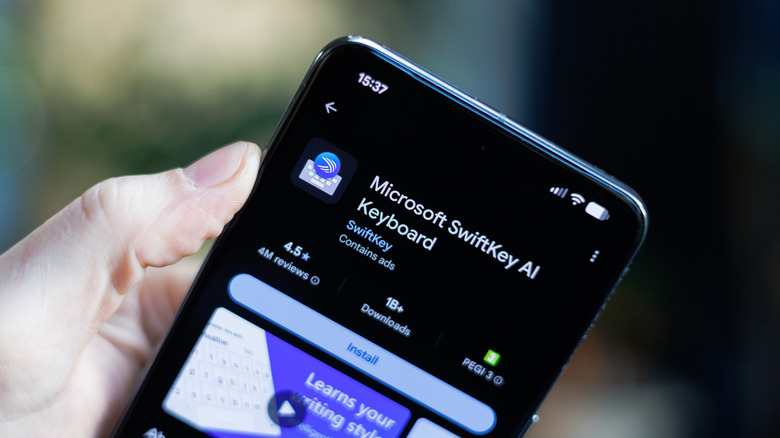
Even keyboards aren't safe from the AI boom. People took a long, long time to get used to autocorrect, swipe-to-type, and — perhaps the most important innovation of all — emoji kitchen. Now, with AI added to the mix, most keyboards have reached a whole new level of functionality that might not be all that appealing.
Gboard, Google's proprietary keyboard, adds full-blown writing tools to restructure and rewrite your message in a tone of your choice. With Apple Intelligence, your iPhone's keyboard can proofread, rewrite, summarize, and organize text. Go a step further with ChatGPT integration, and you can use AI tools to write the whole messages. Samsung's keyboard uses Galaxy AI to unlock a writing and chat assist function, while Microsoft SwiftKey leans pretty heavily on Copilot, letting you ask queries on the fly, generate messages, and refine your writing.
In most cases, you can go into the settings of your keyboard app and turn off the AI-powered features. Gboard has a convenient gear icon you can select from the keyboard itself to access these settings. For Apple Keyboard, disabling Apple Intelligence phone-wide will get the job done. If the AI button on the Samsung Keyboard is irking you, just remove it from the toolbar, and you're good to go. For Microsoft SwiftKey, open the settings from the three dots menu and disable all the features connected to Copilot.
Force-uninstall any system-level AI apps

While iOS users are not able to delete system apps, or at least not without some major hacking shenanigans, chances are that they don't need to. The AI integration in system apps isn't overt enough to warrant such a severe response. However, the same can't be said for Android devices. Different manufacturers have their own integrated software, with Google's Gemini being an infamous example. Sure, there are some AI apps for Android that are actually useful, but other, less useful ones that register as core system applications can (and maybe should) be removed permanently.
There are multiple steps involved in this procedure. Before you start, make sure that "USB Debugging" is unlocked in your "Developer Options." After this, download Android SDK Platform-Tools on your system and follow the proper steps to install Android Debug Bridge (ADB). Once this is done, plug your phone into the system via USB and switch over to File transfer mode. Now, open a command or PowerShell window in the directory (on Windows) or use Terminal and navigate to the ADB directory (on Mac). Authorize your phone connection, and you should be good to go.
Now, use the command "pm list packages | grep 'OEM/Carrier/App Name'" to get a list of all app packages on your phone. Once you've identified the unwanted app, use the commands "pm uninstall -k –user 0 'Name of app package'," and you'll make any pesky AI apps disappear by force!
Use a custom OS to completely circumvent any AI implementations

Even after following all these steps, people hell-bent on avoiding AI at all costs may still be unsatisfied. It doesn't help that some manufacturers have integrated AI into the OS itself, to the point where you won't even realize that your phone already has a bunch of AI features. If that seems like a problem, then maybe it's time to use a custom operating system that discards AI integration and prioritizes your privacy.
Sorry iPhone users — this particular tip can only be carried out on an Android device. The first thing you need to do is choose a new operating system. Anyone familiar with CyanogenMod will love the work of its successor, LineageOS. It runs on stock Android and only includes basic features, which is precisely what anyone trying to avoid is looking for. If you own a Pixel, then GrapheneOS may be more up your alley. Its minimal aesthetic and lack of any Google apps make it the perfect operating system to de-Google your phone.
Once you've chosen your preferred OS, it's time to use ADB. Connect your phone after enabling "OEM Unlocking" in the developer settings and unlock the bootloader. Install a Custom Recovery — the most popular one being Team Win Recovery Project (TWRP) — and wipe all old system data. The final step is to flash the ROM of the OS you want to install. Installing a new OS will delete everything on the phone, so back up your files beforehand.