

Can You Use An Old Router As A Network Switch?
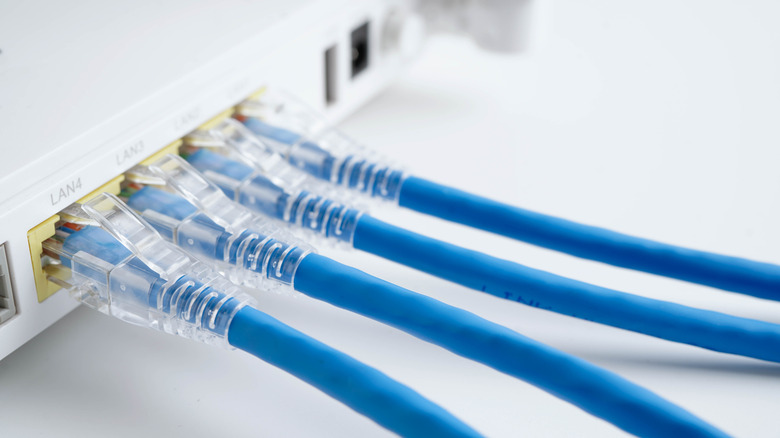
An average home router typically has 4-5 Ethernet ports, and while they suffice if most devices are connected wirelessly, the moment you think of switching to Ethernet connectivity, the ports can become a limitation. We all know that Ethernet is almost always more reliable than Wi-Fi, offering lower latency and a more stable connection. But given the limited availability of ports, the idea may seem challenging. That's where a network switch comes into the picture, expanding port availability and allowing you to connect more devices on the local network. Even though a network switch is affordable, you don't need to spend money on one since you can repurpose an old router as a switch.
Most routers, whether old or new, can function as a switch. Of course, you will need to make a few quick changes to the router's settings. Some routers already offer built-in modes that automatically make these changes, but even if yours doesn't, the process is fairly simple. Also, you won't be able to utilize all the router ports. That's because the port labeled WAN or Internet, if available, generally cannot be used for the setup, and one of the LAN or Ethernet ports will be connected to the main router. So, if your router has four LAN ports, you can use three of them, and if it has five, you can use four — basically one fewer than the total number of LAN ports.
Setting up your router as a network switch
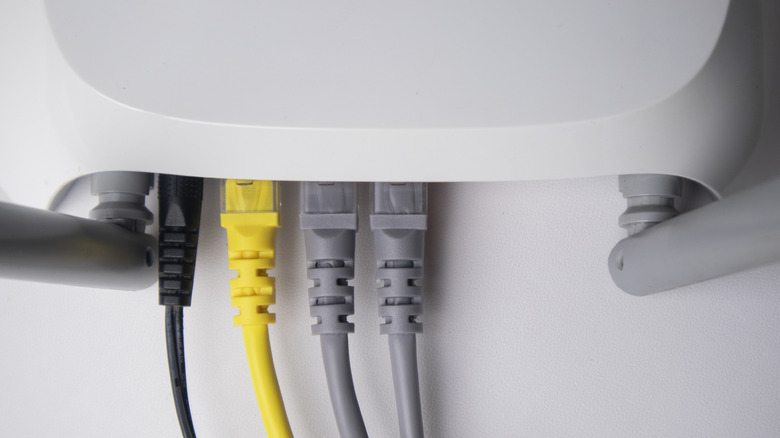
Before you begin, you should preferably reset the old router. Then, connect it to a PC using an Ethernet cable. Make sure you use the ports labeled LAN or Ethernet. Now, enter the old router's default IP address in a browser to access the admin panel. It's usually 192.168.1.1 or 192.168.0.1. You should find this and the admin credentials on a sticker on the router itself.
Once you are in the router's settings, head into the DHCP section and disable it. DHCP, or Dynamic Host Configuration Protocol, assigns an IP address to connected devices, but since your main router already handles that, having the setting enabled on the router you are using as a switch can trigger conflicts. Next, we will assign a new IP address to the old router. Keep in mind that it has to be different from the main router and other devices on the network. So, pick one that's outside the main router's DHCP range. For instance, if your main router's IP address is 192.168.1.1 and its DHCP range ends at 192.168.1.150, you could set the old router's IP to 192.168.1.151. As for the subnet mask, it will be the same for the two routers. Once done, access your old router's settings through the new IP address, disable NAT, firewall, and DNS server if the options are available, and save the changes.
Finally, connect your old router to the main router using an Ethernet cable. Again, you should use the port labeled LAN and not WAN or Internet. That's it. You can now plug your devices into the old router, which is essentially acting as a switch, and they will be able to communicate with the entire network.
Should you use an old router as a network switch?
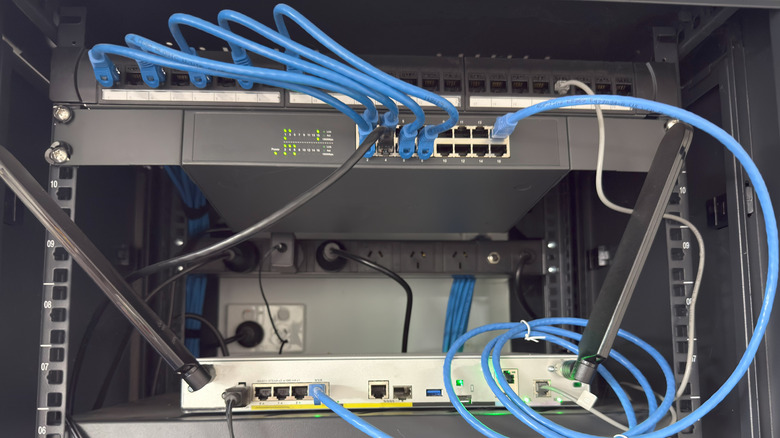
Whether you should use an old router as a network switch or get a new, dedicated switch ultimately comes down to your requirements. If you already have an old router and the required number and length of Ethernet cables, the setup is practically free. And it works well for regular use, especially if your aim is to repurpose an old router. But if you are aiming for convenience, more controls (available on managed switches), and faster speeds, a dedicated network switch will be the right choice.
The biggest drawback of using an old router is that its Ethernet ports may only support speeds of up to 100 Mbps, and if you have a faster internet plan, this will turn out to be a major bottleneck. Apart from that, your old router, although it increases the total port count, still has fewer ports than a network switch. So, if you have more devices to connect, it doesn't really solve the problem.
A network switch, the unmanaged type to be precise, is essentially a plug-and-play device that requires little configuration or effort on your part. You will find options with as few as five ports and as many as 48 or more, so you can easily pick one that meets your network requirements. If you are planning a more permanent setup, a dedicated network switch will be the smarter choice.