

4 Settings Every New Galaxy Watch 9 Owner Needs To Enable Immediately
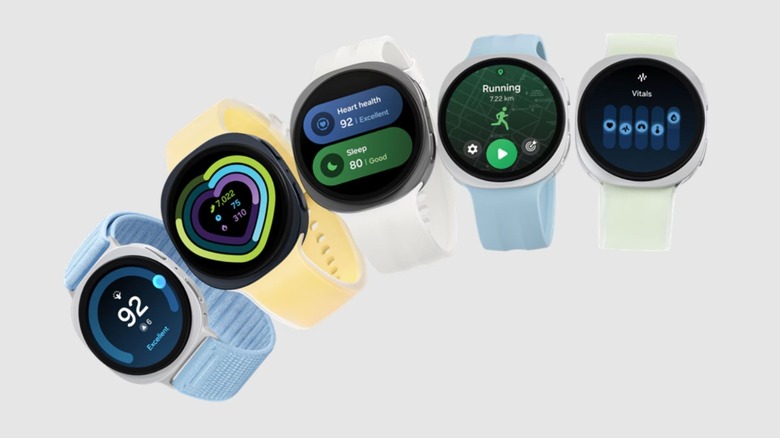
Samsung introduced the Galaxy Watch9 series in summer 2026, offering a range of incremental updates, rather than a new device that really breaks the mold. And while most of what it has to offer will be immediately accessible, there are a few things hiding inside the Settings menu you can turn on to improve your experience.
These features aren't all new — you can enable them features on older Galaxy watches as well — but they also aren't advertised. They're basically a small collection of toggles that change how fast the watch feels, how closely it tracks your movement outdoors, what it can do while sitting on a charger, and what kind of apps you are allowed to install on it.
Developer Options is what we are talking about and just like you enable it on your Android phone, you can do the same on your Wear OS watch as well. Getting there takes about 10 seconds, just head to Settings > About Watch > Software Information. Then tap on Software Version repeatedly until a small confirmation message pops up.
A new Developer Options entry will now be visible inside the Settings menu, all the way to the bottom. It works the same for all watches, whether you own the standard Galaxy Watch9 or it's pricier sibling, the Galaxy Watch Ultra2. Here are four settings that you should enable immediately.
Reduce animations (Speed up UI)
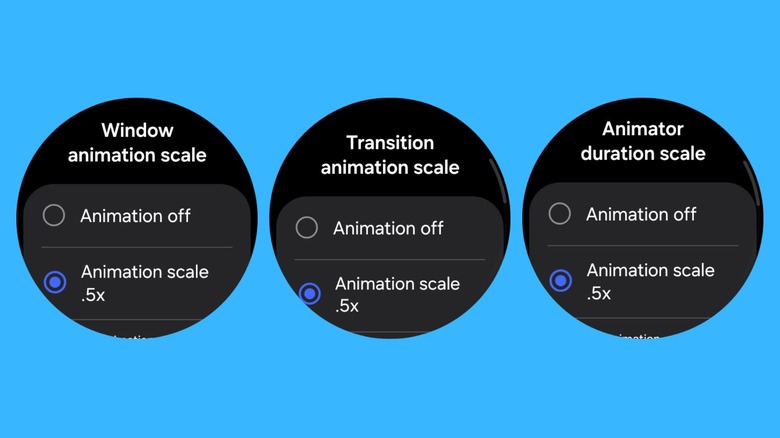
Even with a newer chip inside, the Galaxy Watch9's software still slows itself down on purpose. OneUI is a heavy interface and while it is optimized for watches as OneUI Watch, it still eats a good amount of resources to function smoothly. Every menu swipe, app launch, and screen transition runs through a built-in animation and each one adds a small dent of visible delay every time you touch the display of the watch. Though you may not notice it on a phone, on a display that you glance at while walking or mid-workout, the delay is much more obvious. It is the first thing that will make you feel your brand new watch is less responsive.
Luckily there's a solution inside Developer Options. Simply head to Settings > Developer Options, and scroll down until you find three sliders: Windows Animation Scale, Transition Animation Scale, and Animator Duration Scale. All are set to 1x by default, so drop them to 0.5x and the watch will start feeling snappy.
You can go further and turn animations off completely, though zero animations will look weird on such a gorgeous display. This is the same trick Android smartphone owners do on their phones to make their phone feel responsive. Do note that this doesn't actually improve the performance, it just tones down the animations so that slight delay between menus is gone.
Boost GPS accuracy
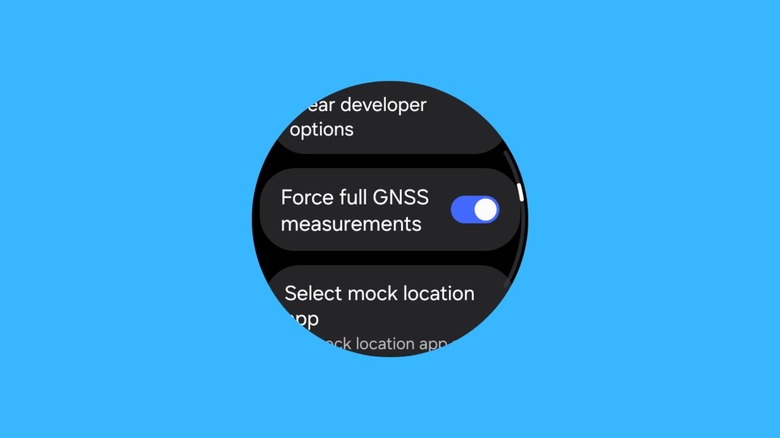
When you compare the recorded route on a smartphone with a smartwatch's recordings, you will probably notice some differences. You might see a route that cuts corners on a curvy trail or a distance that comes up short under tree cover. That's usually not a hardware problem, but instead reflective of how smartwatches manage tracking. By default, wearables cycle their satellite radios on and off to conserve battery, sampling your position instead of tracking it continuously.
Developer Options has a toggle labelled "Force Full GNSS Measurements." Switching it on keeps the Galaxy Watch9's satellite hardware powered continuously rather than pushing it. This closes the gaps between position readings so your recorded route hugs your actual path more closely. It is genuinely a good feature to turn on, specifically since the Galaxy Watch9 comes equipped with dual-band GPS, pulled straight from the costly Galaxy Watch Ultra2.
Turning on this setting makes sure that the hardware can run at its full potential instead of being throttled for efficiency. The tradeoff is battery drain, since keeping the radio on full-time costs more power over a day. You always can enable it if you are going on a long run, hike, or unfamiliar routes where accurate tracking actually matters, and then switch it back off for regular use.
Keep the display awake while charging
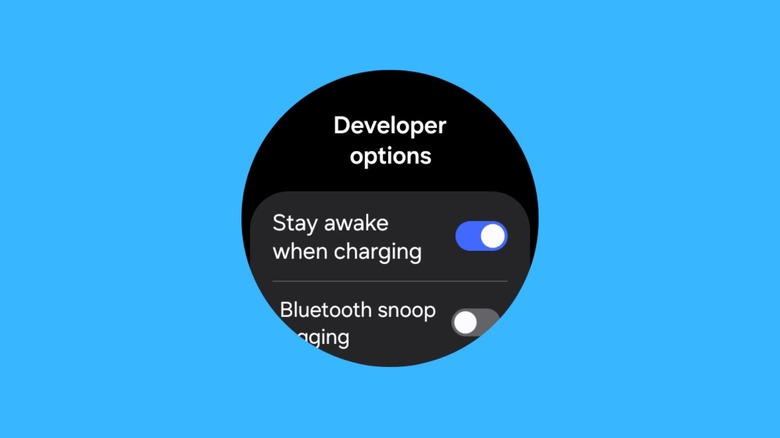
Did you know you can use your Galaxy Watch9 as a bedside clock while it is charging? Buried deeper in Developer Options is a toggle called "Stay awake while charging," and it does exactly what it says — while the watch is charging, the display stays lit instead of going dark. It may sound minor, but since this can be done on an older Galaxy Watch as well, it can turn a spare watch into one of the more convenient bedside clocks you can own.
The screen is bright, has deep blacks, and when you pair this with a minimal, high-contrast watch face and prop the watch on a charging puck, you get a glanceable night watch. It beats the default charging screen most watches show, which usually just displays a battery percentage and does nothing useful while you sleep. You can also use this feature in a different way — to keep the screen alive while tinkering with custom watch faces so it maintains its connection with the PC.
Turning a smartwatch into a useful nightstand clock isn't a new idea, it's one of the best ways to put your old smartwatch to good use. This developer toggle is a built-in version of that same trick, no extra stand or app required.
Sideload apps
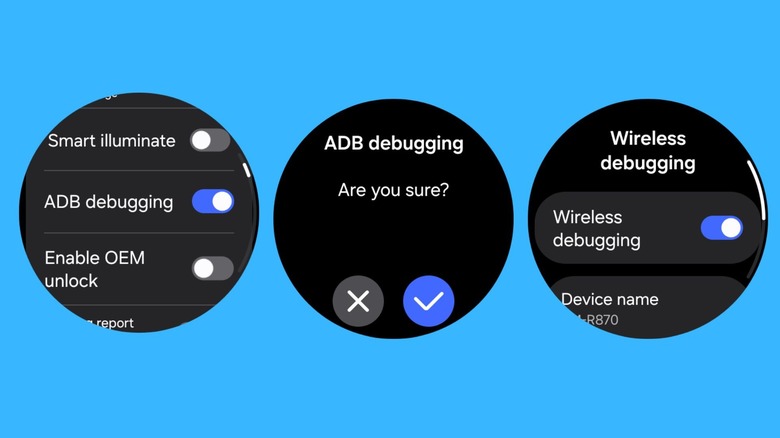
While getting apps on your Samsung Galaxy Watch9 from the Google Play Store is sufficient for most users, it has limited watch faces, tools, and other apps. Developer Options gets around that, the same way it does on a phone, through two settings near the middle of the menu — ADB Debugging and Wireless Debugging. Turning both on lets a computer talk directly to the watch over Wi-Fi using the Android Debug Bridge, the same tool developers use to test apps before publishing them, as noted by Samsung.
Once connected, installing an app is easy from your PC to your watch. This eliminates the need of cables, or any extra software on the watch itself. It is a bit more involved than sideloading on a phone, where you can get the APK file from a third-party source, move to your phone, and install it directly. But the process itself is not that difficult once the watch and the PC are on the same network.
You should keep in mind that you are getting APK files from trusted third-party sources, since installing outside the Play Store skips Google's app review entirely. With this method you can actually expand what the Galaxy Watch9 can actually do.