

5 Samsung Phone Layout Ideas You Wish You Had Tried Sooner
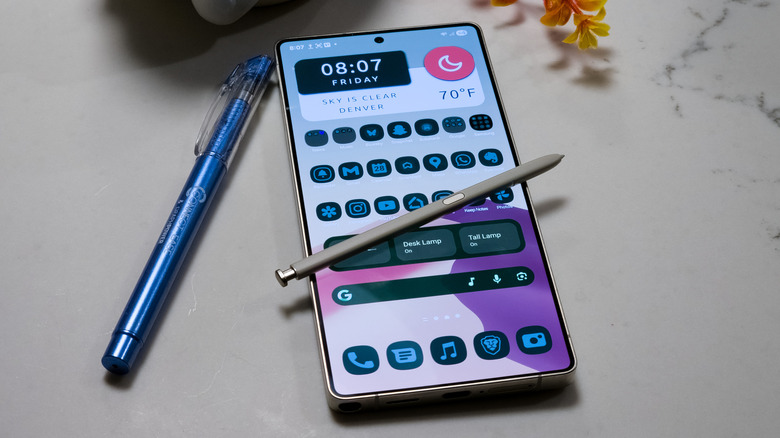
It's often said that one of the primary benefits of choosing an Android device over an iPhone is customizability. Google's operating system allows users to tweak nearly every aspect of the smartphone experience, from changing the system colors and using custom app icons to replacing their entire home screen with a third-party launcher. But for Samsung Galaxy users, things go even further. After you've changed the default settings on your Samsung phone, you've only just scratched the surface.
To that end, we've rounded up some of the best tools Samsung devices offer for home screen layout customization. Samsung Galaxy devices have features that even Google Pixel phones lack out of the box, and also include some hidden customization tools that can only be installed from inside the Good Lock customization suite. The catch? Good Lock isn't installed by default, so you'll have to grab it from the Galaxy Store. Once you do, you can customize the One UI Home launcher in ways that far exceed what the phone lets you do by default. Combined with a few third-party customization tools, you'll be able to make your home screen look and behave however you want.
Some people may wish to make minor tweaks that take just a few minutes, and that's certainly an option, but if you want to spend hours turning your home screen into a full-blown art project, that's your prerogative, too. Whether you're looking to optimize your home screen by putting more useful information at your fingertips or want to completely overhaul it from soup to nuts, these apps, hidden features, and tricks will help you implement any layout idea you want.
Add more apps to your home screen and put them anywhere
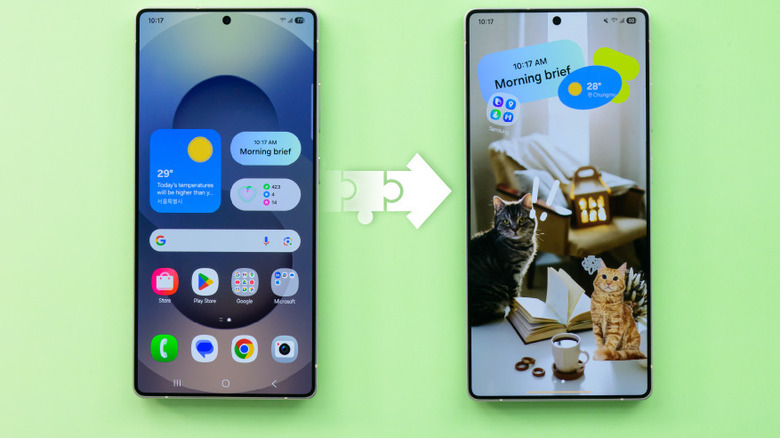
Once you've installed Good Lock from the Galaxy Store app marketplace, you can head into it and install the Home Up module. This will add an entirely new home screen settings menu to the preexisting one, which can be accessed either from the Good Lock app or by opening home screen settings and selecting More Customizations at the very bottom. Set up the Back Up and Restore options in the app first, as this will allow you to put your home screen back how it was if you get too far over your skis.
Head into the Home Screen section of Home Up to see the real goodies. Here, you'll be able to do things like change how many favorite apps can dock at the bottom of the home screen and how many can fit on the app grid above. But if you're feeling extra spicy, you can try toggling on the DIY Home Screen option, which is still in beta as of this writing. It will allow you to disregard the standard Android app grid entirely, placing app icons and widgets wherever you please. You can also resize and reorient home screen items, and even place them on top of other items. Put them upside down if you want, or make a single app take up half the screen. Rules no longer exist, and 'do what thou wilt' is the whole of the law.
Make your own icon theme packs
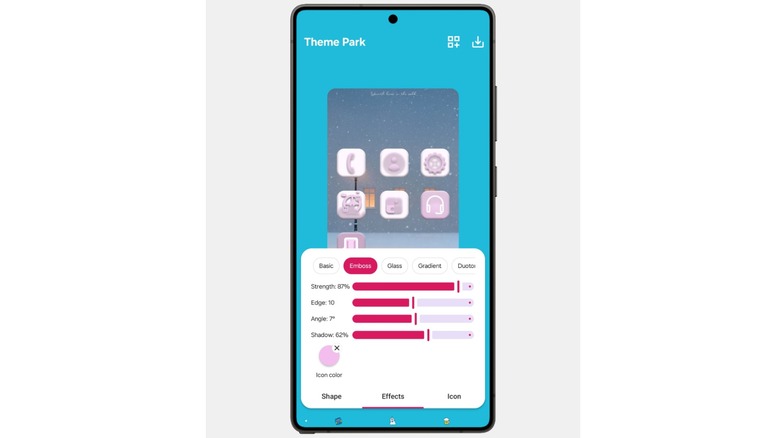
Custom icons have long been one of the best aspects of Android home screen customization. Many Samsung users mistakenly believe that icon theming isn't supported in the default One UI Home launcher, but that's not the case. Once again, you'll need Good Lock installed from the Galaxy Store, and you'll need to install the Theme Park service inside of it.
Theme Park includes customizations for many areas of your Samsung phone, which are outside the scope of this article. We'll focus on the icon customization section in the Icon tab at the bottom of Theme Park. From the Icon section of Theme Park, tap Create New at the bottom. You'll be able to change the shape of your icons, as well as the stylistic effects applied to them. This allows you to create your own custom app icons. There is also an Icon tab in the creation interface, which allows you to apply a third-party theme pack downloaded from the Play Store or elsewhere.
If you're the kind of user for whom only complete control over every aspect of your home screen will do, I suggest the Icon Pack Studio app. This third-party app allows you to mock up your own icon designs using in-depth design tools. To make it work with the Samsung One UI Home launcher, you'll need to export your custom icon pack as an APK file and sideload it (see our guide on how to sideload apps on Android if you have issues). Once installed, you can head to the Icon tab in Theme Park, create a new icon pack, select the Icon tab on the next screen, then choose Iconpack [sic] and select your custom pack from the list. Press Save in the top right, then name your theme.
Build your home screen out of custom widgets
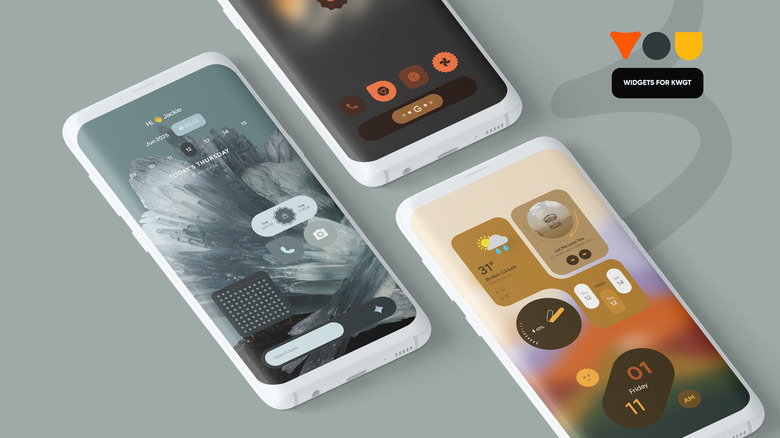
Widgets have been baked into Android since the very beginning, providing a truly impressive degree of customization. Not only can you add app widgets for quick access to in-app functionality, but widgets can also be used to call on Android's actions and intents to invoke functionality. That means you can use a widget in place of app icons, especially if you use a custom widget builder like the popular KWGT. You can keep things modest, with a few custom widgets sprinkled across your home screen, or you can turn the home screen into one giant widget from which all of your most important apps and functions can be triggered. KWGT plays nicely with the default One UI Home launcher, especially in conjunction with some tweaks in the Home Up module we discussed earlier.
KWGT on a Samsung Galaxy device is where Android customization turns the dial up to 11, with no limits but your own imagination (and plenty of presets available in the Play Store if you don't want to spend several hours tweaking things). Want your Galaxy to look like an iPhone? How about a Windows phone from 2010? Or, maybe you're a "Star Trek" fan and want to use the series' famous LCARS operating system in real life. All of that and more is possible. For more ideas, you can check out the Kustom subreddit forum, where users show off their creations.
Personally, I've done the full monty makeover, but these days I make do with a single, multi-functional clock widget on my Galaxy S25 Ultra. Tapping the time brings me to the Clock app, while tapping on the weather opens the Weather app.
Use Stacks and Enlarged Folders to layer your Galaxy's home screen
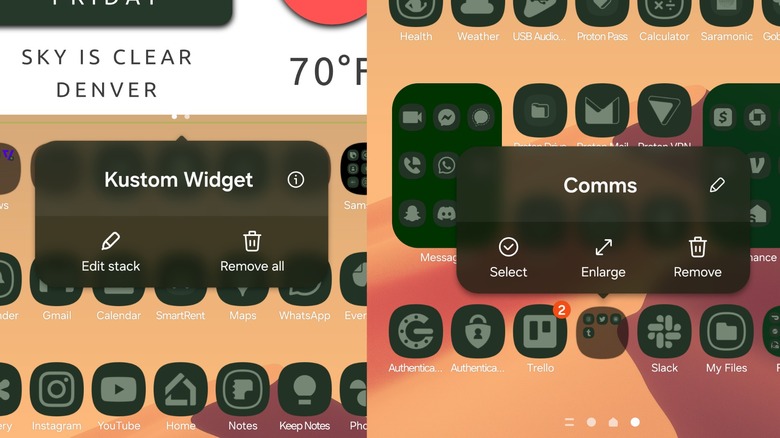
In Samsung's latest One UI Home software, a feature called Stacks allows you to place multiple home screen widgets in the same space, where you can then scroll between them. Like many other Samsung customization features, you can use Stacks with a light touch or go to the wall with it. For example, I currently have two Stacks on my main home screen, one of which swipes between the Google search bar and Apple Music player controls, and another of which swipes between a clock widget and my to-do list. However, my second home screen page is a single, giant widget with Google Keep notes, my calendar, Google News, and several other widgets. Because each of these widgets can take up the entire screen, they can show me a large amount of information, which means I don't have to open any of the individual apps unless I want to take more granular control.
Another useful feature is Enlarged Folders. If you have a home screen folder with several apps inside, you can hold down on it and tap Enlarge to make it take up a larger area of the home screen with all of the apps displayed. This allows you to select an app from the folder without tapping on the folder first. I've used this feature to turn the third page of my home screen into a sort of custom app drawer for apps I use frequently, but not enough to warrant giving them a space on the main screen. Unlike my phone's actual app drawer, this page isn't cluttered up with apps I rarely use, making it easier to find what I need at a glance.
Replace Samsung's stock launcher with something new
As we've seen, Samsung's stock One UI Home installed by default on Galaxy phones is among the most customizable Android launchers on the market. But maybe you're still not satisfied. If that's the case, you can replace One UI Home with a third-party launcher from the Play Store or elsewhere. A launcher is simply the Android terminology for your home screen. Unlike the way things work on an iPhone or Windows computer, the Android home screen is simply an app like any other and can be replaced with a different launcher at any time. There are many excellent launchers out there, but here are a few of my favorites.
Nova Launcher was the gold standard for many years, staying true to the stock Android feel but with an everything-and-the-kitchen-sink approach to settings and customization. According to DroidLife, it has since been bought out by a company that laid off most Nova employees and plans to stuff the launcher full of what might be considered AI slop. It's still great for now, but worth avoiding in the long run.
Niagara Launcher is a minimalist (yet highly customizable) launcher built to keep you distraction-free. You can stick a few widgets and favorite apps up top, but the main way you use Niagara is by sliding your thumb along the outside edge of the screen to find the apps you need. It's simple but effective, especially if you want to cut down on doomscrolling.
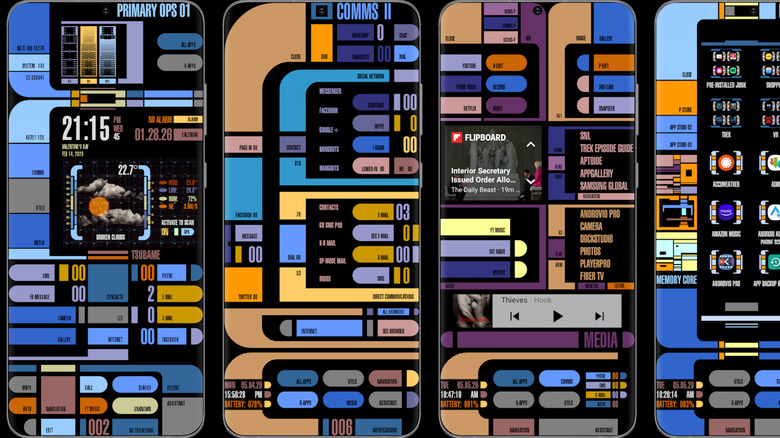
Total Launcher appeals to the most hardcore Android customization sickos who are willing to spend an entire workday customizing their home screens. It's amazing, and I am scared of it. It does, however, have some incredible preset themes available for purchase, such as this Star Trek LCARS theme that puts similar KWGT themes to shame.