

5 Things You Had No Idea Your Samsung's Navigation Bar Could Do
I am a long-time Samsung Galaxy S-series owner, having started with the original Galaxy S when it was announced, 16 years ago. In between, I also switched to the Note series, which has since become a part of the S-series, starting with the Galaxy S22 Ultra. The thing with the Samsung S models is that they are packed with an overwhelming amount of features that most users will never know about. Most of the customization options on Samsung phones are available via the Good Lock app, which has different modules to customize various elements of the interface.
One of the most overlooked areas on these devices is the navigation bar. Yes, the little strip at the very bottom of your screen that you tap hundreds of times a day to go back, check recent apps, or return to the home screen. It seems so basic, but if you have a Samsung Galaxy phone, you can unlock some serious magic. By default, the navigation bar can accomplish basic tasks, but thanks to the Good Lock app's NavStar module, you can transform it into a powerful shortcut tool. You no longer have to settle for the standard three buttons or the default swipe gestures that you get out of the box.
In this guide, we have compiled a list of five things that you can do with Samsung's navigation bar, which not only add a bit of fun to your digital routine but also make it easier to navigate through your phone.
Bring back Swipe from bottom
After Apple popularized Swipe from bottom motions with the iPhone X in 2017, Android smartphones quickly started adopting them across their models, starting with Android 9 Pie and perfecting them with Android 10. However, Samsung recently removed the three-bar swipe gestures from the bottom of the screen and introduced Android's swipe-from-the-sides navigation. For years, many users relied on these simple swipe gestures from the bottom, and now they have to learn something new just to use their phones. Thankfully, there is a brilliant workaround that not many Samsung Galaxy owners know about that brings back the three-bar swipe gestures from the bottom screen.
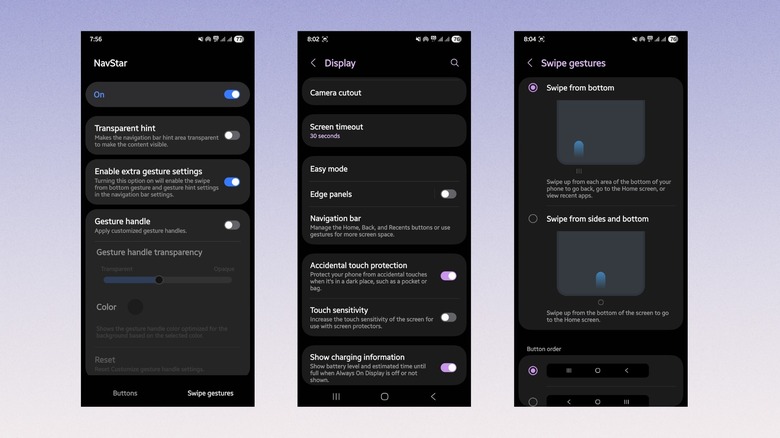
In order to get the old swipe gestures back, you need to first download the Good Lock app and then install the NavStar module within the app. Once you have the NavStar module, open it and look for the option "Extra Gesture Settings." As the option clearly says, doing so will add "swipe from bottom" and the "gesture hint settings" to the Navigation bar settings.
Now, you can head over to the Settings menu, tap on Display, then Navigation bar, and select the Swipe gestures icon. Tapping on More options will let you choose the Swipe from the bottom option. If you want, you can turn off Gesture hints, which are supposed to help you see where you're supposed to swipe, but can be distracting.
Add a screenshot button
Taking a screenshot on most modern phones requires a combination of buttons. Usually, this involves the volume up or down button along with the power button. This simple task asks you to perform finger gymnastics, which is not easy if your hands are occupied. Sometimes we end up accidentally locking the screen or turning down the music instead of capturing that funny meme we actually wanted to save. But for Samsung Galaxy phone owners, there is a much easier way to grab a screenshot.
Tweaking the bottom navigation bar lets you add a nifty screenshot button and avoid the finger stretching. To do this, you only need the NavStar module on the Good Lock app.
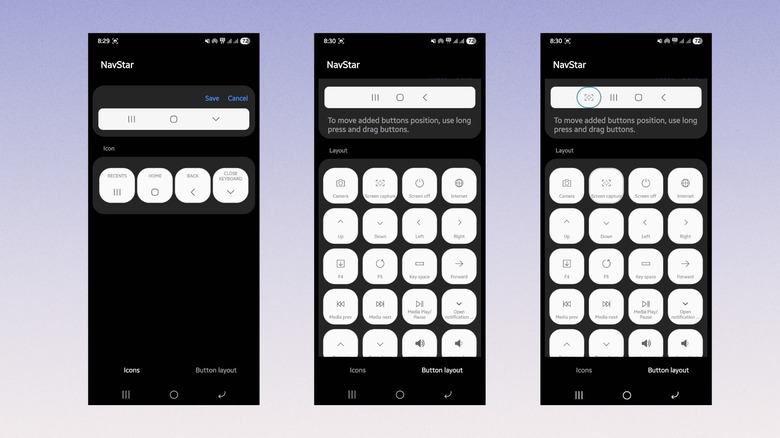
To add a screenshot button, open the NavStar app and tap on the "Buttons" option at the bottom and enable it. From there, tap on New configuration, tap on Button layout at the bottom, and then Add button. You will see a grid of actions. From the grid, choose the Screen capture option. You now have a dedicated screenshot button on the navigation bar.
Custom emoji icons
By default, bottom navigation icons on Android devices give you either a triangle, circle, and square, or some minimal icons. It lacks any sort of fun or personality. Imagine: You have already customized your home with a neat wallpaper app, applied cool ringtones, and arranged the apps and widgets, but the navigation buttons are boring as hell. That should not be the case, thanks to the NavStar app, you can customize these buttons as well.
Those dull geometric shapes can be swapped for literally anything you want, including custom emojis, cute animals, and fun stickers. This adds a bit of character to your phone and helps it break away from the standard. As a bonus, you can even make the entire navigation bar go away with a touch from that same page, so it stops blocking the bottom part of the wallpaper.
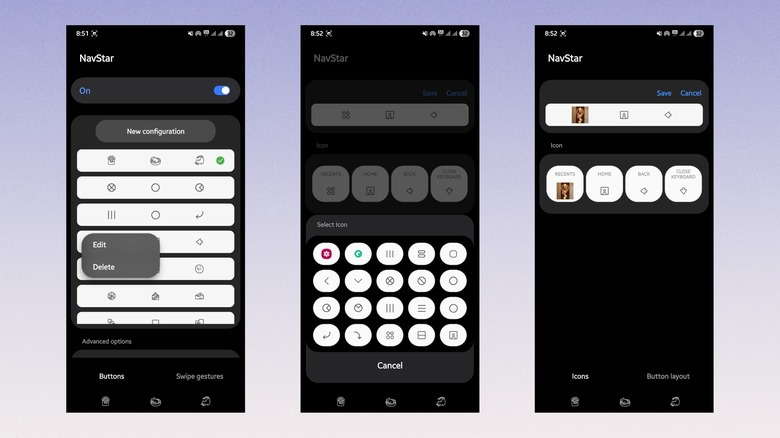
To customize the navigation bar, launch the NavStar module, tap on the Buttons option at the bottom, on any button configuration, long-press, and select Edit. Now tap on the button under the Icon section, and you will have the option to change the icon to anything. The first icon in the grid shows you a Gallery icon, meaning you can choose any image of your liking and set it as the navigation button icon. This customization trick is one of the best ways to make your Samsung Galaxy phone truly unique.
One-handed volume control
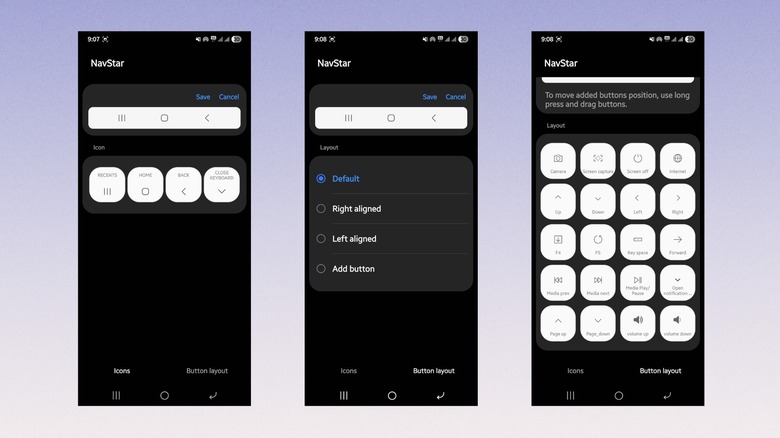
Just like every other modern smartphone, the Samsung Galaxy phones are getting bigger and bigger. Leaving aside reaching the top corner of the display, touching the physical buttons on the sides of the phone has now become difficult. If you have smaller hands, then stretching your fingers to reach the buttons on a massive phone can be impossible. You constantly risk dropping your expensive phone just to change the volume. This problem can be solved easily with the Good Lock app.
Samsung allows its users to take customization to the next level by adding volume up and down buttons right to the navigation bar itself. This lets you easily control the volume even if you can't reach the physical buttons, making one-handed operation convenient.
To set this up, open the NavStar module, then tap on New configuration or long-tap on a pre-existing button layout and click Edit. Select Button layout from the bottom bar, and choose Add button. You'll see a grid of buttons. Go all the way down, and you will see the volume up and volume down buttons. The only remaining step is to click on the buttons you want to add.
Instant notification shade
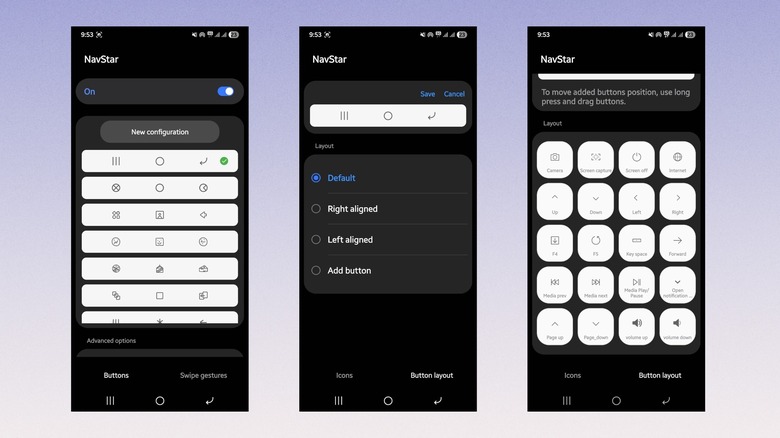
We receive a lot of notifications every day. Whether it's from WhatsApp, DMs on Instagram, Facebook Messenger, and even traditional SMS, you have to pull down the notifications panel to quickly access them. But with large phones, the notifications panel is not easy to access. You either have to do hand gymnastics or use both your hands to access it, which is not convenient at all.
If you have a Samsung Galaxy phone, then there is an option that gives you instant access to the notification shade. Just place a dedicated Notification down arrow on the navigation bar. This way, all you have to do is tap the notifications button on the navigation bar, and you will have the notifications panel in front of you, completely expanded.
To get this thing up and ready, open the NavStar app. Inside the Button layout setting, long-press on a button configuration, and choose Add a button. Then from the grid of buttons, choose the Open notifications button. That's it. Tapping this small icon on the bottom navigation bar will expand the notification panel.