

Making These 5 Changes Will Immediately Make Your Computer Run Faster

Few things are as infuriating as a sluggish computer. That's been common knowledge since the early 1980s, when the principle of the Doherty Threshold was coined. In a study published in the IBM Systems Journal, computer researchers Walter Doherty and Ahrvind Thadani found that the longer a computer takes to respond to a user's input, the more the user will struggle to be productive — not only because the computer is slow, but also because those minor interruptions break the user's train of thought, forcing them to think harder about their next steps. The study showed that this begins happening when a computer takes just 400 milliseconds, or less than half a second, to respond.
Today, we're all too familiar with the particular first-world nightmare of slow computers that overshoot the Doherty threshold by miles. But if you're tired of waiting while your computer wheezes and lags its way through even the most basic of tasks, there are a number of things you can do right now to improve its performance. From simply changing a few settings to replacing the parts causing your system bottlenecks, we've rounded up five of the most impactful changes you can make to boost your computer's performance. This guide is genre agnostic and applies equally whether your computer runs a desktop operating system like Windows, macOS, or Linux, or is a mobile device running iOS or Android.
Optimize your power profile
Your computer is making a lot of decisions for you in the background, one of which is whether to prioritize performance or battery life. It's a classic tradeoff. Power saved is performance left on the table, and performance gained means more power consumption. When your computer is saving power, it isn't pushing the full amount of power to your CPU that would enable it to run at its peak performance. What that means is that, if your goal is to prioritize performance above all else, you should choose power settings that reflect that aim.
While the specifics vary between operating systems, most settings labeled "battery saver," "eco mode," and so forth should be disabled to prioritize performance. If your device has a power mode setting, you should enable the most performant option. If you have a laptop, it may include two power modes: one that prioritizes battery when the laptop is away from the wall, and one that prioritizes performance when it's plugged in. If you're willing to give up some battery life for the sake of speed, make sure to edit both power plans.
In addition to letting your processor itself draw more power, changing your power plan and other related settings can allow your cooling fans to work more efficiently, which helps to cool your system more effectively and can speed it up further. It can also prevent components such as wireless radios from entering sleep states, which means you'll be able to perform tasks that use those components without encountering any delay. Unleashing your system's full potential can be especially helpful in speeding up heavy tasks like gaming and video editing.
Tone down animations and visual effects
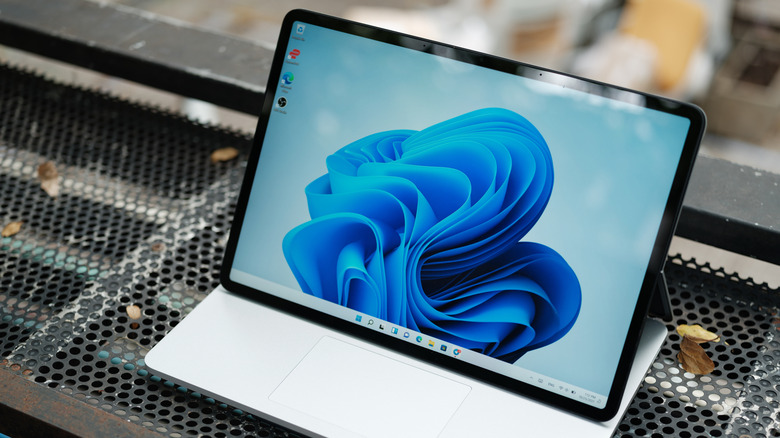
Modern operating systems are all about style, which unfortunately comes at the cost of performance in many cases. Whether it's the Liquid Glass design language on Apple's latest releases or Fluent 2 on Windows 11, these OSes love to dazzle their users with transition animations, transparency effects, and other visual flourishes. If your phone or computer has the horsepower to handle all of that without slowing down, you should probably look elsewhere for ways to speed things up. But if you notice your device struggling to render animations and visual effects without lagging or stuttering, you should dial things back to reduce the burden on your system.
In general, animations and visual effects will take a bigger performance toll on hardware with older or entry-level CPUs, or with lower quantities of RAM. According to testing performed by WindowsTechies, the animations on Windows 11 can impact a more powerful CPU by up to 5%, but can impact an older CPU by up to 15%. On a 2018 laptop with integrated graphics, disabling just five of the most intensive effects and animations led to a 25% increase in speed. Of course, the exact impact will differ across hardware and operating systems. Regardless, disabling the most visually intensive effects and animations on your device is one of the first things you should try if it's feeling unresponsive across the user interface.
Change your browser's settings to reduce resource usage
The browser is among the most widely used pieces of software on any computer, especially when you exclude mobile devices, where social media apps are dominant. But modern browsers have become app ecosystems unto themselves, running dozens of tabs, extensions, and processes in the background of your computer. With so much going on under the hood, browsers like Chrome have become notorious for their resource hogging, slurping up your available RAM and CPU power so you can keep those fifty tabs of research open. If you're the kind of user for whom a computer is primarily a machine that runs Chrome or Safari, the sluggishness you're experiencing might not have anything to do with your computer or its operating system. You might simply be letting your browser take over your RAM, choking both itself and your computer in the process.
There are a few ways to make Google Chrome faster; you can speed up other browsers as well. First, you should delete cookies and site data to get rid of the cruft building up out of sight. Next, you should uninstall any extensions you don't need. Many extensions will run in the background, whether you are using them or not. Another useful tool is the memory-saving feature available in many Chromium browsers, which freezes tabs in place and puts them to sleep when you're not using them in order to save memory. Sleeping tabs will resume activity when you switch to them, and tabs that are currently playing media will not be put to sleep, so there's no real downside to enabling this feature. If you need a tab active in the background, such as a network monitoring tool or a Discord group, you can whitelist it to prevent it from sleeping.
Make sure your computer is properly cooled
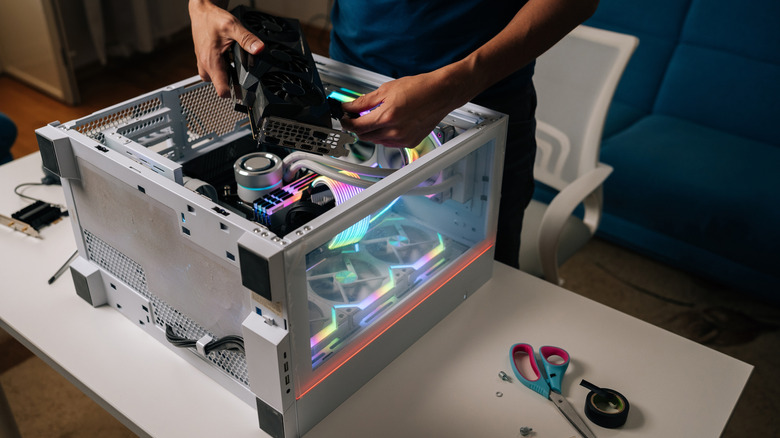
If your computer is experiencing any overheating issues, system slowdowns are a common side effect. Think of your computer's cooler like the human body producing sweat to help rid itself of excess warmth on a hot day. If your body is heating up faster than it can cool itself, you can begin to feel faint, or even worse. Similarly, if a computer's cooling system becomes impaired, the computer will become sluggish and unresponsive. Always make sure your computer is stored in a cool, dry area and do not use it in direct sunlight or place it next to a heat source like a radiator or vent.
Desktop PCs are cooled with air or water. Laptops are almost always air-cooled, though some ARM-powered laptops like the MacBook Air are fanless. For an air-cooled system, you should make sure there's no buildup of dust in the fans by blowing them out with a compressed air canister or an electric duster. If you have a water-cooled system, make sure there's no dust in the radiator fans and fins, and ensure that water is flowing through the pump system by listening closely for pump noise (usually a wet-sounding hum) and checking readings in your system software.
Mobile computers such as smartphones are almost always passively cooled. That means they do not have moving parts, such as fans inside them. Some smartphones and tablets use vapor chambers, which are thin pouches of metal containing small amounts of water. Heat from the phone's processor transfers into the water, which temporarily vaporizes, helping the heat to dissipate through the phone's chassis. If your smartphone is overheating, you can try closing apps, rebooting it, or attaching an external cooler for gaming.
Delete unnecessary files if your drive is close to full
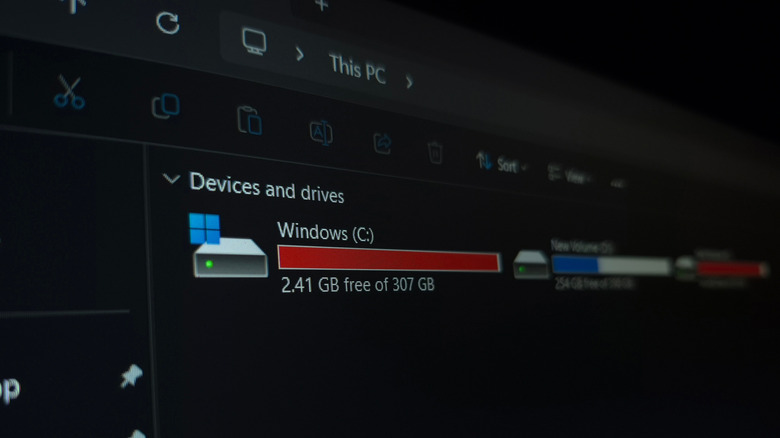
No computer manufacturer boldly advertises this inconvenient truth about computer storage: the number on the box isn't what you get inside. That's for a variety of reasons. First, the operating system itself takes up space on a drive. Second, the math used to calculate space on a drive involves some rounding. Third, a technique called over-provisioning is used to set aside some space on a drive to help it perform optimally. Fourth, space is lost to file allocation, which tells the computer where to find files on the drive. The end result is that a 2-terabyte SSD may only show around 1.8 terabytes with a fresh Windows install on a clean drive, a loss of about 200 gigabytes compared to the listed size.
Compounding the problem, your computer may begin to slow down once a drive is full. Think of your storage drive like a package delivery van. If the van is half full, the driver can easily look for the package they need when they make a stop, but if the van is completely full, the driver will be out of luck when they need a package from the middle of the pile. They'll be forced to unload until there's room to move things around, which slows them down significantly. Similarly, your computer's operating system has to do a lot of extra work when your SSD or hard drive is near capacity. This also places extra stress on it, which may shorten the lifespan of a storage drive. The general rule of thumb is to leave 10% to 15% of your storage space free (of the space your computer says it has in total, not of the number on the box).