

5 Things You Didn't Know Your Apple Watch Can Do In 2026
Are you using your Apple Watch to its full potential? Whether you've owned an Apple Watch for years, answering texts and counting steps with the small device on your wrist, or you're new to wearing a smart watch, it's likely that there's a trove of hidden features and tools that you've never used.
Apple currently sells three versions of its popular watch: the Series 11, the SE 3, and the Ultra 3. Each version offers different features, display sizes, and battery life, but no matter which version you own, there are hidden tools that you aren't utilizing.
It's common knowledge that you can answer texts and phone calls, tap to pay, and track your daily exercise routine, but all models of Apple Watch offer much more. Before you get too involved in picking a fun watch face and comfortable or stylish band, take the time to learn about all the functions your watch offers. After all, it's a big investment, especially if you opted for the high-end Ultra 3. Here are some Apple Watch features that may have flown under your radar.
Sleep apnea detection

If you or a loved one snores loudly or wakes up after hours of sleep still feeling tired, you may be showing symptoms of sleep apnea, a disorder that causes pauses in your breathing while you're asleep. It affects about 30 million Americans, and the risk increases as you age. Untreated sleep apnea can lead to other issues with your health, such as high blood pressure and cardiac rhythm disturbances. If you suspect you have sleep apnea, you should make an appointment with a health care provider, but while you wait to be seen by a doctor, your Apple Watch can help look for breathing disturbances.
The Sleep Apnea Notifications feature is available on Apple Watch Series 9 or later, Apple Watch Ultra 2, or Apple Watch SE 3. Your phone must be updated to the latest version of iOS, and you must also turn on the Sleep Tracker feature, found in the Health app on your phone. Then, wear your watch when you sleep for a minimum of 10 nights over a 30-day period, and the data will be analyzed every 30 days.
To turn on sleep apnea notifications, open the Health app on your iPhone, tap Search, then tap Respiratory, and set up Sleep Apnea Notifications. If you receive a notification, you can export the report as a PDF to share with your health care provider.
Mute notifications with gestures
You're in an important meeting, or mid-way through the first act of Hamilton, when you suddenly realize you forgot to silence notifications on your Apple Watch. The situation dictates stealth — you don't want to interrupt your boss or draw attention to yourself in a dark theatre. Luckily, Apple offers several options that will allow you to quickly mute the notifications on your watch.
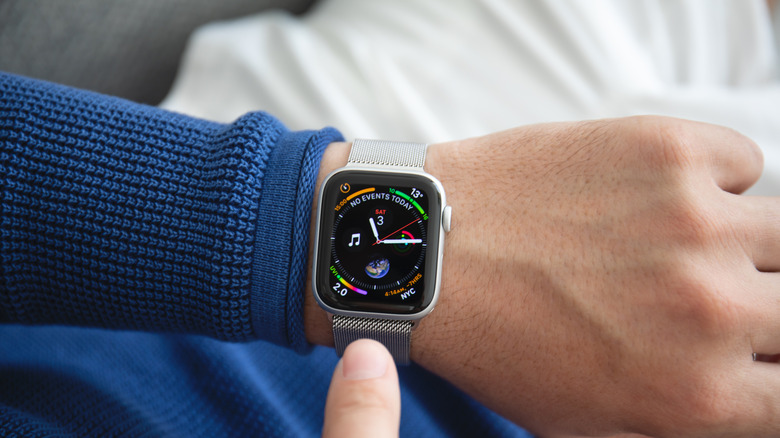
If you only remember that notifications are active because you receive an alert, such as an incoming phone call or text, you can quickly mute your that alert by covering your watch display with your hand for at least three seconds. You'll feel a tap to notify you that you've successfully muted the notification. This option is typically on by default, but you can check by going to the Settings app on your watch and tapping Gestures.
You can also mute calls and dismiss notifications simply by quickly turning your wrist over and back again. Apple dubbed this the wrist flick gesture, and it's supported on the SE 3, Series 9, Ultra 2, and later models. Again, this feature is turned on by default, and you can access it on the Settings app under Gestures.
Live Listen
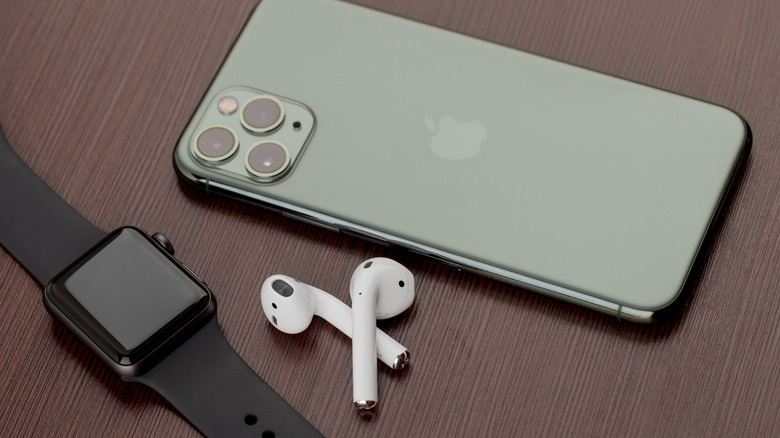
If you're hard of hearing, you have a loved one that is struggling with their hearing, or you're simply struggling to hear clearly in an especially noisy situation, you can turn an Apple Watch into an accessibility aid using Live Listen. This feature uses the microphone on your iPhone to stream sound to your AirPods or MFi hearing devices. When paired with your Apple Watch, a transcription of the conversation also appears on your watch's screen in real time.
You must use headphones or a hearing device with this feature, and Live Captions is not available in all languages or regions. Apple also warns that the accuracy of the captions may vary, so you should not rely on the transcription in an emergency situation. Live Listen is available with watchOS 26, which requires an Apple Watch Series 6 or SE 2 or later. It's available on all models of the Apple Watch Ultra.
If you want to keep Live Listen easily accessible, add it to your watch's Control Center. Once you've done that, simply place your phone near the source you want to listen to, such as a speaker or a lecturer. Open the Control Center on your watch and tap the Hearing Controls button. Scroll down to Live Listen, then you can start a session, or rewind a current session, view the live transcription, and stop the session.
Music recognition
We've all been there: you're enjoying coffee at a cafe or watching a movie with friends and you hear a catchy tune that you simply love. You don't know the name or the artist, and the song is fleeting – once it's over, you may wait months to hear it again! In the days before smart phones, you'd have to describe the song to a friend or family member, hoping someone would recognize it from your clumsy humming. Eventually, music recognition apps like Shazam appeared on the scene, but you'd have to get your phone out and get the app going before the song ended.
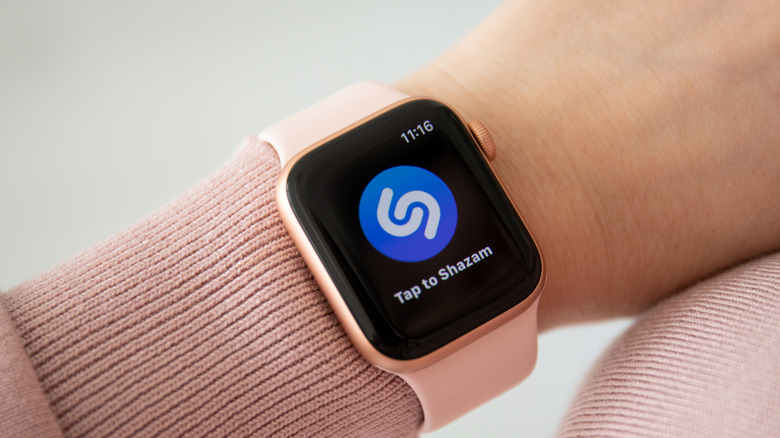
If you own an Apple Watch, you no longer have to hum for friends or even get your phone out of your pocket. Apple now owns Shazam and has built music recognition directly into your watch, with no additional app necessary. Simply open Music Recognition on your watch by tapping the icon (a blue circle with a white, S-shaped logo) and tap again to initiate listening. Once it identifies the song, your watch will display both the title and artist. You can then see the song in Apple Music, add it to your library or playlist, and even see additional details about the song, such as the album and release date, all without pulling out your phone. If you forget to take note of a song that you heard days or weeks earlier, open the Music Recognition app on your watch and scroll down to see a history of identified songs. This capability is available on all watches running watchOS26.
Live translation

Only about 23% of Americans are bilingual, or able to speak more than one language. Though much of the world speaks English, this can still be a challenge, especially when we travel — only about 360 million out of more than eight billion people speak English as their first language. If you frequently travel internationally, you may want to consider investing in an Apple Watch rather than relying on a translation app on your phone.
Apple's live translation app allows users to translate both text and voice into a long list of supported languages. You can also download new languages so you can use them without an internet connection. Offline translation is available on the Apple Watch SE 3, Series 9 and newer, and Ultra 2 and newer models.
To use live translation, first open the Translate app on your Apple watch. Tap the language you want to translate your text or speech into. If you require verbal translation, tap the microphone button and say a phrase. Your watch will translate as you type or speak and translation will appear on your watch display. To play the audio translation, tap the play button. To automatically hear translations, tap More, then Play Translations. If it's a common phrase that you'll likely repeat throughout your day, you can save the translation as a favorite for easy access in the future. If a word has several meanings, your Apple Watch allows you to select the one you want, and you can also select feminine or masculine translations for words.