

5 Amazon Echo Privacy Settings You Should Change Immediately
We may receive a commission on purchases made from links.
While using voice services on the Echo is super convenient for controlling music, lights, and getting information, that ease of use comes with a complicated set of privacy compromises. A lot of users just plug in their Amazon Echo and start using it, without really considering the sophisticated systems for data collection and sharing that are operating in the background.
Putting a device in your living room that is designed to listen for a wake word will take some privacy away from you, but it's a common mistake to think you've maintained privacy just by avoiding the wake word. Various default settings are active from the moment you plug the device in. The voice assistant, for example, is a proactive data collector that talks to your network and shares your information in ways you might never expect.
You need to control your speaker's digital boundaries by adjusting the settings. Before you start using an Echo as intended, you should carefully think about how voice recordings are stored and the hidden permissions that allow others to interact with or access what's happening around your device. There are a few settings that you don't need at all, which pose big privacy concerns.
Sidewalk
Amazon Sidewalk turns your Echo into a gateway, broadcasting a shared network signal across your entire neighborhood. By default, this setup lets your device chew up a little bit of your Wi-Fi bandwidth to help neighboring devices (possibly total strangers) stay connected even when they move outside the range of their own router.
Amazon claims this data is protected by multiple encryption layers and uses rolling transmission IDs that change every 15 minutes to prevent tracking. However, leaving this feature on creates real privacy concerns. Encryption stops Amazon or your neighbors from reading the packet content, but some argue this kind of network could allow stalking by enabling the use of small trackers like the Tile, which could be dropped on your person without your knowledge. Sidewalk is also enabled by default, so your equipment is silently interacting with unknown devices next door without you ever actively giving permission.
You should opt out of Amazon Sidewalk right away to keep your Wi-Fi bandwidth private and stop your equipment from chatting with unknown devices. Open the Alexa app and tap on the More tab. Go to Settings, then select Account Settings and tap on Amazon Sidewalk. From there, just toggle the feature to Off (or disabled) to opt out of the neighborhood network.
Voice recording history (auto-deletion)
By default, Amazon holds onto a record of everything you say to Alexa forever. It builds a huge archive of your requests so it can create a profile of how you use the device and, potentially, train its artificial intelligence algorithms. Amazon might claim that saving this data helps the service process your specific speech patterns and vocabulary better, but this creates a permanent digital paper trail of your private conversations sitting on its servers.
Indefinite storage is a huge privacy risk, especially since Amazon hires people just to listen to and help improve the services, but it may be used to make the service more accurate. If you set it not to save recordings at all, or tell it to delete them automatically after three months, you seriously reduce the potential fallout if your account gets compromised or there's a leak (as happened in the past), or if the data is subjected to human review.
To keep humans from listening to your voice recordings, open the Alexa app on your mobile device, hit the More tab at the bottom menu, and go into Settings. From there, select Alexa Privacy and then Manage Your Alexa Data. Find the option called "Choose how long to save recordings" under the Voice Recordings section. Set this to delete automatically after three months.
Help improve Alexa (human review)
The most unsettling aspect about owning a smart speaker is figuring out that when the device learns, a real person is often involved. When you leave the "Help Improve Alexa" setting enabled, you're giving Amazon permission to use your voice recordings to train its machine learning algorithms. These grant full consent to humans to manually review "a fraction" of those recordings.
Amazon claims this is essential for developing new features and making sure Alexa adapts to diverse speech patterns and accents, but the reality is that leaving this enabled allows its employees or external contractors to listen to, write down, and grade snippets of your voice commands. This process, often called supervised learning, is designed to cut down on speech recognition errors. Unfortunately, it inherently exposes your audio history and sometimes location to strangers.
If you want to revoke this permission and make sure your recordings are excluded from that manual review flow, start by opening the Alexa app and hitting the More (or Menu) tab in the bottom right corner. Go straight to Settings, then scroll until you see Alexa Privacy. Once you're there, tap on Manage How Your Data Improves Alexa. There should be a toggle switch for Use of voice recordings; just toggle the switch to Off.
Drop in
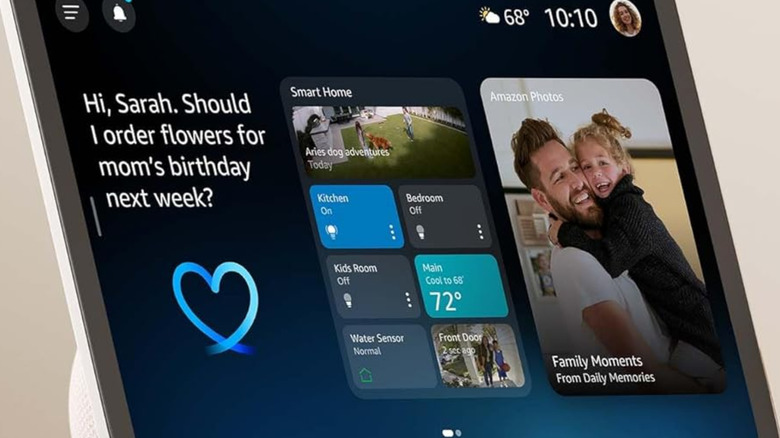
Drop In acts essentially like a digital intercom, and it's a handy use for an Echo device. It lets chosen contacts to instantly connect to your Echo speaker and hear (or see, if you have an Echo Show) whatever's happening in your room, all without you having to answer. Amazon markets this as an easy way to check on older relatives or quickly communicate between rooms, but it's actually a huge privacy risk if you don't manage your permissions carefully.
This feature is especially invasive because of how its permissions work. Alexa's communication terms state that if you grant Drop In access to one specific person, you're actually granting that same permission to everyone in their household. Amazon does give you indicators, like a green light ring or on-screen visual cues, to let you know a connection has started. However, you can easily miss these alerts if you aren't looking right at the device or if the room is loud. This setup means that friends or extended family could accidentally overhear, or even intentionally monitor, your home without you knowing about it.
To change this, open the Alexa app and tap on the More tab. From there, select Settings, then Device Settings, and then pick the specific Echo device you want to secure. Scroll down to the Communications settings, tap Drop In, and switch the setting to either Off or My Household.
History of detected sounds
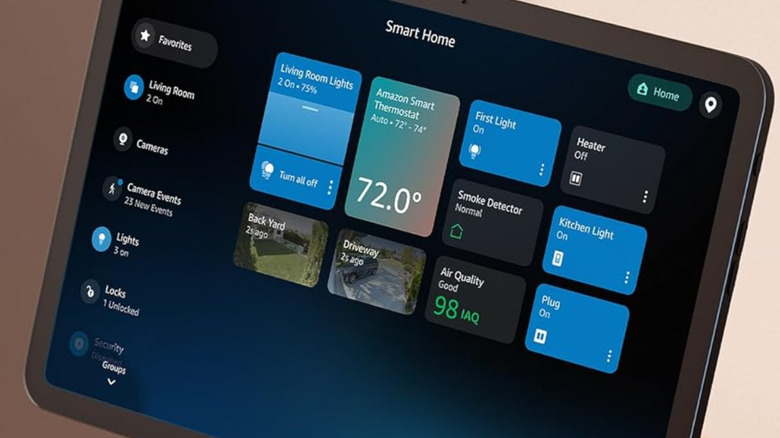
When you use security-focused features like Alexa Guard, your Amazon Echo isn't just sitting there waiting for a wake word anymore. It becomes a home monitor, actively listening for specific noises that might mean trouble. These non-voice sounds usually include things like glass breaking, the repetitive beeping of smoke or carbon monoxide detectors, and even your dog barking. This may be something you never knew your Echo device could do, and it's not all good.
Amazon keeps a digital record of these events to help train its algorithms. It needs this data to better distinguish between a dropped plate and breaking glass, or from TV audio to a real emergency. If you just leave this history unmanaged, you're unintentionally creating a massive database of your home's emergency alerts and ambient noises right on Amazon's servers.
To clear this log, you need to open the Alexa app, tap More, and then head to Settings. From there, select Alexa Privacy and then tap Review Voice History. Filter the view by date and select All History, and then choose the option to "Delete all of my recordings".