

14 Common Problems With The iPad (And How To Fix Them)
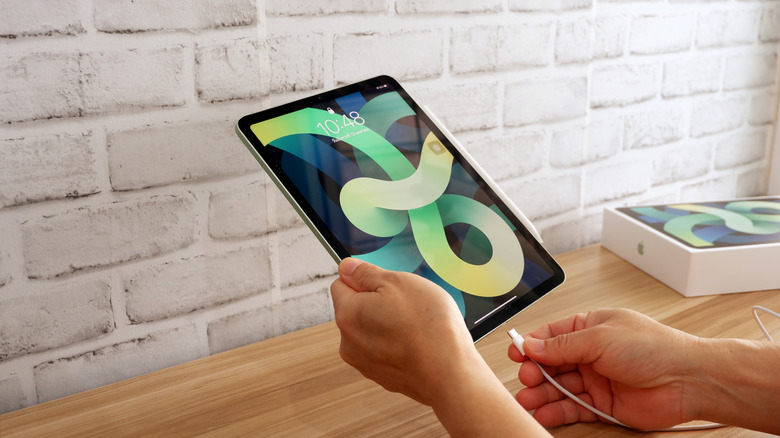
The iPad today is truly incredible at mobile computing, thanks to its hardware blended with the simple iPadOS interface. However, just because it's a reliable device doesn't mean it's immune to annoying problems. Dealing with minor software hiccups or persistent hardware issues is just part of owning tech.
When your tablet suddenly acts up, don't panic or assume you're headed straight for an expensive repair. Before you rush to book an appointment with Apple Support or start looking at pricey replacements, you should make sure you don't have an easy-to-fix problem. If you want to fix your iPad problem, the secret is understanding what is wrong, then trying a DIY solution.
Many fixes can have multiple solutions, so be sure to try them in order. By being patient and working through easy steps to fix your tablet issues, you drastically increase your chances of solving the issue yourself. This saves you tons of time and money, and gets your iPad back to working exactly how it should.
Battery draining too fast

The main reasons that make your battery die so quickly are usually background activity and keeping the screen too bright. The big displays mean iPads place constant demands on their power reserves, regardless of the raw battery size. If you want to get this sorted, your first move should be heading to your Battery settings so you can see exactly which applications are hogging the most power.
Turn down your screen brightness or enable Auto-Brightness. You should also set your Auto-Lock to a short time, like two minutes. This prevents the display from staying awake unnecessarily when you aren't actively using the tablet. To reduce display power usage further, you can switch on Dark Mode (which saves energy on models with OLED displays) and limit the number of notifications that constantly wake the screen.
If that hasn't solved the issue, just update your iPadOS to the newest version available. Outdated software is frequently a contributor to poor battery performance, since updates usually bring power optimizations and bug fixes. However, be aware that battery drain might temporarily spike right after a large update because of background maintenance tasks like re-indexing data, but that process generally clears itself up over time.
Screen frozen or unresponsive
When your screen completely freezes, and it just won't respond to anything you touch, you have to do a force restart. This is a quick way to cut power to the hardware and clear out those temporary memory glitches. If you're using an older iPad that still has the Home button, you'll need to press and hold both the Home button and the Power button at the same time. Hold them until the Apple logo finally shows up on your screen.
For the newer iPads, press and release Volume Up, then quickly press and release Volume Down. Right after that, immediately press and hold the Power button until you finally see the Apple logo. That logo means the system is actually rebooting. This hard reset is generally the best first step for dealing with a frozen state that's caused by software crashes or when the system hangs up.
A common culprit is not having enough storage space. When you're low on space, the device struggles to allocate the necessary memory for background processes and for apps to function smoothly. Outdated software is also a frequent reason for system instability, so make sure your device is running the latest iPadOS version.
Wi-Fi connected but no internet
When your iPad says it's connected to the Wi-Fi, but you just can't get any webpages to load, the first thing you should do is quickly toggle Wi-Fi off and then immediately back on. You can do this right from the Control Center. If the simple toggle doesn't fix it, try enabling Airplane Mode for about 10 seconds and then switch it off; This re-initializes all the wireless radios on the device, forcing the device to establish a fresh connection with the network.
Removing and then re-adding the Wi-Fi connection is your next step. To do this, head to Settings > Wi-Fi, tap the blue "i" information icon next to the network you're on, and hit "Forget This Network". This action purges the stored password, any proxy settings, and outdated DNS data. It forces the iPad to treat the connection as completely new when you rejoin and enter the password again.
If your iPad is the only device in your home that can't connect while everything else is working fine, these steps should do it. However, if all devices are offline, you must restart your modem and router by unplugging them for at least 30 seconds, to force a reset of the internet service link. If that doesn't fix it, you may need to take it to an Apple Store for repairs.
iPad won't charge
When your device won't charge, it isn't always the battery's fault. Usually, it's a dirty port or a bad cable. Grab a flashlight and check the port cavity for lint or other gunk. Use something non-conductive, like a wooden toothpick or a plastic dental pick, and gently clear it out. Avoid metal tools like paper clips or needles at all costs. Metal can wreck the delicate connectors and potentially cause a short circuit that could permanently fry the main logic board, which would be a shame if you got this as a gift.
After confirming that the port is clean, switch out your cable and power adapter. Cables take a beating every day, and the internal wires can break even if the outside looks fine. Make sure you are using Apple-certified (MFi) accessories, because cheap, uncertified versions usually can't provide a stable current, or the iPad's software will just reject them entirely as a safety measure.
Make sure you're using a wall outlet because computer ports sometimes won't put out enough power to charge an iPad quickly. That lack of juice is why you often see the "Not Charging" warning; The device is using power faster than the port can supply it.
Apps keep crashing
If your apps keep crashing, this usually means your software is behind the times, or maybe you're hitting memory limits. Your device just can't keep up with what the application needs to run. If an app keeps quitting unexpectedly or simply won't open, the very first thing you should do is force-close it to wipe out its current running state.
If you're on an iPad that doesn't have a Home button, swipe up from the bottom of the screen to the middle to bring up the App Switcher. From there, swipe the app card up and off the screen to fully close it. For older models that still have the Home button, double-click it to see that view and then swipe the app away. Once it's closed, try opening the app again to see if that temporary glitch or memory hiccup is gone.
You should also head to the App Store and check if there's an update waiting for the application. However, if it is already updated and still misbehaving, your best move is to completely delete it and then reinstall it. Also, you need to make absolutely sure that your iPadOS is up-to-date.
Bluetooth accessories won't connect
If you're running into Bluetooth connection issues with your tablet, you can usually fix them just by refreshing the pairing. This action forces your devices to do a new "handshake," which helps get rid of any bad configuration data left over from the old link. First, tell your iPad to Forget This Device. Next, make sure you restart your iPad completely.
You should make sure the accessory itself has a full charge, and double-check that it hasn't automatically grabbed hold of another nearby device, like your iPhone. A low battery is a common reason connections drop, especially for things that need constant power, like the Apple Pencil or wireless keyboards. Check that you aren't getting signal interference from other wireless devices or physical objects.
Keep the accessories within 33 feet to guarantee the best possible signal. If those steps don't fix things, try simply toggling the Bluetooth off completely. Always confirm that your iPad is running the most recent version of iPadOS because old software tends to cause issues when you try to use newer accessories. If all else fails, you may need to take your device to an Apple Store to get it checked.
Touchscreen ghost touch (random inputs)
Ghost touch is when your iPad starts opening apps, executing commands, or typing on its own without you even touching it. The cause is usually something simple and environmental, like a dirty screen. Your very first move should be a solid deep clean, because even invisible layers of oil, water residue, or fine dust particles can confuse the capacitive sensors.
You should restart the device after a good cleaning. This clears out temporary memory glitches or weird software conflicts that might be triggering those random inputs. If this fails, check for software updates, because Apple could have released a patch for touch sensitivity bugs.
If that thorough clean and restart didn't fix the phantom inputs, then it could be your screen protector or protective case. Low-quality, thick, or poorly aligned screen protectors can cause problems because they put uneven pressure on the display edges, or trap conductive debris right against the glass. Keep in mind that if you take the protector off, it will not go back on, so only do this if you have another ready.
No sound or distorted audio
If your iPad suddenly goes silent or the audio gets messed up, the first step is always to check your external switches and software settings. You've got to confirm that Silent Mode isn't on and that the volume is actually turned up. You should also verify that a Focus mode like Do Not Disturb isn't active, as this feature suppresses system sounds and alerts.
To check your volume levels, just go to Settings > Sounds and drag the "Ringer and Alerts" slider back and forth; If you don't hear any sound during this test, your speaker hardware might be the problem. Bluetooth can also be the culprit. Your iPad could be piping audio over to a pair of headphones you forgot you paired, or maybe a wireless speaker in another room.
If you still don't have sound, you need to look closely at the microphone and speaker ports for any dirt or debris stuck inside. Also, debris packed into the charging port or headphone jack can fool the iPad's sensors into thinking headphones are plugged in. To fix this, gently clean the speaker openings and ports using a clean, dry, soft-bristled brush. Make sure to restart the device after cleaning, because that could be the issue, too.
Apple pencil not working
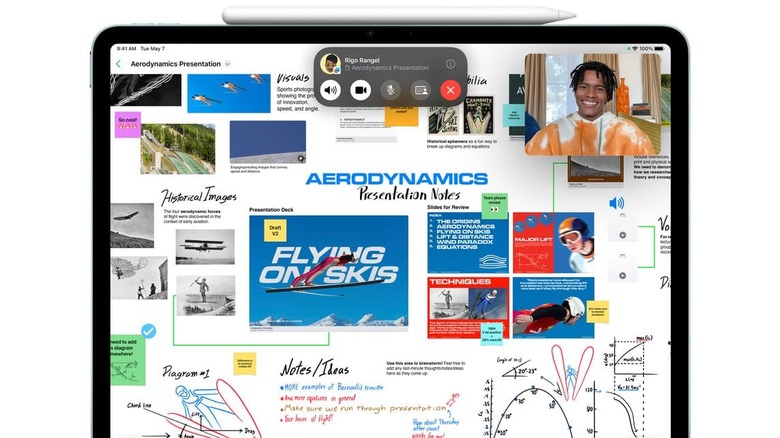
When your Apple Pencil won't write, it might be because it's incompatible, has a loose tip, or the Bluetooth signal dropped. Before you troubleshoot anything else, confirm that your stylus works with your iPad model. The different generations aren't interchangeable. If compatibility isn't the issue, try tightening the Pencil's tip. You need to make sure the connection is solid. You can gently twist the nib clockwise until you feel it lock securely. However, if the tip looks damaged or feels genuinely rough, replace it immediately.
If you're still having trouble, you should manually force the Pencil to re-pair. Head into Settings and have your iPad forget the pencil. Once it's gone, reboot your iPad entirely to wipe out those temporary memory errors. You can then reconnect it either by snapping it onto the magnetic connector or by plugging it into the Lightning port.
If you leave the Pencil sitting unused for a few weeks, its battery will drain completely, so check the charge. If your Pencil has been dormant, let it charge for a minimum of 15 minutes before you try testing it, and check the Batteries widget in your Today View to confirm it is actually getting power.
iPad stuck on apple logo (boot loop)
If you want to fix this problem without instantly nuking all your data, you'll need to plug your iPad into a computer. That computer needs either iTunes (Windows or older macOS makes) or Finder (macOS Catalina or later). Always check that your cable works perfectly, and your computer software is fully updated; You don't want a simple connectivity issue messing up the whole recovery process.
The next step is getting your iPad into Recovery Mode with a hard restart. For iPads that don't have a Home button, quickly press and release Volume Up, then do the same to Volume Down, and press and hold the Top power button. If you have one of the classic iPads with a Home button, you need to press and hold both the Home button and the Top button at the same time.
When your computer sees the iPad and asks what you want to do, you need to be very careful: pick Update, not Restore. Choosing Update tells the system to reinstall the operating system (iPadOS) without deleting your content.
AirDrop not working
AirDrop needs both Wi-Fi and Bluetooth to work, so you'll want to check that both you and the person sending the content have them powered on. A very common issue is the visibility setting, which determines who can actually see your device in their sharing menu. You should jump into AirDrop settings and change it to "Everyone for 10 Minutes."
You should also make sure that Personal Hotspot is turned off on both devices. Since AirDrop takes over the Wi-Fi antenna to create a peer-to-peer connection, an active hotspot can actually block the transfer or prevent the device from even showing up. Both devices should be within 30 feet of each other, since Bluetooth range is limited and physical proximity is necessary for the initial handshake.
If that basic troubleshooting doesn't work, check your Do Not Disturb or Focus mode settings, because these can suppress the AirDrop acceptance prompt. For persistent issues, a force restart is usually the best fix for clearing out temporary software glitches that affect background discovery processes. As a last resort, resetting your network settings can clear the Bluetooth and Wi-Fi stacks, though you will have to re-enter all your Wi-Fi passwords afterward.
Screen rotation locked
If your iPad screen won't rotate when you move it, you've likely hit the Rotation Lock button by mistake. Getting it fixed means diving into the Control Center and tapping the icon to disable the lock. You should also check for physical switches, especially if you have older hardware. Some of those legacy iPad models have a little side switch near the volume buttons that can be set up for either muting sounds or locking the orientation.
On top of that, remember that not every app supports screen rotation. Some apps, particularly certain games or those originally made for the iPhone, are hard-coded to only work in portrait or landscape mode. If it looks like rotation is broken, it might be a limitation of that specific app.
If you know the lock is disabled, and the screen still won't flip in native apps (like Safari or Photos), the gyroscope or the accelerometer might be stuck because of a software glitch. Restarting the iPad will could sort the issue.
Microphone not working
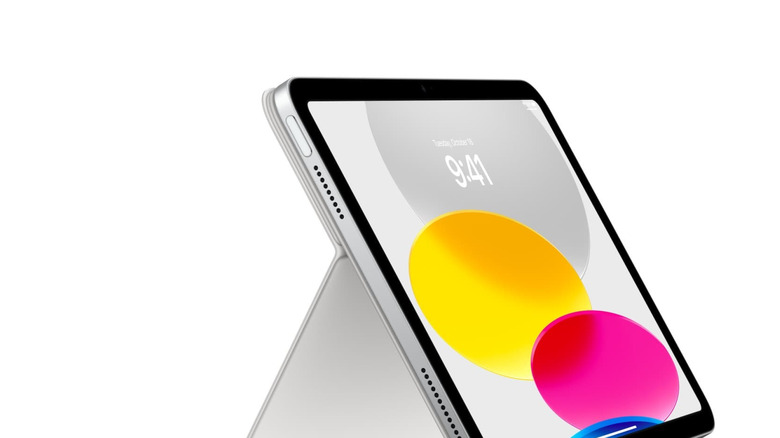
If people can't hear you when you're on a FaceTime or Zoom call, the very first thing to check is whether the app even has permission to use your mic. You can confirm this quickly in Microphone Settings, making sure the toggle is switched on for the app you're trying to use. Also, make sure to look at your Screen Time settings under Content & Privacy Restrictions; Sometimes, parental controls or restriction profiles will lock down microphone access without you realizing it.
You should also check that your microphone openings aren't completely covered by a bulky case or a screen protector. Your screen protector might not have the cutout needed for the mic near the front-facing camera, making your voice totally inaudible. Even tiny bits of dust or unseen debris in these ports can stop sound from getting in.
If you spot any buildup, gently brush it away using a soft, clean, dry toothbrush, but please don't stick sharp objects into the holes, as this could damage the microphones on your mobile devices. You also need to make sure your iPad hasn't sneakly connected to an external Bluetooth accessory, like earbuds that might be hiding in a bag nearby. That device would hijack the audio input, so flicking Bluetooth off in the Control Center is the fastest way to test this.
Face ID not recognizing you
If Face ID suddenly stops working on your iPad Pro, the usual suspect is a blocked TrueDepth camera. This complicated sensor array is right in the bezel, and since new iPads have much thinner edges, it's really easy to cover it up by mistake. You need to make sure your hand or the edge of your case isn't blocking that camera.
You should always proactively check that the area is clear of dirt, smudges, or screen protectors that don't fit well and might stop infrared light from getting through. Wipe the sensor area with a clean microfiber cloth first to make sure that no oil or grime is messing up the scan before you think about software fixes.
If the camera is totally clear, jump into Settings and turn off Require Attention for Face ID. This can be helpful if you wear sunglasses that filter infrared light, or if your specific eye structure seems to baffle the sensor. If you're still having trouble, select Reset Face ID and then set it up again completely from scratch.