

Got A New Samsung Tablet For Christmas? Here Are 5 Things You Need To Know
We may receive a commission on purchases made from links.
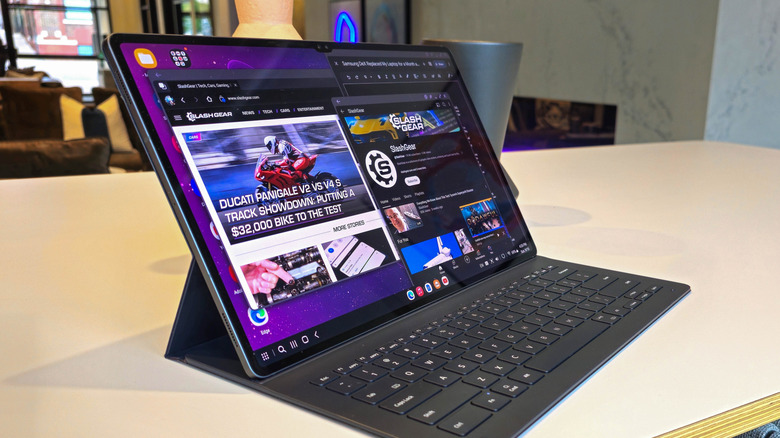
With the chaos of the holidays now in the rearview, many folks are finally able to settle in and enjoy the products they bought or received. For some, the shiny, new toy is a Samsung tablet — perfect for lazy days bingeing Netflix in bed or reading Kindle books, or even getting some work done on the go. But if you recently picked up your first Samsung tablet, you might find it a bit confusing at first, especially if you're accustomed to an iPad.
Samsung makes an unending array of tablets ranging from ultra-budget to ultra-premium. At the low end, they make great media consumption devices, while the most expensive Galaxy Tabs are productivity powerhouses that can even replace a laptop for some users. With so many products on offer, Samsung has spent more than a decade crafting an extensive ecosystem that new users can find overwhelming. You could spend years with a Galaxy Tab before finally uncovering everything it has to offer. I've done exactly that, and I've rounded up just five of the most beneficial things to be aware of when exploring your new tablet. As a quick note, all of the software features discussed are present in One UI 8.0, but your mileage may vary on older software.
From multitasking capabilities that even the latest iPads struggle to match to syncing your Samsung Galaxy tablet with your Windows PC, there are plenty of hidden features under the hood. Plus, we'll cover how to pick accessories and take full advantage of Samsung's unique S Pen stylus. So, here are 5 things you should know about your Samsung tablet in 2026.
Samsung tablets are multitasking monsters
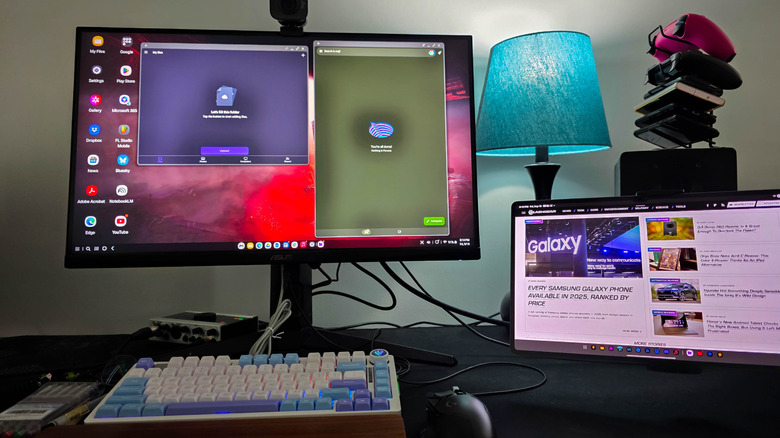
Samsung's One UI software, built on top of Android, is packed with enough features to fill a book, and that's especially true for multitasking features on Galaxy tablets. Whether you want to quickly launch apps, use apps side-by-side, or even use your tablet like a laptop with a mouse and keyboard, Samsung's software adjusts to your needs.
The flagship multitasking feature on One UI is Samsung DeX, a desktop replacement environment that just got a huge refresh with the latest major update. It is now built on top of Google's upcoming desktop mode for Android. DeX can run directly on the tablet's display with the push of a button. Once you enter DeX mode, any app you launch will open in a window, just like on a full-size computer. You can move, resize, or minimize them, and your open apps live in a macOS-style dock at the bottom of the screen. Paired with a mouse and keyboard, it's the best way to accomplish productivity tasks on a tablet, and it's the reason I replaced my laptop with Samsung DeX.
But when you want to use the tablet like a tablet, One UI also has multitasking features for that. You can open up to three apps at a time side-by-side, and open even more in windows that can be minimized into bubbles or swiped to the edge of the screen when not in use. To enter multi-window mode, either hold and drag an app from the drawer or app switcher, or swipe from the edge of the screen with two fingers when an app is open in full-screen mode.
The included S Pen stylus does more than you think
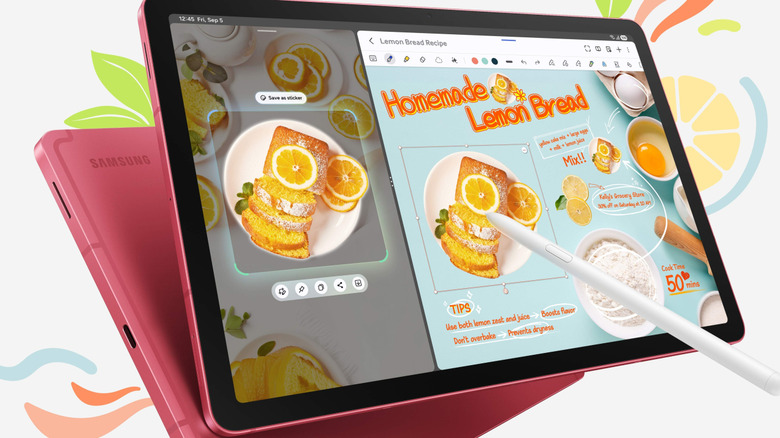
For some years, Samsung has bundled its signature S Pen stylus with its premium smartphones and tablets. Not only does the S Pen come in the box with Samsung Galaxy Tab devices (specifically the S and A series), but it's far more than an alternative to your finger for swiping the display. All S Pen styluses can be used for note-taking, drawing, and, of course, browsing, but Samsung has built a range of features to make it more useful. Hover the pen over your screen until you see the small hover indicator, then press the button on the side to access the Air Commands menu. Here, you'll find tools like Screen Write, which takes a screenshot you can scribble on before saving or sending, and Magnify, which enlarges a portion of the screen on hover.
Even more impressive are Air Actions, which use Bluetooth to turn the S Pen into a remote control that feels like a magic wand for your tablet. You can remotely control music and videos, navigate through your apps, and even snap photos without touching your tablet. However, Samsung has made the disappointing and unpopular decision to strip the Bluetooth features from newer S Pens, a downgrade that has affected the Galaxy S25 Ultra and Galaxy Tab S11 thus far. If you don't see the Air Actions menu in your tablet's S Pen settings, you're out of luck. There are too many S Pen features to cover here, but it's well worth browsing through the S Pen settings on your Galaxy Tab if you want to get a sense of the many things it can do.
Samsung tablets and Windows PCs get along like PB&J
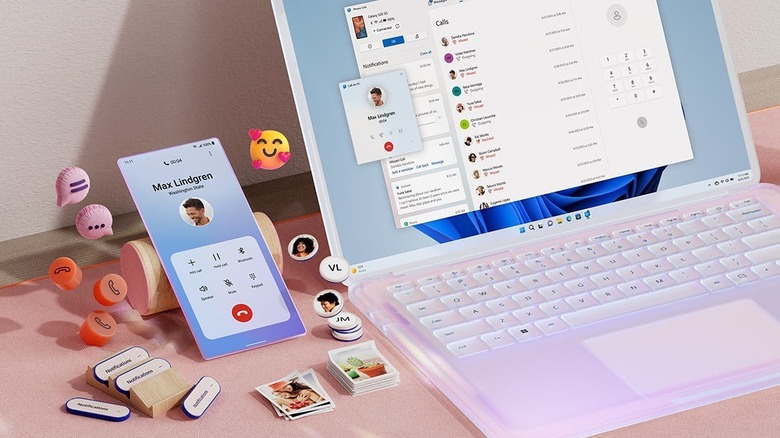
If you have a Windows PC, your Samsung Galaxy Tab tablet will work alongside it to make both devices even more useful. Thanks to the Phone Link app built into Windows 11, you can easily get tablet notifications on your PC, copy and paste text and images between devices, and even run apps from your tablet on your PC's display. This software works with many Android devices, but there are a number of features that are exclusive to Samsung's phones and tablets.
The most frequently useful feature is cross-device copy-and-paste. Text you copy on your PC will also appear on your Galaxy device's clipboard, and vice versa. I find myself using this for things like 2FA codes in Google Authenticator. Best of all, if you have a Samsung smartphone with clipboard syncing turned on, your clipboard will daisy-chain across all three devices.
Another Samsung exclusive Phone Link feature is file drag-and-drop. Simply use Phone Link to open your My Files app on your tablet, and you can drag files from your computer into it, or the other way around. There are other ways to transfer files between your tablet and PC, such as Quick Share, but using Phone Link allows you to drop files into a specific folder, streamlining the process significantly. Other perks include easily sharing your phone's internet connection to your Windows device, RCS messaging on your PC, and browsing your tablet's photos right from the Phone Link app. If your Windows PC is a Galaxy Book, there are even more Samsung-specific continuity features to explore.
Good Lock is a secret weapon for customization mavens
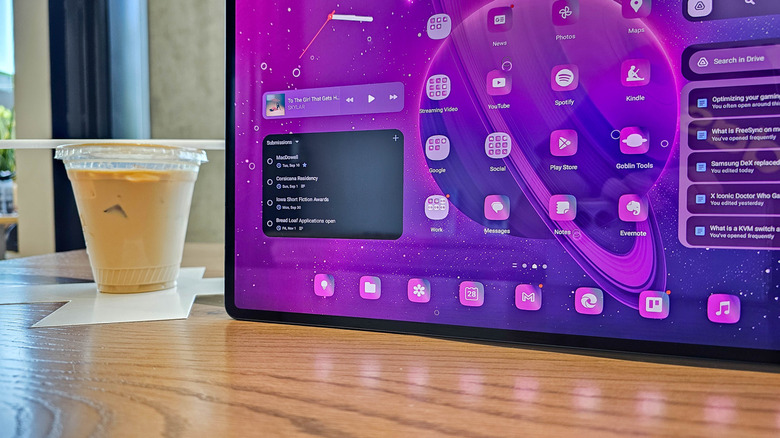
If you're anything like me, you love tweaking every aspect of your devices to meet your specific needs. Customization freaks like us are a special breed of techie — most people are fine with their tablet's default settings — so Samsung built a special toolbox just for the small percentage of users who don't mind spending a few hours dialing in our settings. It's called Good Lock, and you can download it from the Galaxy Store. The perfect tablet may not exist, but Samsung leaves a lot of room to bridge the gap.
Good Lock is a container for a suite of customization modules and utilities that can be installed piecemeal. There are aesthetic options, such as Theme Park for better system theming and Home Up for more granular control of the home screen, but there are also utilities like NotiStar, which keeps a list of every notification you receive, or NiceCatch, which identifies apps that change your settings so you can figure out if an app has gone rogue.
Here are a few more of my favorites. Sound Assistant, which lets you customize your tablet's volume slider and even allows multiple apps to play sound at the same time, is a must-have. MultiStar adds even more multitasking functionality, including the option to fit more content into windowed apps and to use high resolutions on external displays with DeX mode. RegiStar lets you customize your tablet's Settings app and change what holding down the power button does. There are 20 modules to explore at the time of this writing, so customize to your heart's content.
Samsung's first-party accessories are nice, but overpriced
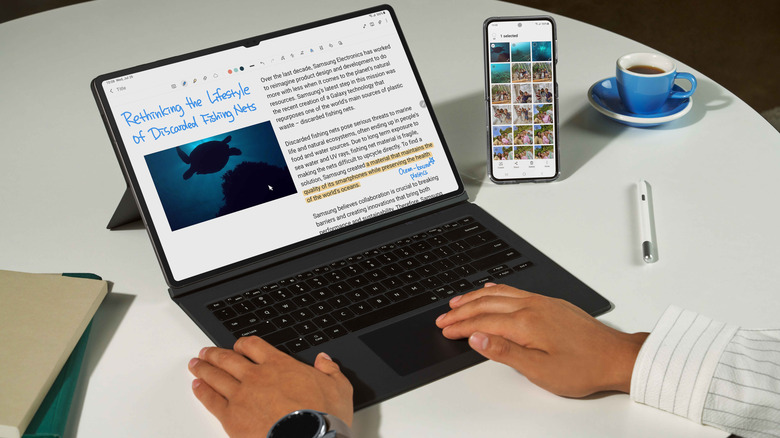
If you're the new owner of a Samsung Galaxy tablet, one of the first things you'll likely do is buy accessories for it. Because of Samsung's underdog position in the tablet market, third-party accessories for all but the company's latest flagship tablets can be in short supply. Meanwhile, Samsung itself sells a range of cases, keyboard covers, and more. After using several of those accessories, I can confirm they're useful — especially the Book Cover Keyboard case. However, you shouldn't buy brand-new accessories directly from Samsung or retailers unless you can't find them cheaper elsewhere.
Using the Samsung Book Cover Keyboard as an example, the version for my current Galaxy Tab S10 Ultra costs an eye-watering $350 at MSRP. For a mostly plastic, magnetic keyboard case with a backlight and trackpad, that's frankly far too high a price. Thankfully, I was able to find an open-box unit for less than half that price on eBay. If you shop on the secondary market, be sure to do your due diligence to avoid being scammed, but it's worth spending the extra effort for the money you'll save.
Third-party accessories from companies such as Spigen tend to be far less expensive. You can look at our list of top-rated cases for the Galaxy Tab S10 to get an idea of what's out there (though I found far fewer options for the S11 series when researching this article). I personally got a lot of mileage out of this cheap, $15 JETech Clear Case. You should also know that Galaxy Tab S9 accessories are compatible with the Tab S10 series, so you can save extra money by buying last-gen accessories. However, the design of the S11 series was updated, so you need to shop specifically for those devices.