

4 Handy Uses For Your Chromebook's USB Ports
We may receive a commission on purchases made from links.
Chromebooks might be commonly thought of as those cheap laptops your kid uses at school, but they're gradually improving in functionality to the point that there are plenty of people who use them as their main computer for either work or school. Some Chromebooks are even built to handle gaming, while others have surprisingly long battery life. They're more affordable than MacBooks and most Windows laptops, so it's not a bad choice.
However, one major drawback with Chromebooks is that they typically have fewer USB ports than conventional laptops — since they're designed to primarily handle web-based tasks. Some don't even have a USB-C port, which is used for so many different purposes. So, it's only natural to want to get the most out of the USB ports your Chromebook does have. So whether you're a casual user or a professional, there is plenty to do with the one or two USB ports you have access to.
Plug in a USB docking station or hub
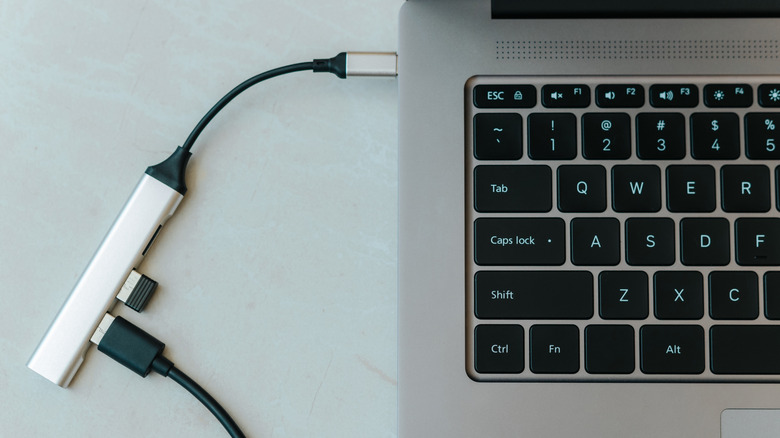
It's important to note that while most newer Chromebooks come with a USB-C port, not every Chromebook does. So, if you don't have a USB-C port, you most likely won't be able to utilize a docking station or hub since they typically connect via USB-C. If your Chromebook does happen to have one, then investing in a USB docking station will greatly improve your experience, especially if it's your sole computer.
A dock or hub will give you more USB-A and USB-C ports, sometimes an SD or microSD card slot, and, depending on the version you get, HDMI and DisplayPort ports. A hub is a smaller, portable version of a docking station with fewer connectivity options, but it will still provide more than what your Chromebook likely has on its own. If you can't decide between a docking station or a hub, Anker's new 13-in-1 dock has a nifty feature, which is a removable hub, giving you the best of both worlds.
External hard drive or SSD
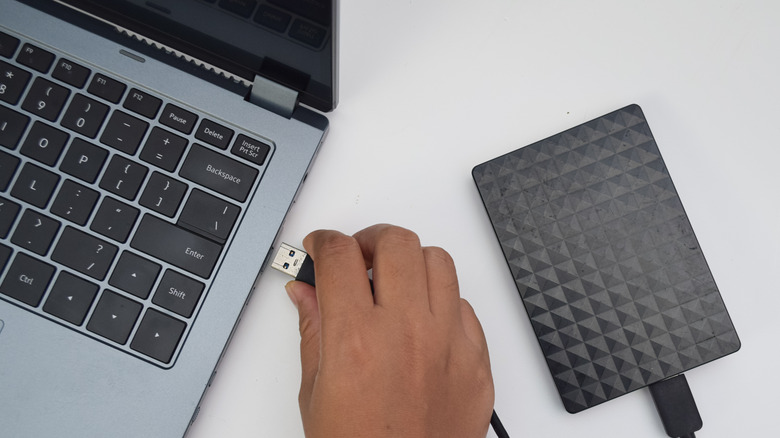
One of the biggest drawbacks of most Chromebooks is their lack of storage capacity, so buying a 1 TB external hard drive will go a long way. It doesn't even have to be 1 TB. Go with 500 GB or half of that, and it's still going to improve your Chromebook's functionality. Whether you're using the Chromebook for school, work, or creative endeavors, an external hard drive will be your prized possession. You can actually find a 5 TB My Passport by WD for about $120, which is considerably cheaper than external hard drives were more than a decade ago.
If you're looking for speed, then a fast portable SSD would be the way to go. Once again, however, many connect via USB-C, so if your Chromebook lacks such a port, then you're going to have to settle for a conventional HDD. That's okay, though, because the speed at which software loads is a bit overrated. It's really a matter of capacity over speed. SSDs are a little pricier than HDDs, but are still a good investment. You can get a Samsung T7 Portable SSD with 1 TB for around $109.
Transfer files from another device

Speaking of storage space, if you happen to have a Windows laptop, desktop, or another device with photos, music, or documents, and you want those files on your Chromebook, you can use a USB cable to transfer the files. Yes, you could do it all virtually and transfer the same files using your primary Google account, but there's something satisfying about connecting two computers to each other via USB and doing it that way. Plus, it's faster and more stable this way, especially if you're using USB-C.
There are a few steps to go through, such as making sure the USB is set to transfer files rather than charging. But once that's done, it's just a matter of using the Files app to drag the files you want from the external device to the Chromebook. The other method would require uploading documents and photos to your Google Drive, waiting for them to upload, then downloading them onto the Chromebook.
Microphone
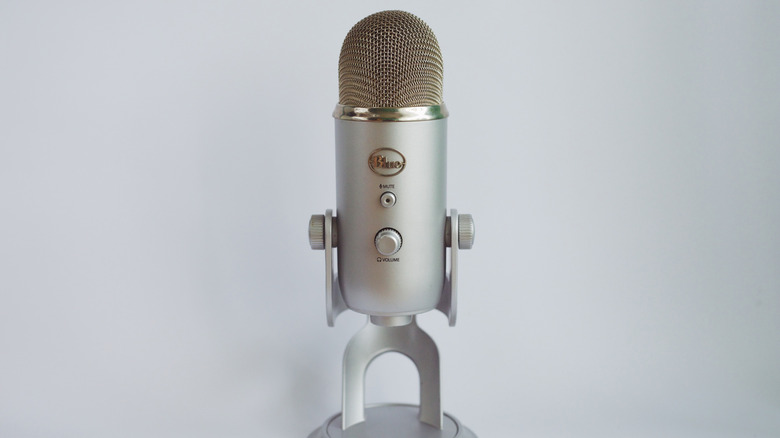
In the day and age of Microsoft Teams and Zoom meetings, hooking up a USB microphone to your Chromebook isn't a terrible idea. Without a dedicated microphone, your coworkers or classmates are going to hear your voice echo, as well as every other little sound. It's unlikely you're going to use a Chromebook for streaming your "Cyberpunk 2077" gameplay to Twitch, but something like the Razer Seiren V3 is great because it's a simple plug and play microphone, and that's all you need to eliminate an echo for your work meetings or virtual classrooms.
If you're just using the mic for meetings and don't need to record anything, there aren't any issues. If you need to record your audio for something like a podcast, however, you may need to jump into the Google Play Store and download an app to help with that. That's easy enough, though, as there are plenty of apps to choose from.