

How To Turn On The iPhone's Flashlight Without Touching Your Phone
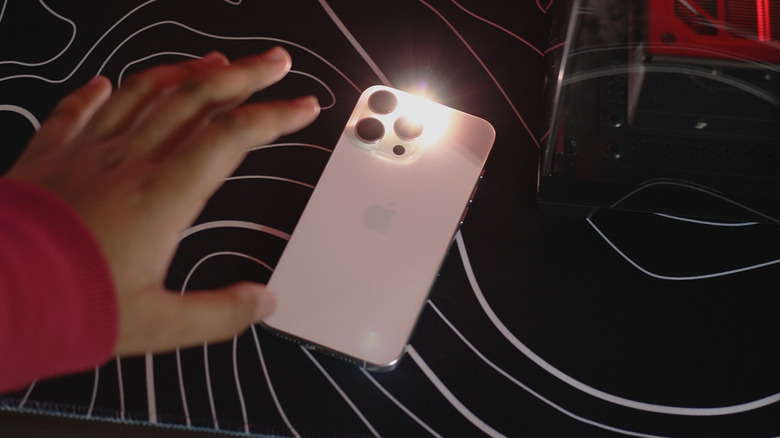
Smartphones have replaced several kinds of everyday electronics over the years. This includes gadgets like radios, dedicated digital cameras, and calculators. You can even use your iPhone as a spirit level through the pre-installed Measure app. For all the fancy and complex tasks that our smartphones can now accomplish, we continue to use perhaps their simplest hardware features the most on a daily basis — the flashlight.
Even if additions like night mode photography on the iPhone have generally diminished the role of the built-in flash, it's a tool of immense convenience when you're wandering around a dark hallway or looking for your AirPods under the bed. Typically, the quickest way you can turn your iPhone's flashlight on is by tapping and holding the torch shortcut on the lock screen. On newer models, you can remap the Action button to toggle the flashlight for quicker access.
In case your hands are full or dirty and you feel the need to summon your iPhone's flashlight anyway, you can turn it on completely hands-free using a staple iOS feature that you may have forgotten about — Siri. Simply say, "Hey Siri, turn on the flashlight," and your iPhone will follow through with the instruction. Turning it off is just as easy — just say, "Siri, turn off the flashlight." You can also use variations of the term "flashlight," like "torch," or "flash." Potterheads have it easier and can control the flash simply by uttering the "Lumos" or "Nox" spells.
Unable to activate Siri on your iPhone?
With all the Apple Intelligence feature delays, Siri hasn't exactly been having a good few years in the press. In some cases, it's actually devolved into feeling less capable than before, with the assistant offloading even simple tasks to ChatGPT. However, for device operation and smart home control, it continues to be the fastest and most effortless way to perform hands-free actions. In case you've been having trouble activating Siri using your voice, it's worth diving into the Settings app to see if everything's properly configured.
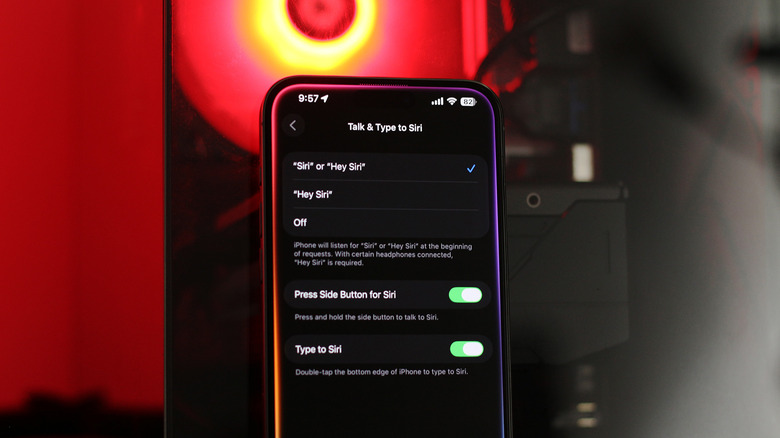
On your iPhone, navigate to Settings > Siri. On newer iPhone models that support Apple Intelligence, this menu is labeled "Apple Intelligence & Siri." While in this menu, tap "Talk to Siri" or "Talk & Type to Siri," and make sure that either of the first two options is selected. This lets you summon the voice assistant by saying the "Siri" or "Hey Siri" hotwords. Head back and make sure that the "Allow Siri When Locked" option is also turned on. Without this, you cannot control your iPhone using your voice while it's sitting on the lock screen.
Try to activate Siri now by using the hotword. If your device still doesn't respond, navigate back to "Talk & Type to Siri," tap on "Off," and select "Hey Siri" again. This will force your iPhone to bring up the Siri setup process, where you will be able to train it to respond to your voice better.