

What The Cloud Symbols Next To Your Mac Files Mean

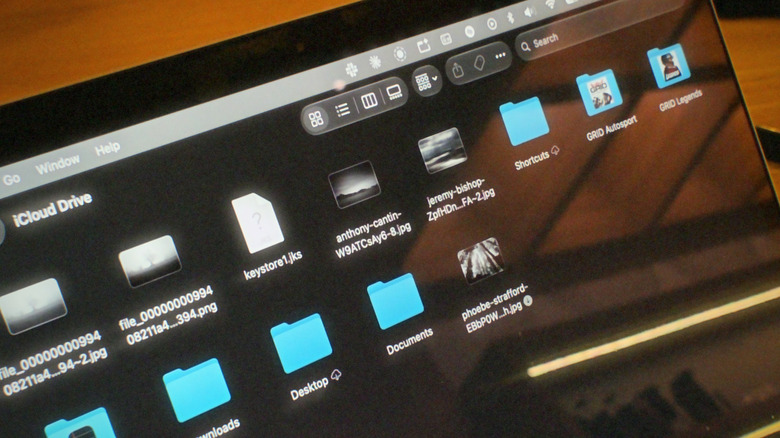
In the Finder app, sometimes you might see a little cloud icon next to files you have in your iCloud storage. It's easy to miss at first, but once you spot it, it's hard to ignore. Confusingly, the icon manifests in six different variants that show you the present status of the file in your iCloud Drive, such as whether it's uploaded, currently being backed up, or if it can't be stored in the cloud.
If you actively use iCloud to back up files on your Mac, one common status you might see is a cloud with a downward arrow inside it. This indicates that the file is located only in iCloud storage, safe and backed up, but isn't on your machine. If you wish to access it, you have to download it first. You can do so by simply double-clicking the file to open it or clicking the cloud icon itself. Once downloaded, you will be able to use the file offline. You'll also see the icon disappear, indicating that it's now officially stored locally.
Another icon variant is a cloud drawn with a dotted outline. That indicates your file is "Waiting to Upload" and hasn't been stored in iCloud just yet. These are the most common variants you'll see, but it doesn't end here.
The less common cloud symbols
Regardless of the iCloud storage plan you're subscribed to, one thing you can't do is upload files or folders larger than 50 GB. When that happens, you'll see another variant of the cloud with a line drawn through it. This particular icon means that the file is ineligible to upload.
Similarly, you may also spot a cloud icon with an exclamation mark inside. This means your file failed to upload because your iCloud storage has run out. When that happens, nothing is lost — the file simply resumes uploading on its own once you free up some storage. Since iCloud shares its storage pool with iCloud Photos (which can be viewed on many different devices), iPhone and iPad backups, and iCloud Mail, it can be easy to run out of space.
Managing the cloud symbols

The different states of iCloud can get a little confusing, so the best way to see the status of your files is by switching the Finder window to list view (View > as List). Then open View > Show View Options and select iCloud Status. You will then see a dedicated column that includes the current status of the files or folders on iCloud. If you see a plain cloud icon with nothing inside it in this view, that indicates that the file is located both in the cloud and on your device.
Sometimes, you might also observe a file changing its state on its own. A file with no cloud icon at all may switch to the cloud with the downward arrow instead. That happens because of a particular setting that automatically offloads files when more local storage is needed. It's called Optimize Mac Storage, and you can access it from System Settings > your name > iCloud > Drive. To stop a specific file from being offloaded, Control-click it and choose the Keep Downloaded option. That's when you'll see another icon variant: a gray circle with a downward arrow.