

What Could Happen To Your Apple Account After You Die?
We may receive a commission on purchases made from links.
Digital accounts have become a part of everyday life, and most of us have amassed a sizable digital footprint. According to a survey from Bitdefender, most users juggle anywhere between three and 10 accounts that they use on a regular basis. That number inflates dramatically when you consider "throwaway" accounts, or accounts that were created for a single purpose and then forgotten about. That number is the topic of some debate, but estimates from NordPass put it at 187, while Yorba claims the number is well over 200. There's likely no real way of knowing the exact figure, but the gist of it is the same: We all have more accounts than we probably realize.
Most of us have the everyday accounts that have become a core part of life at this point: email addresses, online banking, and usually a Google or Apple account — or both. Google and Apple accounts specifically are important: They are operating system-level accounts that are tied to devices and use biometric data to tie your identity to them. They also function as platform accounts that act as a key to a variety of digital services, with Google and Apple both offering their own ecosystem of apps, entertainment, digital wallets, cloud storage, and more. These accounts can also be used for Single Sign-On (SSO), but you might want to stop using these accounts to sign into websites.
That means these accounts become a central identity that connects us to a broad range of hardware and services, which begs the question: What happens to these accounts when we die? We've covered what happens to your Google account after death, but Apple approaches the issue a bit differently.
Ushering your Apple account into the digital afterlife
The uncomfortable reality is that when it comes to your Apple account – or other digital accounts – it needs to be treated as part of your will, estate, or legacy planning. It is not uncommon for loved ones to have to jump through hurdles in order to access photos, documents, or data tied to a deceased loved one's Apple account, which only exacerbates the already painful experience of losing someone. Digital accounts do not have right of survivorship – they are granted upon a license, and are subject to termination when the account holder passes away.
Apple lays this out in its legal terms, under section IV, subsection D. That section states that "Except as allowed under Digital Legacy and unless otherwise required by law, you agree that your Account is non-transferable and that any rights to your Account or Content within your Account terminate upon your death." In order for anyone to access your Apple account after death, you'll need to plan for it according to Apple's Digital Legacy policy. Apple account holders can designate up to five legacy contacts that can access certain data for a limited amount of time – the account cannot be claimed and continue on in perpetuity. You can think of this as a data recovery tool.
Apple's legacy contact support pages go over what data can and cannot be accessed. Generally speaking, most of the data associated with the account can be accessed. What can't be accessed is purchases, payment information, and anything stored in Apple Keychain. Legacy contact access to this data is temporary and expires three years after Apple approves access, after which the account is permanently deleted. Without a Legacy Contact key, users will have to get a court order to access the account.
How to add a legacy contact, and what Apple will and won't do
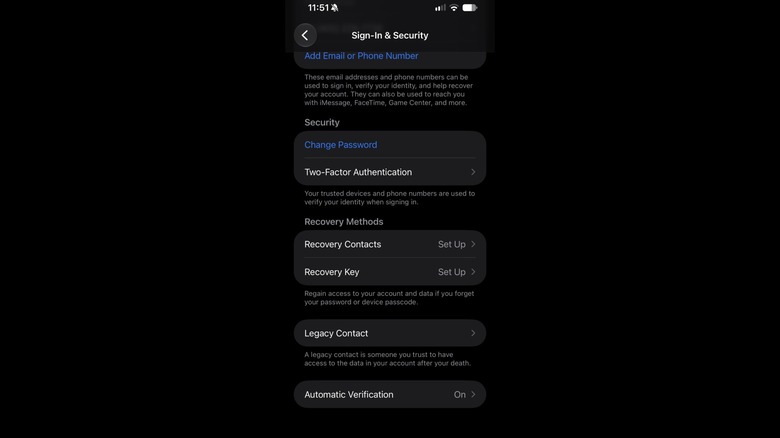
By adding a legacy contact for your Apple account, you're giving them a secure and straightforward way to access your account after your death. Once you've added a legacy contact, an access key will be generated and sent to them. You can also print and store a copy of this key. In order for your legacy contact (or contacts) to access your account, they will need this key and a copy of your death certificate. Adding a legacy contact can be done through an iPhone, iPad, or Mac computer.
On an iPhone or iPad, navigate to Settings, and then tap your account name. From there, you'll follow Sign-In & Security > Legacy Contact. On Mac, you'll go to the Apple Menu > System Settings, and select your account name. Then, you'll follow Sign-In & Security > Legacy Contact. In both scenarios, you'll add up to five legacy contacts; they don't need to have an Apple account or an Apple device. Should you want or need to remove a legacy contact, you'll navigate the same menus, and then click on the contact's name and select "Remove Contact."
There are limits to what Apple will do once a legacy contact is approved to access the account. They will grant access to certain data, as mentioned above. Apple will also remove an Activation Lock from the deceased individual's device, and Apple will terminate the account permanently upon request. Though, Apple will terminate the account after the access period expires. What Apple will not do is bypass or remove device codes without first resetting the device and wiping the data. Apple will also not keep the account active if it has been inactive for more than a year.