

Why Your PS5 Has No Sound – And How To Fix It
The PlayStation 5 can produce high-quality and immersive audio. This is especially true for its 3D audio feature, which can output virtual surround sound directly through your TV's speakers. You don't need high-end headsets because it's handled natively with the Tempest 3D AudioTech engine. Furthermore, the PS5 is a general entertainment center. It can stream movies and music from services such as YouTube, Netflix, Disney+, Spotify, and Apple Music. That's why it's understandable to panic when the console suddenly has no sound.
One possible reason your PS5 has no sound is that the TV is muted. You can try pressing the mute button on the TV's remote or turning up the volume to fix this. It could be that an external output device, like a Bluetooth speaker or home theater system, is interfering with TV audio, so try disconnecting the device to see if the TV's sound returns. While doing this, ensure the PS5's HDMI cable is connected directly to the TV's HDMI port. It could also be that the TV's HDMI port or HDMI cable is faulty. Connect your PS5 to another TV to test the sound. Also, try a different HDMI cable.
If none of these steps fix the issue, the fault may lie with the PS5 itself. For example, its audio might be muted systemwide, or its output device might be set to something other than the TV. It could even be that its HDMI port is damaged.
Fixing no sound on your PS5
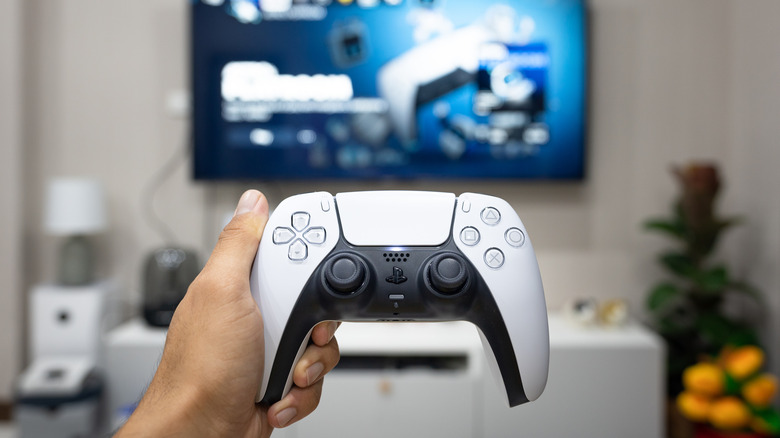
When troubleshooting the PS5 itself, the first thing you need to check is whether the system audio is muted. Look for the mute button on the controller. If it's orange and blinking slowly, this means that both the mic and sound are muted. If this is the case, just press the mute button to unmute the PS5's audio. This is just one of the handy features built into the PS5 controller.
It could also be that your PS5 has no sound because the output device is set to something other than the television. Select the speaker icon in the PS5 Control Center and ensure the Output Device selection is set to HDMI Device (TV). A temporary glitch may also be the problem. Shut down the PS5, disconnect everything, and then wait for 60 seconds. Turn it back on and see if the sound returns. If that doesn't work, try updating the PS5.
If you suspect a faulty HDMI port, inspect it for signs of damage, such as bent, broken, or missing pins, a loose connection, or a misaligned port. If the PS5 is still under warranty, which expires one year from the date of purchase, you can send it to Sony for repairs. But keep in mind that the warranty only covers manufacturing or assembly defects. If it's not under warranty, you will have to turn to professional repair, which can cost you between $150 and $200 on average.
Use headphones as a workaround
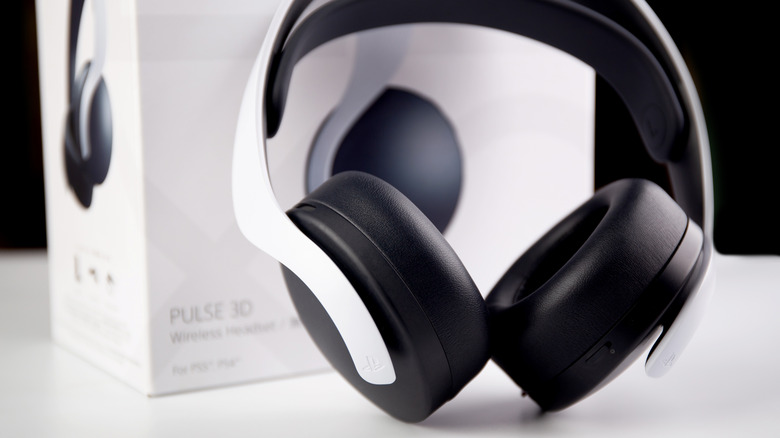
If you don't have the funds for repairs or don't want any downtime at the moment, there are ways to play your PS5 when it has issues with the HDMI port. If you still see a picture and just don't hear audio, you can enjoy the sound through a headset.
If you have a Pulse 3D Wireless Headset, now would be a good time to use it. To get the Pulse 3D headset to work wirelessly, you need to use the specialized USB adapter included with the headset. While the PS5 doesn't natively support Bluetooth audio devices, a relatively inexpensive workaround for is to connect an audio transmitter to your PS5. This transmitter then allows you to pair a Bluetooth headset with it.
If you have a pair of wired headphones or earbuds, you can connect them to the DualSense controller using the headphone jack on the bottom. This works with just about any pair of headphones or earbuds, even if they aren't specifically for gaming. You can even connect a pair of speakers to the controller if the speakers have an audio jack. Once you plug in the audio device, the PS5 should switch to it automatically.