

What Does The Water Drop Symbol On Samsung Phones Mean?
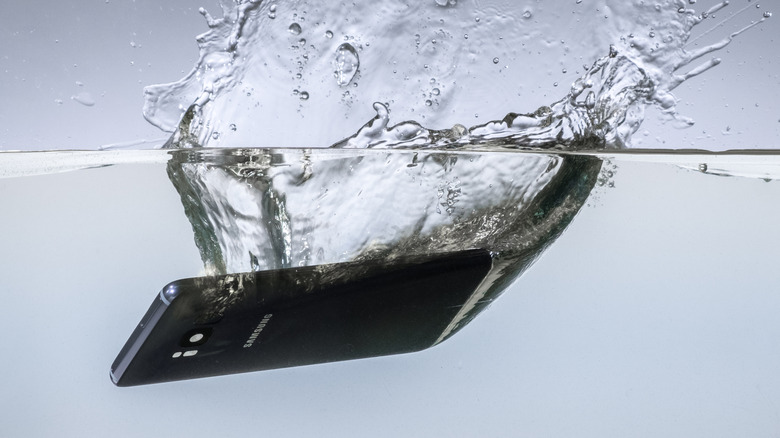
If you own a Samsung smartphone, it's highly likely the device features some kind of built-in water resistance. While it may be tempting to take your phone swimming or to the hot tub, water resistance does not mean waterproof. Although many Samsung smartphones can withstand being submerged in water, that doesn't mean that damage can't happen in wet conditions. Samsung discourages using its smartphones in environments with high humidity, as well as highlighting the damaging effect liquids other than water can cause. If a spilled drink or moisture buildup causes a problem, Samsung has a special built-in safety alert to prevent further damage.
The water drop symbol is a part of Samsung's method to handle water damage. The symbol appears as a safety precaution on models in the Samsung Galaxy series with an IP68 rating. If you're familiar with levels of IP ratings, you'll recall that the first digit represents protection against dust and other solids, while the second digit measures water resistance. The higher the number, the greater the protection. Although IP68 devices offer a high level of water resistance, that doesn't mean they're completely protected against water damage. Here's what to do if you see the water drop symbol appear on your Samsung phone, and what steps to take to dry your device safely.
What to do if you see the water drop icon on your Samsung phone
If you see a water drop symbol accompanied by an error message, it indicates that moisture has been detected in the device that may cause harm. This can be caused by water inside the charging port or a buildup of water beyond the device's safety limits. In either case, charging through the USB port will be temporarily suspended until the device is dry for safety reasons. However, Samsung says wireless charging can still work on supported devices once the phone itself is dry.
After ensuring your device is unplugged, it's important to dry your device as efficiently and safely as possible. According to Samsung, you should first wipe your phone with a dry cloth, then gently shake the device five to ten times with the charging port facing downward to get rid of any excess moisture. Avoid putting your phone in a bag of rice – many smartphone companies discourage this advice due to its ineffectiveness and the residue it can leave behind. Instead, Samsung recommends drying your smartphone using the cool air from a fan. Avoid hot air from items such as hair dryers – this can cause further damage. Leaving your device in a well-ventilated area can also do the trick. Ensure you put a dry cloth underneath to pick up moisture, or angle your phone with the charging port facing down if the port area is affected.
How to get rid of the water drop symbol on your Samsung phone
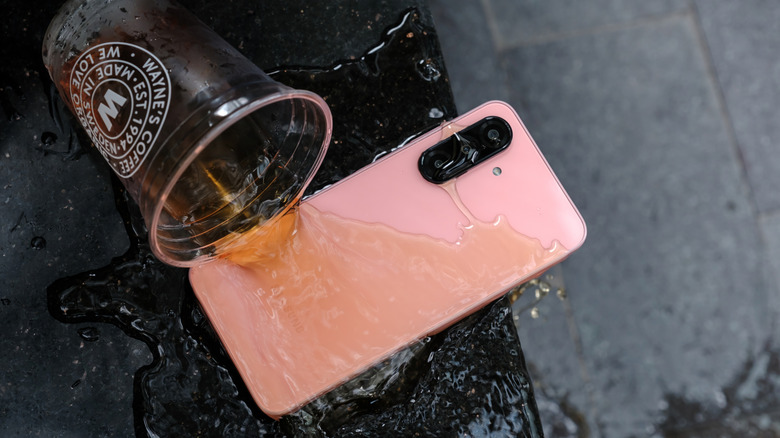
If the water drop symbol remains after drying, this may be due to a system-related error with moisture detection. Samsung recommends drying your device for at least 24 hours before attempting to recharge your phone. If the error message persists, there may be leftover humidity causing the sensor to detect moisture. In this case, once you've thoroughly dried your device, you can try resolving the system error by clearing your USB cache. Here's how:
-
From your Samsung device's Settings page, navigate to the Apps option.
-
Tap the Filter and sort icon at the top of the list, then select Show system apps.
-
Find USB Settings, then select Storage.
-
In the bottom-right corner, tap the Clear cache button.
If moisture has found its way into your charging cable, it's sensible to try switching cables when charging if the water drop symbol persists. If there is permanent damage from residue in your charging port, consider wireless charging as a temporary alternative before taking your phone to a specialist.