

Should You Disable The 2.4 GHz Wi-Fi Band On Your Router?
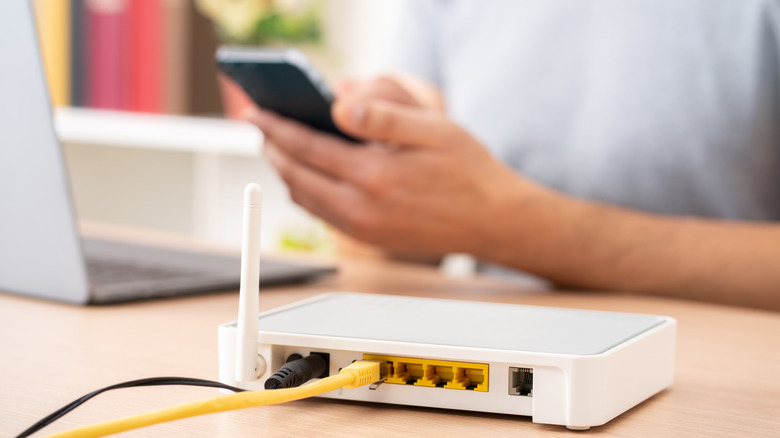
Dual-band routers broadcast signals over the 2.4 GHz and 5 GHz frequency bands. Tri-band routers either add another 5 GHz band or, if they're Wi-Fi 6E or Wi-Fi 7 routers, a 6 GHz band.
Of all these frequency bands, 2.4 GHz is the slowest in terms of raw speed, and it's compounded by the fact that it's also the most congested since a lot of Bluetooth and legacy Wi-Fi-enabled devices use it. It also gets a lot of interference from other frequency emitters that use the same band, such as microwaves, baby monitors, cordless landline phones, and garage door openers. When your smartphone, computer, or game console connects to it, speeds are likely going to be slower than 5 GHz. So, the option to disable the 2.4 GHz Wi-Fi band becomes attractive.
Unless you're sure that every device on your home network uses the 5 GHz Wi-Fi band and that you'll always be in range, you should leave the 2.4 GHz Wi-Fi band on. When you disable it, you should expect a couple of drawbacks. For one, devices that don't use the higher Wi-Fi frequency bands will not be able to connect to the network. Another drawback is that you may run into more dead zones in the house.
Why disabling the 2.4 GHz band offers little benefits
Disabling the 2.4 GHz Wi-Fi band means that the devices that only use 2.4 GHz can't connect to the network. For example, most smart home devices still use 2.4 GHz, as well as printers, e-readers, and smart appliances. You might also have guests with old phones or computers that will fail to connect. Keeping it turned on increases the compatibility of Wi-Fi-enabled devices.
Since 2.4 GHz is a lower frequency, it has longer waves and can travel farther than the 5 GHz band. The 2.4 GHz band provides a good connection within a range of about 65 feet, while 5 GHz's range is within 49 feet (depending on the environment). Solid objects like walls and floors can block 5 GHz signals, further decreasing their range. All this is to say that when you switch off the 2.4 GHz band, you might get more dead zones. That is, unless you live in a small house or apartment, have a Wi-Fi extender or booster, or set up a Wi-Fi mesh system.
Also, it might not be necessary to disable the 2.4 GHz band if your router has band steering. Normally, a dual-band router lets the device choose which band to connect to. But with band steering, the router decides what's best based on factors like proximity, signal strength, and congestion. For example, if the device is far away from the router, it might switch to the 2.4 GHz band and then switch again to 5 GHz when the device is closer, without disconnecting from the network.
How do I tell if my Wi-Fi is 2.4 GHz or 5 GHz?
If your router lacks band steering or the feature is not working as intended, you might need to know what band your device is using so you can troubleshoot issues. This is usually the case if the internet is slow. The easiest way to find out is to check the Wi-Fi name (SSID). If it's a split network, check for SSIDs like "Home_Wi-Fi_2.4G" for 2.4 GHz or "Home_Wi-Fi_5G" for 5 GHz. You can also check the list of connected devices in the router's admin panel or app to see if it indicates the Wi-Fi band.
When using Windows, press Win + I to open the Settings app and click Network & Internet. Click the name of your Wi-Fi connection, then look under Properties at the top to see which frequency the network is using. On a Mac, press the Option key and then click the Wi-Fi icon on the right side of the menu bar. Check the Wi-Fi you're connected to and see what it says next to Channel.
On smartphones, it depends on the manufacturer of your device. Some Android devices have this information buried somewhere in settings, and iPhones don't natively tell you the frequency band. However, you can install and enable Apple's AirPort Utility app for more information about the Wi-Fi connection your iPhone is using.