

What Does The Brown Box Symbol Next To Your Windows Files Mean?
If you're a frequent OneDrive or Dropbox user, you'll likely be familiar with the presence of icons next to your Windows files. Seeing icons such as green checkmarks and the cloud symbol is standard practice. Icons like the red X symbol next to your Windows files are more of a reason for concern. While the brown box symbol next to your Windows files can be harmless, there are a host of causes that may restrict access to the files.
If you find the brown box symbol in the corner of a Windows file, it indicates that the file has been archived on a cloud service rather than stored locally on your computer. As a cloud-only file, clicking it will prompt Windows to download the file automatically from the cloud service it's stored on to open it.
If you encounter issues when opening the file, there are two primary reasons — either there are connection problems with your OneDrive or Dropbox account, or there are offline-only settings that are disabled by the cloud services. Thankfully, several fixes can help if you're unable to open Windows files with brown box symbols, so you can access your files without hassle.
Opening brown box files by relinking cloud storage
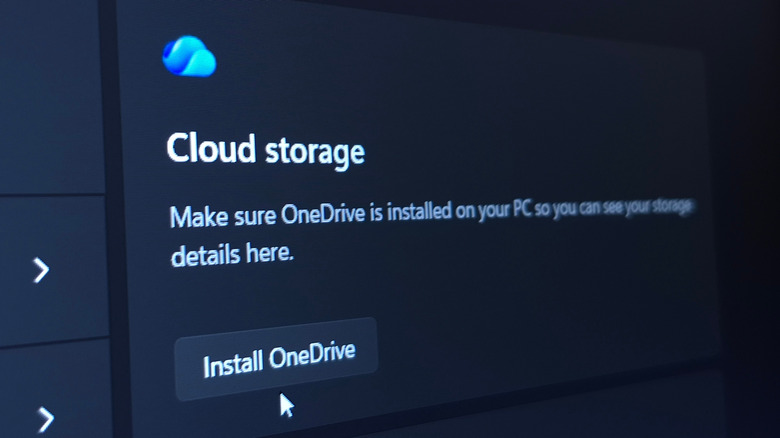
If you're unable to open Windows files with a brown box symbol, the root cause may be a faulty connection between Windows and your chosen cloud service. As a common fix, you can unlink and relink your cloud storage account.
Here's how to unlink and relink your OneDrive account:
-
Click the OneDrive cloud icon in your Windows system tray icons area.
-
Click the cog wheel icon in the top right corner, then select Settings.
-
From the side tabs, select Account.
-
Underneath your credentials, click Unlink this PC.
-
Click Unlink Account.
After the account has been unlinked, you can sign back in to relink your account.
Dropbox users can unlink an account using the Dropbox website with the following method:
-
Once signed in to Dropbox, click your profile icon in the bottom left corner.
-
Click on Settings, then navigate to the Security tab.
-
View your linked devices underneath the Devices section.
-
Click the trash icon next to the device you want to remove, then click Unlink.
Accessing brown box files for OneDrive users
If unlinking and reconnecting your cloud storage account doesn't grant access to the files with the brown box symbol, you can fix the issue by modifying online-only settings on your cloud service. There are two options – either you can force Windows to store the file locally (applicable to OneDrive users only), or you can prevent your cloud service from storing files only on the cloud.
To store a OneDrive file locally, right-click on the file and select the Always keep on this device option. This will save the file on your machine instead of solely in the cloud. You can also select this option for folders if you want to batch process brown box symbol files.
Files On-Demand is another problematic OneDrive setting that prevents storing files locally in order to save storage on your device. You can turn this setting off to prevent getting further brown box files. Here's how:
-
Click the OneDrive cloud system tray icon, click the gear icon, then click Settings.
-
On the Sync and backup tab, scroll down and click the Advanced settings toggle.
-
Scroll to the Files On-Demand option and disable it.
Accessing brown box files for Dropbox users

Similar to OneDrive's Files On-Demand feature, Dropbox's selective sync feature (formerly known as Smart Sync) may cause issues when accessing brown box files. Like Files On-Demand, selective sync utilizes cloud-only files to save hard drive space. However, you can select which files to keep on your hard drive rather than in the cloud by doing the following:
-
Click the Dropbox system tray icon.
-
Click the circle account menu, then select Preferences.
-
Under the Sync tab, locate the Selective Sync option and click Modify.
-
Select the files you wish to store locally on your hard drive, then click Update.
If you're still experiencing issues after making your brown box files available offline, you can try disabling and uninstalling OneDrive on Windows, or any cloud services you no longer use. This is especially helpful if you have more than one cloud service installed. Issues may occur if both services attempt to sync the file simultaneously. There are also some money-saving alternatives to cloud storage if using cloud services causes too many headaches.