

The Drawbacks Of Using USB-C Cables To Connect To A Display
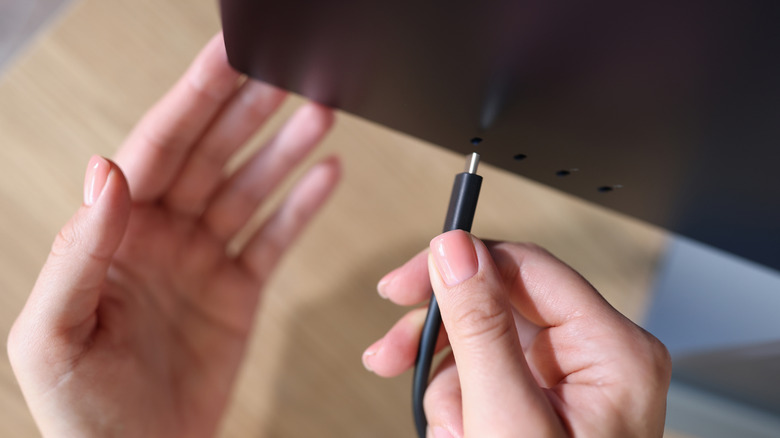
USB-C is a great technology that promises a cleaner desk: one type of cable for your monitor, peripherals, and laptop charging. There are some downsides, however, including confusing host port and cable feature compatibility (since not all USB-C ports or cables support video output); shared bandwidth limitations that can reduce USB hub speeds, screen resolution, or refresh rates; and occasional power delivery handshake or connection instability.
Not all USB-C cables are the same, and not all cables are suitable for connecting your display to your PC or laptop. A cable meant to charge up your device may not be suitable for video. Even a high-wattage charging cable may not support video: Apple's USB-C Charge Cable, for instance, supports up to 240W charging, but doesn't support video output.
Alternate Mode lets a USB-C connection carry video signals (such as DisplayPort or HDMI) by repurposing some of its high-speed data lanes. However, to take advantage of USB-C Alternate Mode, you need a device with a USB-C port that explicitly supports it, a video-capable USB-C cable, and a display with a compatible USB-C video input (or at least an appropriate adapter). Every component also needs to support your intended resolution and refresh rate.
Some use cases require compromise
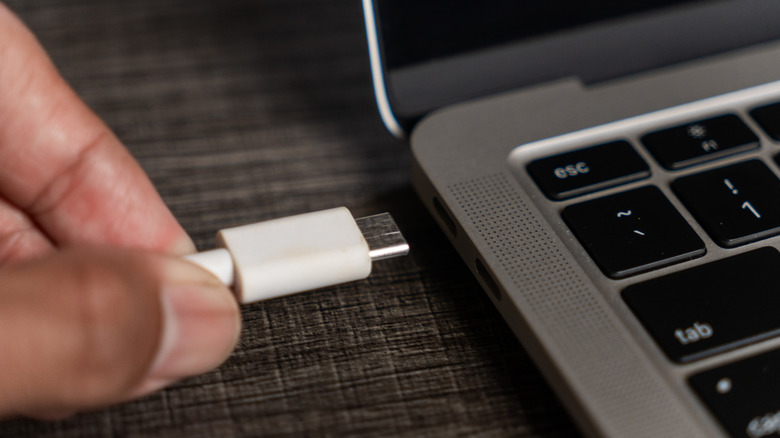
Though there are some great USB-C monitors in the wild now, getting a picture doesn't mean getting every feature simultaneously. Using Alternate Mode often means video and SuperSpeed USB are competing for the connector's four high-speed lanes. Allocating all four lanes to display output means you get maximum video bandwidth, but only USB 2.0 speeds for data (through separate pins). To maintain SuperSpeed USB, you need to carve out two of those lanes, leaving only two for video.
In many cases this may never be an issue, but issues can arise if you're also using your monitor as a storage hub. Faster transfers may mean restricting available resolutions or refresh rate. Many monitors offer a setting to prioritize either video or USB speed with this specific problem in mind.
If you also want to use your USB-C monitor to charge your laptop, check its power-delivery rating. Some monitors can support video without supplying enough power to charge the connected machine. It needs to support USB Power Delivery, and its output has to match your laptop. Insufficient power can trigger warnings, prevent charging, or even bog down system performance.