

How To Get The Highest-Quality Audio Out Of Apple CarPlay
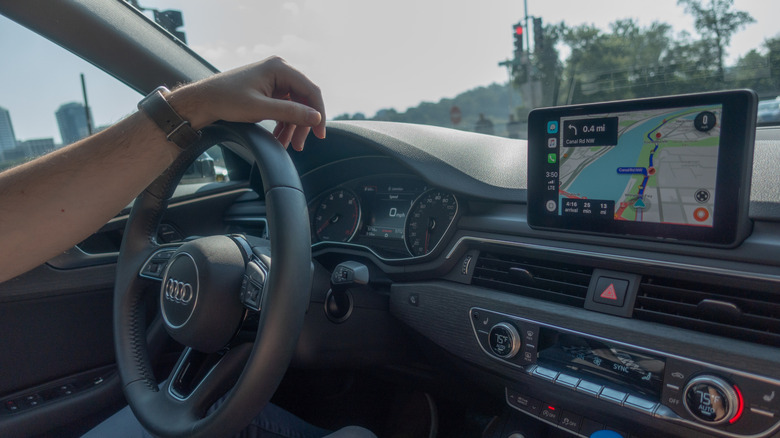
Apple makes great hardware products, but they wouldn't be half as popular if it weren't for the software and ecosystem features that make the experience so seamless. IOS has a slew of conveniences that make using the iPhone with other devices feel like a natural extension of the same experience, CarPlay being one of them. If your vehicle supports the feature and you already rely on navigation apps, then using CarPlay on your car's infotainment screen is one of the best free upgrades you can make to your driving experience.
Using CarPlay also makes it easier to control music playback when you're driving. Selecting tracks on your car's infotainment screen is much safer than doing so on your phone's smaller display. Plus, you get to skip tracks and change the volume using the physical controls on your steering wheel. Setting up CarPlay takes only a few seconds, and it supports major music streaming apps like Spotify, Apple Music, and Tidal.
Unless there's an issue with your car's stereo or the CarPlay connection, the audio quality shouldn't be any different from your car's built-in media player via Bluetooth. If you want to improve your music listening experience, though, there are a few tweaks you can make on your iPhone to get the most out of your car's audio system.
Switch to a wired CarPlay connection
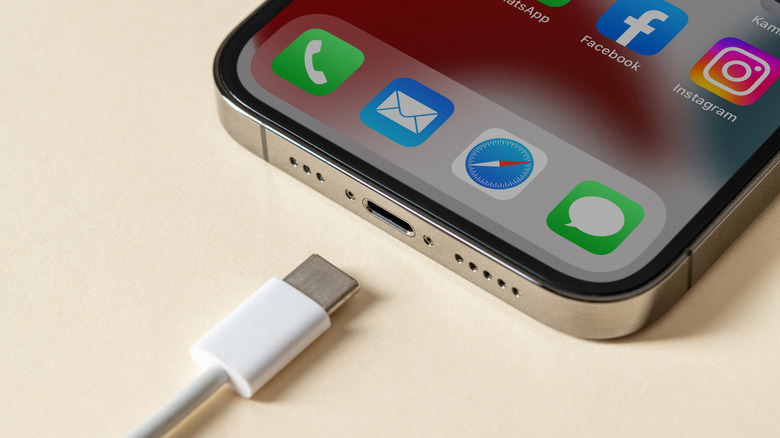
Not all car models support wireless CarPlay, and while it is incredibly convenient not to have to deal with a wire every time you get in and out of your car, going wireless impacts audio quality. CarPlay uses both Bluetooth and Wi-Fi to provide enough bandwidth for all your apps. However, even so, the audio will still be compressed.
Now, the benefits of lossless audio are usually more apparent with a good pair of audiophile-grade headphones, but a decent car stereo can still take advantage of lossless music playback. Plus, a wired connection keeps latency to a minimum, making playback controls feel a lot more responsive. Audio dropouts when using wireless CarPlay are another issue a wired connection might fix.
Beyond lossless music, your car's EQ settings can also create a more enjoyable listening experience. If you prefer thumpy bass, then you may want to increase the lower frequencies; conversely, if you primarily listen to audiobooks or podcasts, boosting the mids can make voices sound clearer. Some car manufacturers include a handful of sound presets you can use in case you don't want to adjust the frequencies manually.
Choosing the right music streaming service
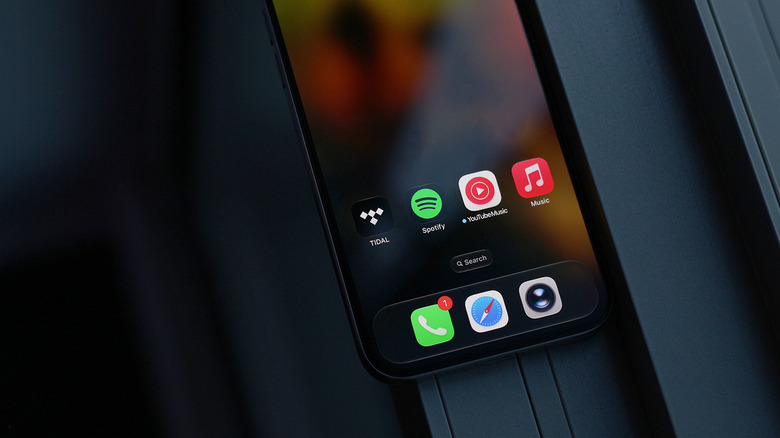
While lossless audio can be great, not all streaming services offer it. Spotify, Apple Music, and Tidal are three of the most popular services with lossless music, but even then, you will have to enable it in the app's settings. If you're using Apple Music, navigate to the Settings app on your iPhone, head to Apps > Music > Audio Quality, and select "Hi-Res Lossless" as the streaming quality.
Tidal users need to head to the app's settings and change the quality to "Max" under the "Audio & Playback" options. For Spotify, tap your profile picture and navigate to Settings and privacy > Media quality. Note that lossless audio consumes a lot of data, so if you're on a limited connection, download the tracks you want to listen to in lossless in advance.
YouTube Music is another popular app in this space, but it isn't necessarily known for audio quality and doesn't offer lossless streaming. With the car's engine and road noise already masking some of your music's finer details, lossy streaming shouldn't significantly impact your listening experience, but setting YouTube Music's streaming quality to "Always High" will ensure you're getting the most out of it anyway.