

Why Android Auto Doesn't Work With Your VPN (And How To Fix It)
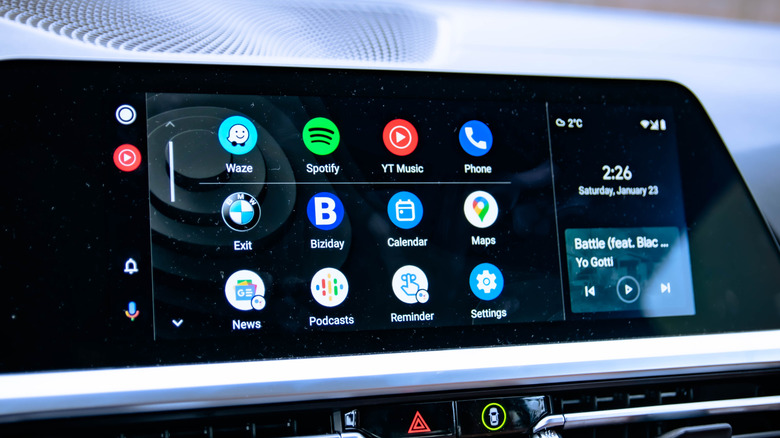
While wireless Android Auto has its fair share of upsides, the experience is not all that seamless. From slightly reduced connection reliability to increased battery drain, there are a handful of things you need to be mindful of. In addition to these, wireless Android Auto may not work when you connect a phone that's running a VPN. Upon doing so, you may see a screen that reads "Communication error 21 – Being connected to a VPN may prevent Android Auto from starting. If you're using a VPN, turn it off and try reconnecting to Android Auto."
Remember, this is not a VPN-specific error. You might get the same message across different VPNs. And the reason you get this error, or more precisely why Android Auto doesn't work with a VPN, essentially comes down to how your smartphone and Android Auto communicate. Remember, Bluetooth is responsible for establishing the initial connection. As soon as that part is complete, Wi-Fi takes over. That's why wireless Android Auto turns on your phone's Wi-Fi. And when Android Auto and your smartphone are communicating over Wi-Fi, an active VPN, in simple terms, is likely to conflict with that. This is because a VPN changes how your phone routes network traffic and this doesn't always align with Android Auto's networking.
So, when an active VPN is detected, your phone sometimes throws "Communication error 21." Even Google's own guidance suggests disabling any active VPN before connecting your phone to Android Auto. But if you don't want to do that, there are solutions to fix the problem.
The good old wired connection helps
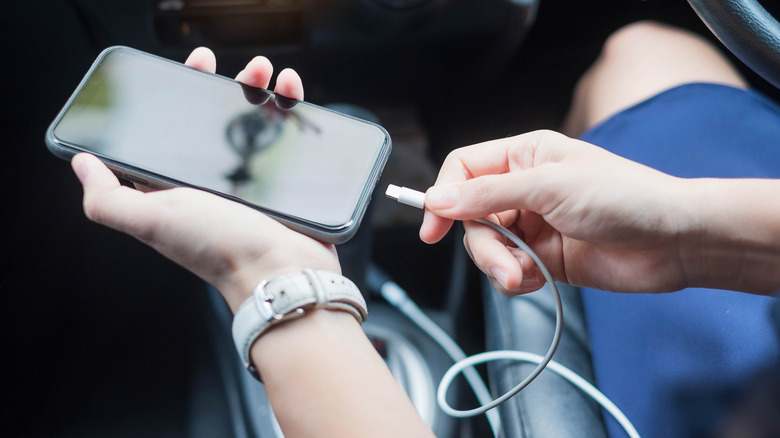
The easiest way to get Android Auto working with your VPN is to use a wired connection. Simply connect your smartphone to the dedicated Android Auto port on your car with a compatible cable. When you use wired Android Auto, the setup doesn't rely on Wi-Fi to communicate. Instead, all that information is transferred via the cable. So, you no longer receive any error and Android Auto starts working with an active VPN.
Keep in mind that your choice of cable also matters, as not every cable delivers the same experience. Some work well, others do just alright, and a few may not work at all. It's best that you use the cable shipped with your smartphone or a high-quality USB cable from a top-rated manufacturer.
Additionally, with wired Android Auto, you get a more reliable connection and clearer audio, and you no longer have to worry about battery drain on longer trips. There are several wireless Android Auto issues that can be fixed with a wired connection.
Set up Split Tunneling on your VPN
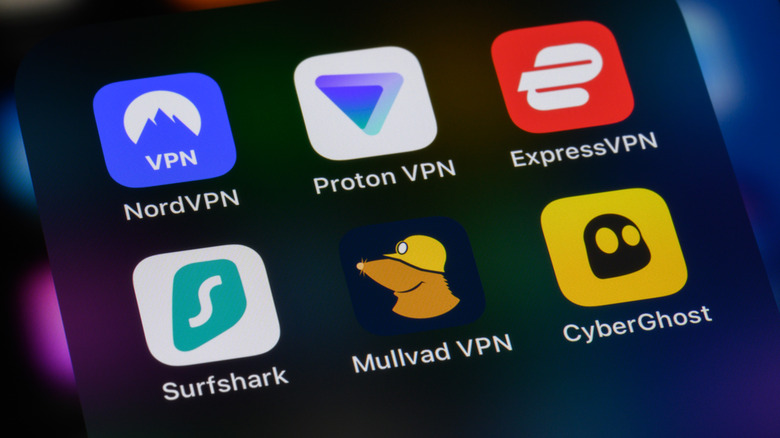
If wired Android Auto is not an option for you, and you prioritize the convenience of the wireless setup, there's another solution. You will have to set up split tunneling within the VPN app and allow Android Auto to bypass the VPN entirely so that it can establish a normal connection with your car. For those of you who don't know, split tunneling is a feature that lets you configure which apps connect to the Internet through the VPN and which ones do it directly. With many VPN apps, the default configuration routes all individual apps through the VPN, and that's why you get the Android Auto error.
The steps to set up split tunneling are different for each app, though the concept remains the same. Open your VPN's settings, look for split tunneling, turn it on, and then exclude the "Android Auto" entry from the VPN. Ideally, you should find an option for "Split Tunneling" within the VPN's settings. Remember, some VPNs label it differently. For instance, Surfshark refers to split tunneling as "Bypasser." For the exact steps, it's best to check your VPN's official website. Also, in many cases, split tunneling is not available on the free plan, and you may have to buy the VPN's subscription.
Now that you know the options, it's entirely up to you which solution you go with. The important thing is that the setup works. And more importantly, you shouldn't be making common Android Auto mistakes that directly impact the overall experience.