

5 YouTube Music Features You Should Try At Least Once
YouTube Music has come a long way. It offers several user-oriented features and is one of the best offline music apps for Android. And while you can find many of these features across most popular music apps, a few are exclusive to YouTube Music, and some are more refined. So, if you have a YouTube Premium subscription but are still using YouTube Music like a regular app, it's time to explore the little-known, yet highly useful features that can instantly upgrade the experience.
On YouTube Music, you can upload your own music collection, tracks that are not available on the platform, and listen to them from other devices. You can also configure the app to automatically download your favorite music at night. Apart from that, searching for songs is convenient. You can do so using emojis, hashtags, or simply sing or hum a part of the track. YouTube Music also integrates with Android's default Clock app, so you can wake up to your favorite music. And if you share the account with children or other family members, there are dedicated privacy settings for that.
Most of these features are easy to access; a few are buried deep inside the app, and some are simply overlooked because users don't realize they exist. But once you find out, these can make YouTube Music a perfect alternative to Spotify.
Upload tracks or automatically download your favorites
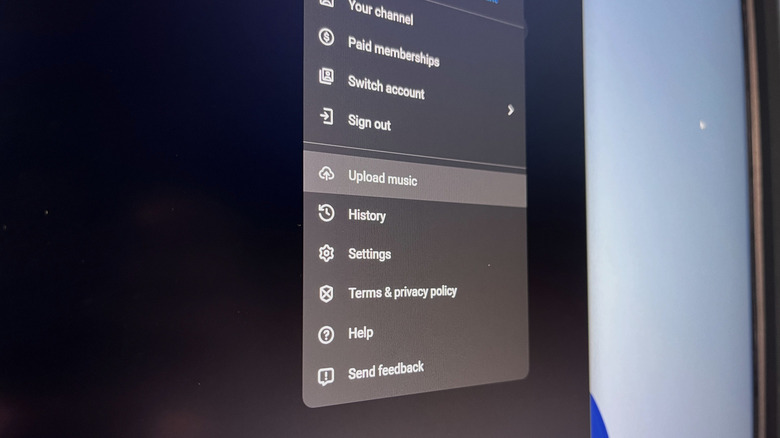
One of the more useful YouTube Music features is the ability to upload your own collection of tracks to your account. This way, you don't have to leave your existing local music collection behind. Once uploaded, you can access these songs across devices where you are signed in with the same account. YouTube Music lets you upload up to 100,000 songs to the library, although you can only do so from the web version. The best part is that you don't need a Premium subscription to play these songs offline or in the background. There are no ads either.
Users with a Premium subscription, on the other hand, can cast these songs and play them on smart speakers. Also, if your offline music collection is disorganized and you worry about uploading multiple copies of the same track, YouTube Music automatically identifies duplicates and removes them from your library.
Additionally, YouTube Music has another feature called Smart Downloads, which automatically identifies the type of music you listen to and then downloads songs that align with it. Everything happens in the background at night, provided that your phone is connected to a stable Wi-Fi network. The feature is disabled by default, and to turn it on, open "Settings" in YouTube Music, select "Downloads and storage," and enable the toggle for "Smart Downloads." You can also adjust the number of tracks you want YouTube Music to automatically download using the slider underneath. Keep in mind that YouTube Music automatically refreshes these downloaded songs, so you won't be stuck with the same set of tracks.
Search with lyrics, emojis, and hashtags
When it comes to top-rated music streaming services, search is an important part of the experience. The better it is, the more likely users are to stick with it. And YouTube Music takes search to the next level. Instead of searching for songs the conventional way — by typing a song title, album, or artist's name — you can use emojis and hashtags. YouTube Music can interpret emojis and show songs and playlists that align with them. For instance, if you use the sad or angry emoji in the search bar, YouTube Music will suggest songs and playlists that represent that mood. Similarly, the cake emoji will return birthday songs, and the cloud and rain emojis will return songs that represent those weather types. You can also use hashtags to explore songs in YouTube Music.
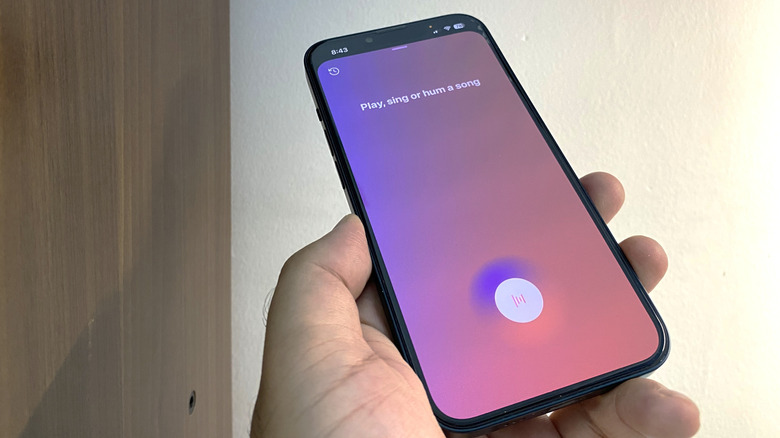
There's another way to look up songs on YouTube Music: Sound Search. This is particularly helpful if you don't recall the track's title or artist but remember a line or two. With YouTube Music's Sound Search, you can sing or hum a song, and it will load up three matching results and list the match percentage for each. To search for a song, open YouTube Music's search tab and tap the waveform icon near the top right. While it may not always be that effective, the feature is still a valuable addition to YouTube Music.
Check your seasonal music recap
With YouTube Music, you don't have to wait until the end of the year to find out what you have been listening to all this while. That's because YouTube Music includes both annual and seasonal recaps, allowing you to check the songs and artists you have listened to the most. YouTube Music will also create a playlist of your favorite tracks from that period, which you can save to listen to later. The seasonal recaps can be helpful if your listening habits keep changing. And like other apps, you can share both the seasonal and annual recaps.
Keep in mind that recaps don't appear for everyone. There are some requirements that need to be met. For seasonal recaps, you need at least four hours of listening time, and for year-end recaps, it must be at least 10 hours from January 1 to November 15. So, if YouTube Music isn't generating your seasonal or end-of-year recaps, make sure you are using the app enough.
Fall asleep and wake up to your favorite tracks
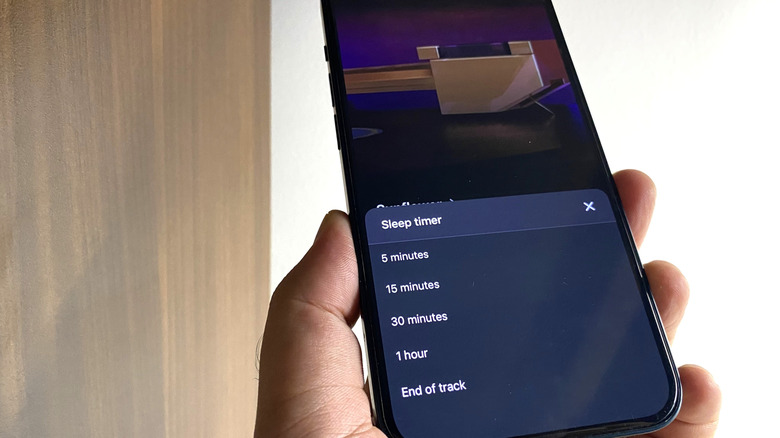
YouTube Music includes a sleep timer feature that can help you fall asleep to your favorite songs. If you have a few soothing tracks that help you sleep, add them to a playlist, play one, then tap the three-dot menu near the top right, select "Sleep timer," and choose a playing period or select the option to stop at the end of the track. This is helpful for users who prefer listening to light music, or any kind of music for that matter, at bedtime.
You can also wake up to your favorite track with YouTube Music by setting it as the alarm tone. This works natively only on Android devices using Google's official Clock app. To set your favorite track or playlist as your morning alarm, open the Google Clock app, create a new alarm, set the time, and then tap the ringtone option, which should presently read "Default." Choose YouTube Music from the top, search for a song or playlist, and set it as the alarm tone. Remember, you will need a YouTube Premium subscription for this. Also, Android's Clock app can do much more, including switching between digital and analog clock faces and setting a bedtime routine.
Use Restricted Mode and adjust privacy settings
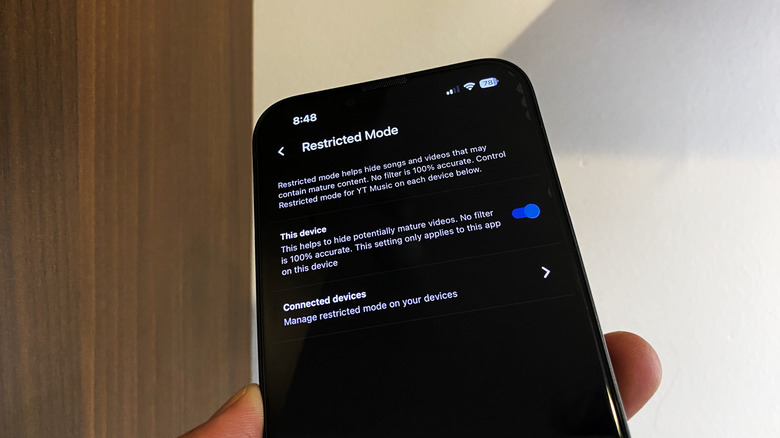
YouTube Music, like other music apps, may have songs that are not suitable for children, and if you share the account or device with your family, it's likely that kids may come across some of these tracks. YouTube Music has a dedicated feature called "Restricted Mode" to prevent this. To enable the feature, open the app, tap your profile near the top right, select Settings, choose General, and then turn on Restricted Mode. You can also manage Restricted Mode on connected devices from here. It's worth noting that Restricted Mode works at the device level and may not entirely screen out mature content, as YouTube acknowledges, but it does add an additional filter.
Similarly, if you share the account with others and don't want your searches or their listening history to influence YouTube Music's recommendations, there are dedicated privacy settings designed just for that. All you need to do is open Settings on YouTube Music, go into "Privacy and data," and turn on "Pause watch history" and "Pause search history." Remember, these changes also affect your YouTube account, not just YouTube Music. But these privacy controls can be helpful for users who share the account or device with others, or simply don't want their searches to impact future recommendations.