

How To Fix 7 Of The Most Common Problems With Waze
When we think of navigation, the first app that comes to mind is Google Maps. We trust it to roam around any city in the world. But that is not the only navigation app available in the market. There are several other navigation apps, and Waze is a popular one. Interestingly, Google acquired Waze in 2013 for $1.1 billion. Waze works a bit differently from Google Maps. It has earned its reputation as the navigation app that shows real-time, crowdsourced data from millions of drivers about potholes, cops, accidents, and other mishaps along the route.
But that is one of the main reasons why it stings more when Waze lets you down. A frozen screen mid-turn, a speedometer that suddenly shows the wrong speed, a route that makes zero sense: these aren't just any issues with Waze, but some of the most common problems drivers have been running into quite recently. While some are genuine issues, others are simple settings drivers did not know existed because the features were tucked away behind multiple layers of settings.
The good news is that almost none of these common problems require you to give up Waze and switch to another navigation app. Every problem has a cause and a real fix, not a vague "try restarting" solution. Here are 10 of the most common problems with Waze and how you can fix them.
The screen goes blank mid-navigation on CarPlay
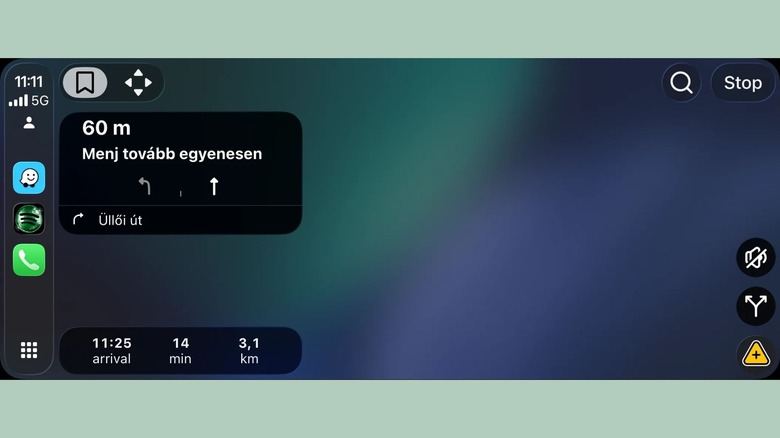
This isn't a "sometimes it crashes" complaint, but an actual issue affecting several Waze users on Apple CarPlay. According to multiple users on Reddit, the map itself disappears behind a blank screen mid-drive, while the next-turn box, trip timer, and hazard-report button stay visible around it. Notably, the redditor mentioned that this occurred about 60-70% of the time after updating to version 5.19.1.0, and other drivers have also acknowledged this exact same symptom in the discussion thread, highlighting it as one of the most common problems.
The bug shows up when Waze is already running in the background or hasn't been manually closed after the last drive. The fix that worked for most users was to force-close the Waze app on iPhone entirely and relaunch CarPlay rather than just tapping away from the app. If that doesn't fix the issue, a full reboot of your phone is a solution suggested by users. Making a habit of manually closing the Waze app after every drive, rather than letting it run in the background, appears to prevent the bug from recurring.
One user also pointed out that turning off the Smart Zoom feature in CarPlay settings fixed this problem for many affected users. As of now, Google has not rolled out a permanent fix for this problem, and people are using Waze with temporary workarounds.
It suggests routes that do not make any sense
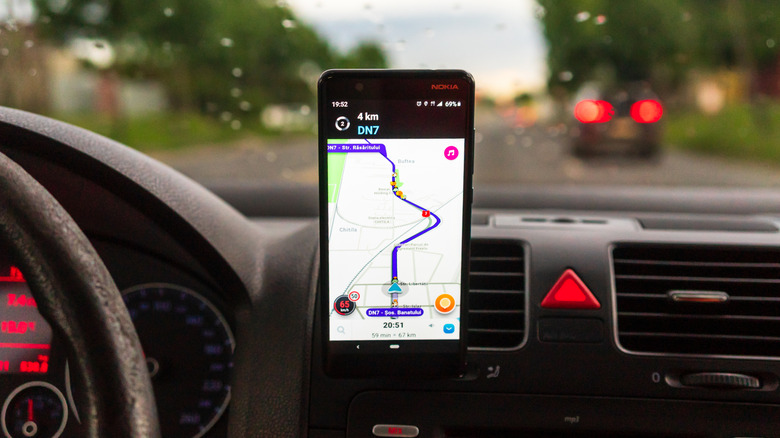
When you commute through the same route multiple times, you get the hang of the location and the roads that lead to your destination. So, when Waze insists on a longer, weirder route through a narrow lane, it feels less like smart routing and more like the app has forgotten how to navigate. This isn't a random malfunction but most likely a settings mismatch, not a bug, and one of the most common problems that drivers frequently point out in Waze's own support community.
Two settings are responsible for Waze showing you incorrect routes. First, you need to check your toll and highway preferences, which you can tweak by heading over to Settings > Navigation, and then checking "Avoid toll roads" and any freeway restrictions. If either setting is turned on, Waze will route you the long way to satisfy the settings selected. Second, and most often overlooked, is that Waze's routing engine leans heavily on personalization. In Navigation settings, find Personalization and ensure that the "Get personalized ETAs" and "Get personalized routes" options are enabled.
These options let Waze learn from your actual driving history rather than guessing, and drivers who have left them off are more likely to see unknown routes. Give the app some time to adjust to your driving, and the random route issues will probably solve on their own.
Pressing the back button does not shut down the app
One of the most recent issues people are facing with the Waze app is that when they press the back button on their phones, the app does not close. Usually, when you hit the back button or perform the back gesture, the app closes. But as reported by multiple users, the Waze app does not shut down and stays in the Waze interface. The controversy deepened when a Product Expert on the Google support forum responded that this is an intentional feature update introduced to improve the app and prevent accidental closure mid-trip.
Their official suggestion was to open the recent apps menu and swipe the Waze app to force-close it. However, an affected user rightly pointed out that this could cause a fatal accident, as to switch to a different app, they would have to perform the gesture to open the recent apps menu, then swipe away the Waze app while driving. Forcing a driver to execute a complex, multi-step swipe gesture while driving at highway speeds is incredibly dangerous and distracting.
Luckily, a Diamond Product Expert has brought in some good news. He mentions that this is not a feature but a bug, and the developers are working on a fix. The bug is expected to be fixed in an update slated for Tuesday, which will be available on the Play Store.
Police and speed camera alerts go missing or arrive too late
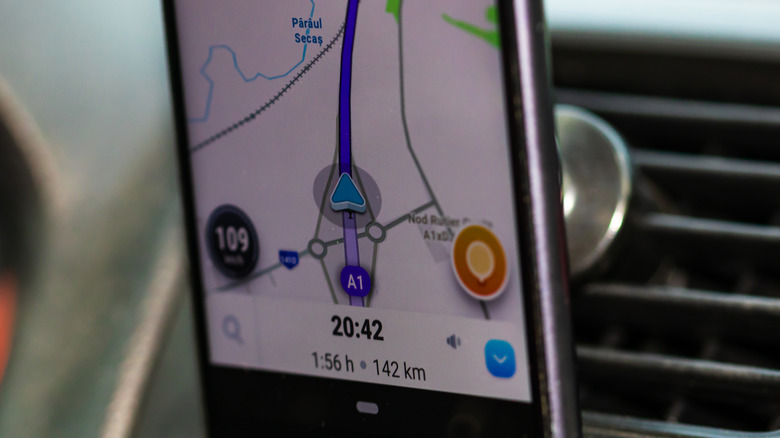
This one problem made some headlines and was covered by major publications rather than staying confined to a forum thread. The issue came to light in early August 2026, when Waze users reported that police alerts either weren't showing up on the map at all or appeared a few seconds before the hazard itself. Notably, drivers could report just fine and still earn their usual points for reporting a patrol car, but the alert was never passed on to fellow drivers. The report received a nod from several Waze users on Reddit.
Although there is no official fix yet, since Waze hasn't publicly acknowledged the bug as of these reports, a few things can help reduce the damage in the meantime. Keeping Waze fully up to date is most important, as a new update is expected in a few days. Waze has a pattern of pushing silent updates that fix various underlying bugs. Additionally, if you are traveling somewhere unfamiliar and safety-relevant alerts matter, switching to Google Maps isn't a bad option, since its police and hazard reporting pulls from a separate data pipeline from Waze's.
For now, Waze has not fixed this issue, and you need to use these workarounds. For now, you should treat any "all clear" from the app with a bit of extra caution rather than total trust.
The speedometer shows a wrong number
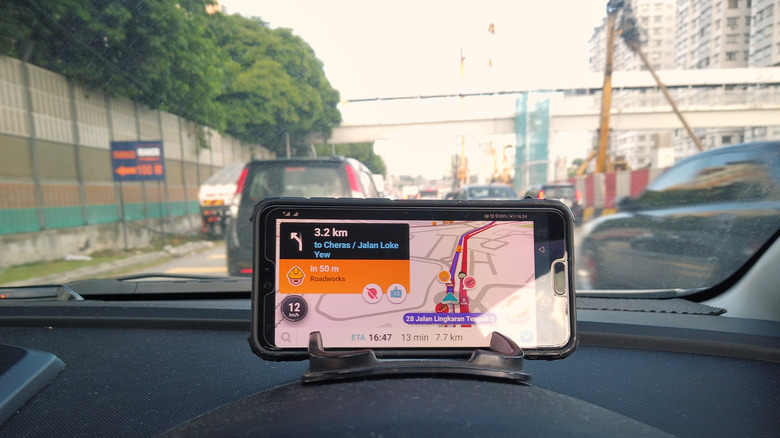
Waze shows you a speedometer with a number that is close to your actual speed. However, according to a Waze user, the app shows the first digit of speed, or a number that flickers randomly. Fellow community members also confirmed it wasn't limited to a single device. This isn't a new issue and has been reported by many users a few years ago. The good thing is that you can easily fix this issue, which is troubling so many users.
You need to type ##@resetapp into the Waze search bar and hit search. This is a hidden code that performs a hard reset within the Waze app. This clears the app cache, downloaded map data, and current session entirely, effectively giving you a freshly installed version of Waze without needing you to go through the multi-step process of uninstalling and reinstalling the app. If the speedometer issue persists after this, force-stop the app, restart your phone, and make sure you are running the latest version of the Waze app.
If not, then get the latest version from the Play Store or App Store. Notably, the fault is almost always the app's calculation, not your GPS chip. If Google Maps shows you the correct speed on the same drive, that rules out a hardware problem entirely.
Speed camera warning by voice not coming
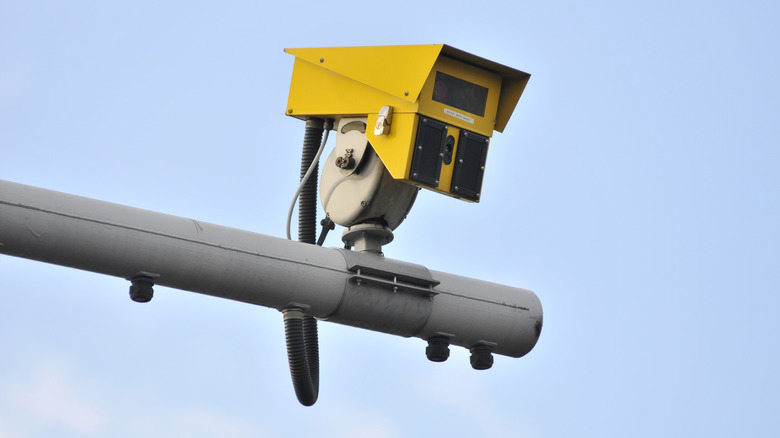
Another issue troubling Waze users in 2026 is that voice alerts for speed camera warnings are not coming through. The user noted that while the cameras are displayed on the map, voice alerts or notifications for them are missing. The only cue left to know the speed camera is the visual indicator in the Waze app. This isn't that helpful since, as a driver, your eyes are locked on the road, and peeking at your dashboard to look for visual cues from speed cameras can be very distracting.
Notably, a Waze support rep replied to that thread and tried to clear the air that having voice guidance on isn't the same as having camera alerts on. Since these are two separate toggles, Waze users often get confused and think that turning one on does both jobs. So, it is worth double-checking that camera-specific alerts are actually enabled rather than assuming voice guidance covers it. This can be done by heading over to Settings > Alerts and reports > Reports and confirming speed camera alerts are switched on.
Waze plays a voice alert only if you are driving over the speed limit set for the camera as you approach it. If you are under the speed limit, the alert appears only visually on the map, silently, by design, as on Google Maps.
No advance warning of exit points
This one is one of the most unsettling problems on this list because it does not show up exactly when a driver needs help most. In the official Waze support forum, a driver described that while cruising at 60-70 mph on the motorway, they did not get any advance warning of an upcoming exit. The worst part was that the exit warning showed up when it was nearly too late to make the turn safely. Adjusting the alert distance in settings, down to as little as 0.1 miles, made no difference at all. This left them to memorize the route and watch the blue line on the map instead, which is its own hazard at motorway speed.
A Waze product expert helping in the thread narrowed it down by asking what voice guidance the driver was using, rather than assuming it was a settings or a GPS problem. The answer turned out to be the cause: the driver was using the "Carole" U.K. voice pack, and the sound was already set to Normal rather than Alerts only. Switching to a different voice fixed the problem completely, restoring the full, timely run of alerts the driver expected.
Another driver nodded in agreement with this solution and pointed out that they were experiencing this issue because of the "Carole" voice. If you are also experiencing this issue, you can go to Settings > Voice and sound and switch to a different voice.