

Never Skip This Step Before Throwing Out An Old USB Drive
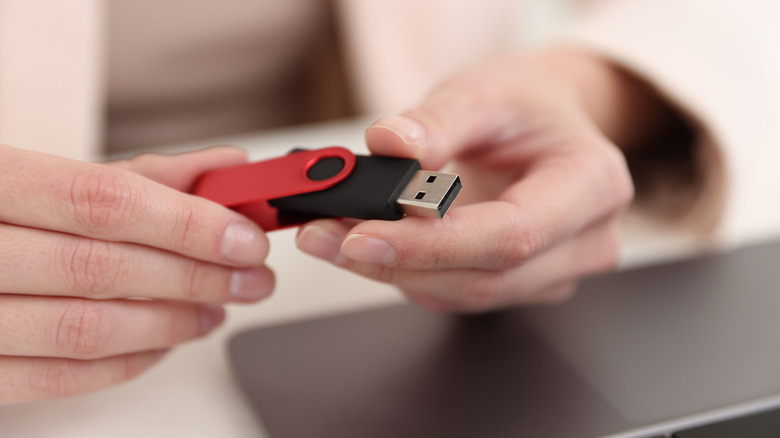
USB drives remain a popular storage option, and it's largely because they are cost-effective and compact. There's also a major downside: USB flash drives typically last less than HDDs and SSDs. So naturally, the moment something feels off, many users simply copy the data, delete it from the USB drive, and throw the drive away. However, this is a risky approach, since it's possible to recover deleted files from a flash drive, or any other drive for that matter.
That's because when you delete the data, it's not actually wiped from the drive, but simply no longer referenced. The system basically marks that part of the drive as available for new data, but unless new files are written to it, the data is not completely wiped. While you, or the operating system can't see it, the data is still there, and a third-party tool can recover it.
This means you should take additional measures before tossing a flash drive, even after you have deleted the files or performed a quick format. There are a few options, ranging from full format and data overwriting, to physically destroying the USB drive, with the latter being the most effective. In the end, it comes down to your plans with the old USB drive, whether you are giving it to someone or getting rid of it for good.
Wiping and overwriting can protect your data
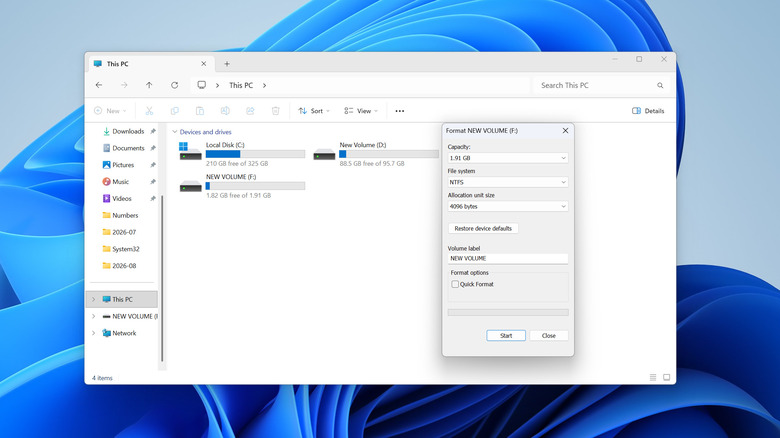
Formatting the drive is an easy way to delete its contents, but the type of format you choose is just as important. On Windows PCs, a quick format isn't the right choice when you are discarding the USB drive, because it only deletes the index. Instead, what you actually need is a full format. It takes a lot longer because the full format goes a few steps further, checking the drive for bad sectors and writing zeroes to the drive. There's still the possibility that some advanced data recovery software could retrieve the files, but it's extremely unlikely.
To perform a full format in Windows, open File Explorer, right-click on the USB drive, select "Format," uncheck "Quick Format," click "Start," and confirm the change. On macOS, open Disk Utility, select your USB drive from the list, and click on "Erase." If you see "Security Options," click on it, drag the slider to the extreme right, and then proceed with the format. This essentially writes over the data multiple times, minimizing the chances of recovery. However, the option isn't available for all drives.
Another effective, and perhaps simpler option is to use a dedicated drive formatting program. They are available for both Windows and macOS, just keep in mind that you should select a software that explicitly supports flash drives. This is important, because flash drives and HDDs store data differently, and using software designed for HDDs may not necessarily work with flash drives.
Destroying the USB drive is the safest option
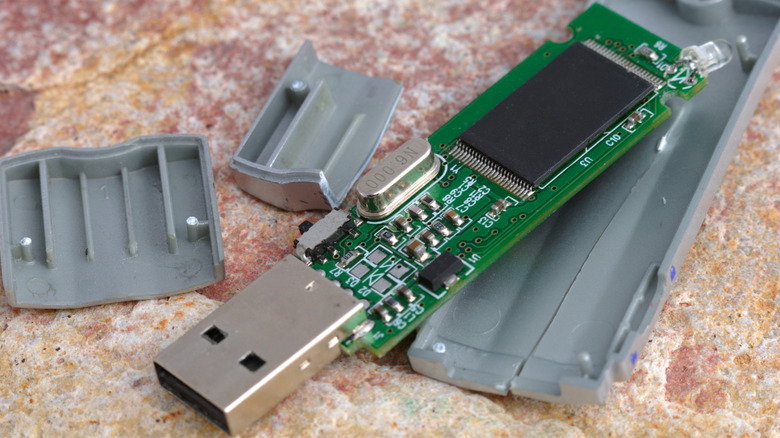
If there's sensitive data on the drive, whether presently or in the recent past, the safest option is to physically destroy it. Of course, the approach is only feasible if you are tossing the USB flash drive and not handing it over to someone else. But this is, by far, the only way to ensure that your data cannot be recovered.
Keep in mind that simply smashing the casing or USB connector won't do much good, because the data is stored on small memory chips embedded into the circuit board — you will need to remove the casing and specifically damage that small chip. While doing so, you must exercise caution as fragments can fly off, causing injuries. Also, if you have a drill, you could drill a hole in the memory chip. After you have destroyed the flash drive, make sure to safely dispose of it.
That said, it's important to understand when each measure may be viable. If the flash drive only had non-critical data, a full format may be enough for most users. But if the flash drive stored critical or personal files for years, physical destruction makes the most sense.