

This Free App Will Turn Your Mac Into A USB-C Cable Tester

The switch to USB-C wasn't easy, but we made it. After countless dongles and adapters, most people now own smartphones, laptops, and accessories that, hopefully, all support charging and data transfer through the USB-C standard. Yet, there's very little that's universal about the USB-C experience, and you'll know this if you've had to deal with more than a handful of cables that feature the same connector type but advertise grossly different capabilities.
For instance, the iPhone 17 Pro boasts transfer speeds of up to 10 Gbps through its USB-C port, but the cable that Apple ships in the box isn't capable of delivering those speeds. The existence of standards like Thunderbolt 4, USB4, DisplayPort Alt Mode, and Power Delivery means not all USB-C cables are the same. In fact, if you don't pay close attention to a cable's specifications when shopping, you might not even be able to get your workflow going if it involves external monitors or high-speed storage devices.
This is how most of us end up with a drawer full of identical cables, with no easy way to tell what each one actually specializes in. Well, if you own a Mac with Apple Silicon, you can install WhatCable, an app that helps you identify the capabilities of your USB-C cables. The tool is free to use but requires macOS 14 or newer. Download and launch the app, connect a device or charger with a USB-C cable to your Mac, and the app will start displaying information.
What information can you find with the app?
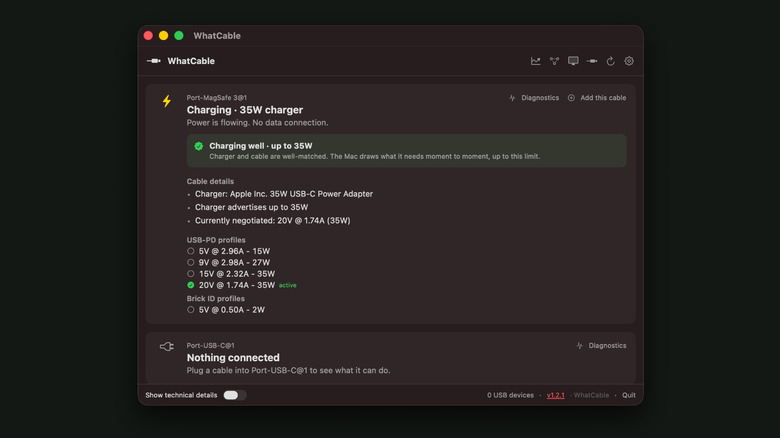
Each of your Mac's ports, including MagSafe, will be listed when you launch the app. When nothing is plugged into any of these ports, WhatCable will simply display "Nothing connected." This status changes the moment you hook up another device, monitor, or charger. The quickest way to test the charging speed of a USB-C cable is to connect it to an adapter and start charging your Mac. If your cable is capable of pushing the maximum rated wattage that your Mac can handle and your adapter can provide, WhatCable will display a "Charging" or "Plugged in" status alongside wattage information.
If your Mac is charging at slower speeds than it's designed to handle, and if your USB-C cable is the weak link, WhatCable will let you know in plain English. The app will also check whether the connected cable is certified by the USB Implementers Forum. While a lack of certification doesn't mean your cable is low-quality, the app can help you identify counterfeit cables masquerading as products from reputable brands.
WhatCable also displays information about display connections, USB hubs, and other connected devices like flash drives. This is useful if you've been struggling to get an external monitor to output the right resolution or refresh rate. It's something macOS (and even Windows) should be offering by default, since external display connections over USB are one of the more challenging things to troubleshoot.
WhatCable is a great tool for diagnostics
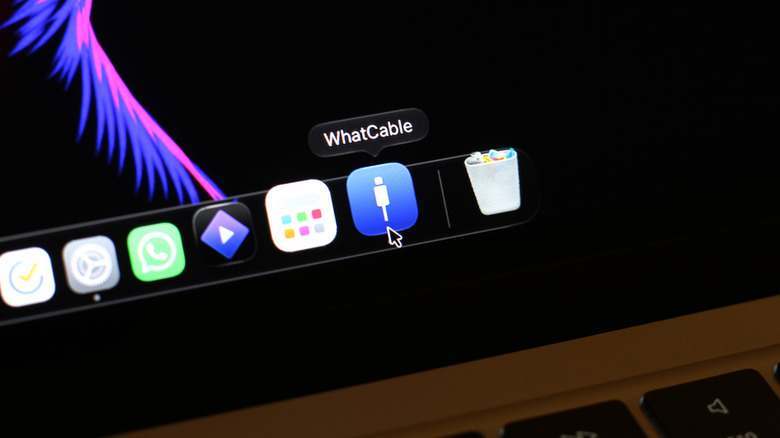
You can leave WhatCable pinned as a utility in your Mac's menu bar. This way, it's easier to access whenever you connect a new USB-C cable and become curious about its capabilities. If you navigate to the app's settings, you can turn on notifications for this to happen automatically. WhatCable can also indicate whether a USB-C cable has an e-marker chip, which tells connected devices what the cable is capable of. If the cable offers USB Power Delivery, the app will even list all supported PD profiles and highlight the one that's currently being used for charging.
You can, technically, connect the other end of the USB-C cable to any device, and WhatCable will still display the cable's true specifications. Funnily enough, we tried looping the cable back into the Mac, and the app still reported its capabilities correctly. Being able to view information about the connected device is also quite handy.
If your workflow isn't too complicated and you only ever have a few devices connected to your Mac, we found the free version of WhatCable to be perfectly adequate for looking up quick information. There is a Pro version of the tool that unlocks a handful of more powerful features, though. It's useful if you have slightly more complex setups, say, monitors that are daisy-chained, or dedicated USB hubs with several USB devices connected to them. WhatCable Pro asks for a one-time payment of $10.