

5 Reasons Why Your Phone Is Taking Blurry Photos At Night (And How To Fix It)
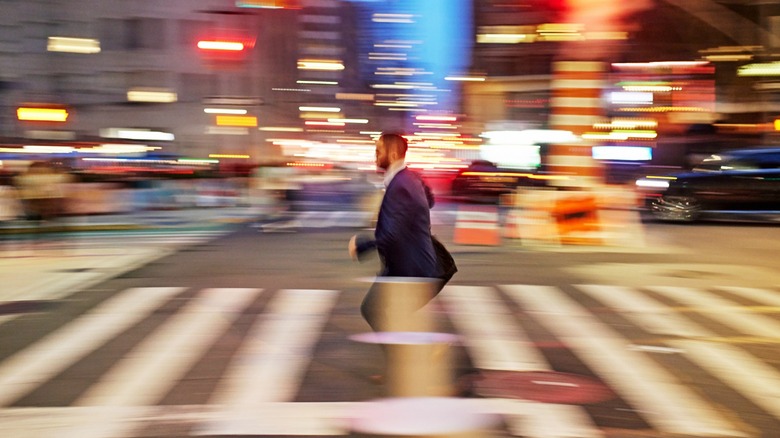
Smartphone photography has come a long way from its early beginnings, so much so that it practically replaced compact cameras and DSLRs for many beginners and hobbyists. But even though the cameras on our phones have become so much better, shooting at night or in low-light conditions often results in a blurry image. This can be frustrating, especially if it happens very frequently.
So, let's look at the reasons why this occurs when you're taking pictures in dark environments and, more importantly, what you can do to avoid it in the future. We'll explore the settings you can change and the items you can bring with you to get sharper photos after dark. Although I've worked for years as a professional photographer and prefer shooting with my DSLR, I also love taking photos on my phone, especially when I don't have my gear handy. Avoiding these issues helps ensure that my images remain crisp and sharp, even if I'm in a low-light situation.
You accidentally shake the camera when pressing the shutter button
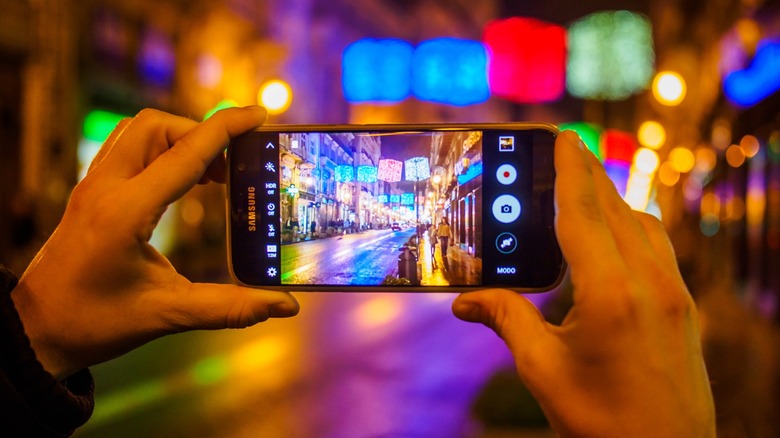
One of the most common reasons for blurry photos is camera shake, which is when you inadvertently move the camera while it's capturing a picture. This usually isn't visible if you're taking photos in daylight, as the shutter speed will be fast enough to not capture any movement that you make. However, if the scene is a bit dark, the camera will compensate for that by reducing the shutter speed. This means that camera jitter would be much more apparent in your images. Some phones have image stabilization (which is probably why your Android phone rattles when you shake it), which would compensate for a shaky hand, but it can only do so much.
This issue is made worse by the fact that smartphones are not made for photography. You can easily shake the entire device if you press the on-screen shutter button, especially if you're not holding the device at an optimal angle. While you can use your phone's volume buttons or even the iPhone's Camera Control feature to take photos, the slab phone factor of these devices makes it more prone to wobbling.
While the ideal solution to this is to set your phone on a tripod, that isn't always possible. After all, people don't often have one with them, and they're a hassle to set up. If you're holding your phone securely and still getting camera shake, turning on your phone's self-timer would help you get settled after pressing the shutter button. Some phones even have a short, two-second self-timer option so you don't have to wait as long. If you're still having issues and don't have tripod, you can also prop yourself up on a solid surface to help you stay more stable.
The camera is exposing for a bright scene
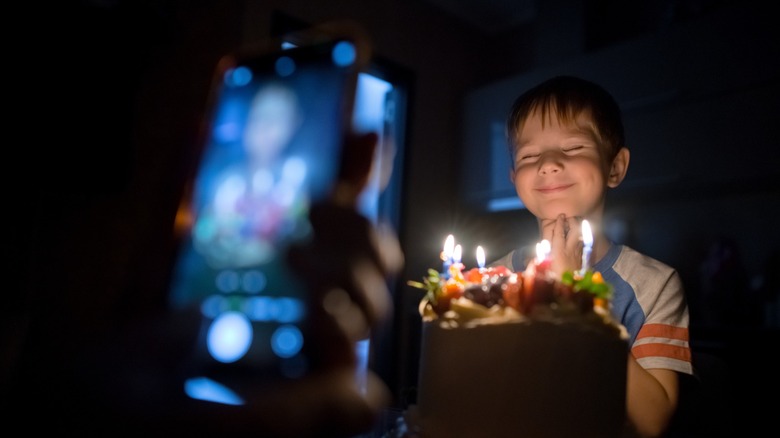
Smartphones typically expose for a well-lit scene, meaning it wants to make your images pretty bright. So, even if you're shooting in a dark area with a moody vibe, the camera will try to compensate with a slower shutter speed to make the picture brighter. This makes sense if you want to see every detail in the photo that you're taking, but would also mean that the photo could get blurry unless you hold the phone absolutely still.
If you want to recreate the dark, moody vibe that you can actually see, you need to override your phone's automatic exposure. To do that, you need to long tap on the subject on your phone's screen and wait for the slider with the sun icon to appear. You then need to drag it to the left (on Samsung) or downwards (on iPhone) to adjust the exposure and make the entire scene darker. Doing so will help you achieve the look that you want while also reducing the chance of getting a blurry image. That's because an underexposed image, like the one you're taking now, uses a faster shutter speed, which in turn helps remove camera shake.
Night Mode is making it harder to take sharp photos
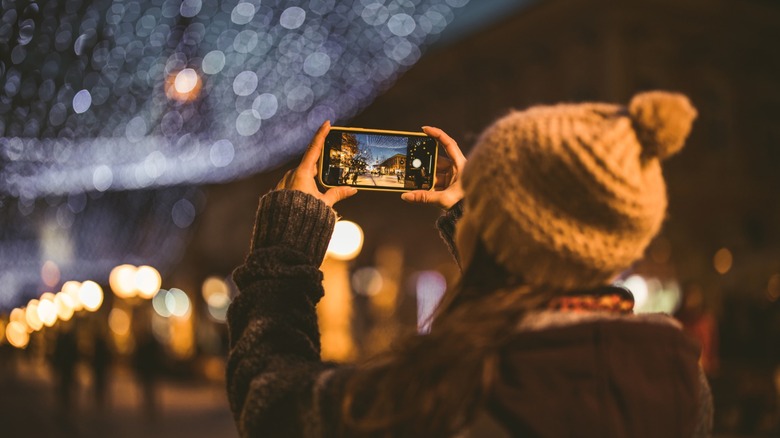
This may sound counter-intuitive, but your phone's Night Mode might actually be the one causing your pictures to become blurry. Night Mode is actually quite useful if you're shooting in absolute darkness, and both Samsung phones and iPhones turn them on automatically if the situation calls for it. If this mode is activated, you'll notice that a note saying you should hold your phone still will appear while the camera is capturing the scene.
This won't be a problem if you actually want to brighten the scene, and most smartphones are advanced enough that they can let you shoot handheld with minimal camera shake. But if you can't find a stable platform, or if you're moving around, even your phone's image stabilization might not be enough to give you a crisp image. If that is the case, you should try turning off Night Mode. While you will get a darker image, the phone will use a faster slower shutter speed, making the photo sharper.
For cases where you really need to use Night Mode, it's best to use a tripod or find a solid surface where you can prop your phone. You can also use a timer to avoid moving the phone when you start taking the shot.
It's compensating for the built-in flash
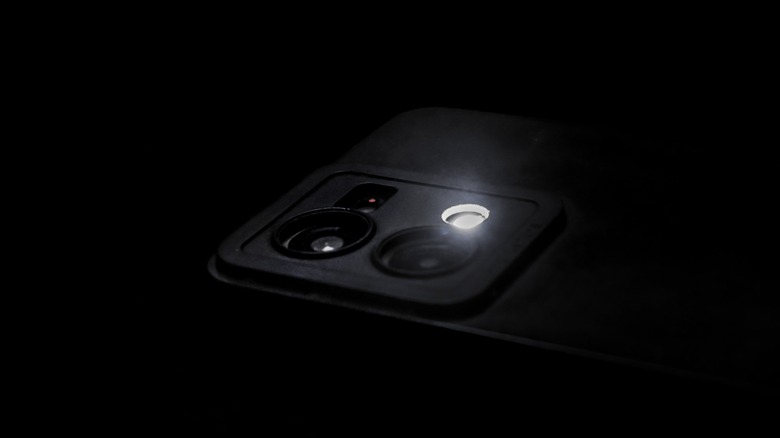
A phone's built-in flash is designed to provide light to a subject when there isn't enough from the surroundings. However, this can also introduce camera shake, as most phones typically have a slow flash sync speed of 1/25s to 1/40s. The flash sync speed is the fastest shutter speed that a camera can operate at when paired with a flash — using a faster shutter speed could make black bars appear on your image as the shutter is not synchronized with the flash. This isn't a problem if the person or item you're photographing is close enough to your light source, as the instantaneous burst of light will freeze the subject in your frame. However, most built-in phone flashes have a range of less than 10 feet, meaning anything not reached by the camera's flash could become blurry if you're not holding the phone steady.
It's for this reason that I rarely recommend using a smartphone's built-in flash as a light source. It's often more preferable to shoot with ambient lighting — not only will it help you reduce camera jitter with the proper settings, but it can also help retain the overlook of the scene in your final image.
If it's still too dark and there's no other light sources around, you can use another phone as another light source — for example, if you're taking a group photo in the dark, you can ask your friends to use their own phones to light up their faces. If you really have to use your phone's built-in flash, some smartphone brands like Vivo and let you turn it on like a video light so you can see how it would light up your scene. Unfortunately, this feature isn't available on Samsung and iPhone models.
You're using automatic mode
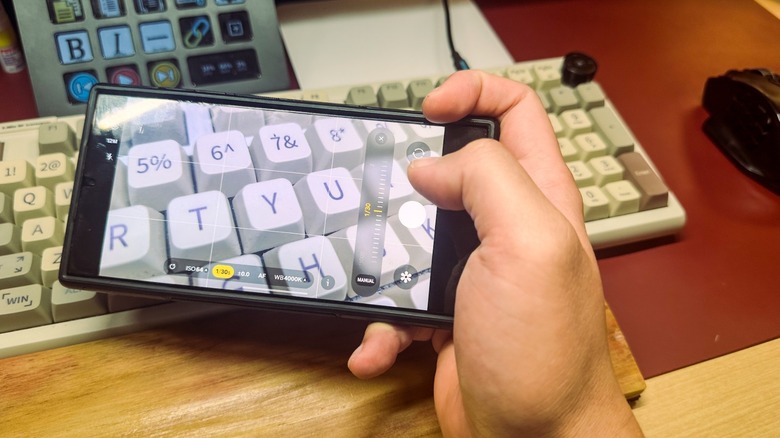
The primary automatic mode that most smartphones use should be good enough for most well-lit scenes, and you can use the techniques listed above if you're still seeing some form of camera shake on your photos. But if you're still getting blurry images, another solution to this is to take manual control of your camera. You can do this on many Android phones by choosing Pro mode, which will let you manually set the shutter speed of the camera, and then setting a shutter speed that's a reciprocal of the focal length of the lens you're using.
For example, the Samsung S24 Ultra's main camera uses a 24mm-equivalent lens, so the ideal shutter speed should be 1/24. However, since there's no 1/24s in the option, you can opt for the slightly faster 1/30s. This setting will help ensure that your tiny hand movements will not cause a blurry image. But if you zoom in, you must remember to adjust the shutter speed as the focal length has also changed.
While you can just fix the shutter speed and set all the other settings to automatic, don't be afraid to explore the other features of Pro Mode if you have the time. Experimenting with other settings like ISO and the White Balance can help you achieve a look that you otherwise wouldn't get on automatic mode alone. Unfortunately, iPhones do not come with these manual settings right out of the box, so you'll have to use a third-party app if you want this level of photographic control on your Apple device.