

What Does The 'N' Icon That Shows Up At The Top Of Your Android Phone Mean?
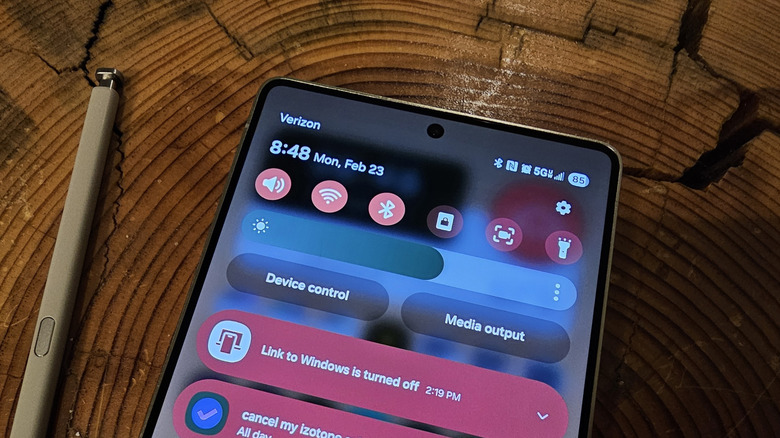
Learning to master your smartphone involves memorizing a range of icons, which can be confusing to the uninitiated. Because they are short on space, mobile operating systems rely heavily on visual shorthand to communicate statuses and functionality to users. For tech enthusiasts whose idea of a good time is reading a manual, these are extremely helpful, but if you're not a tech-inclined sort of person, all the icons and symbols on your Android phone screen may not feel very helpful.
One common, and potentially confusing, Android symbol is the strange, N-shaped one that can appear at the top of your phone's display in the status bar or quick settings panel. It's a square with two lines cutting through it, forming a heavily stylized letter "N." On most devices, it appears on the right-hand side of the status bar at the top, alongside Wi-Fi and cellular service indicators.
That "N" symbol actually represents a wireless technology called near-field communication, or NFC. It can be very useful, but if you don't use NFC or don't like seeing the icon on your phone screen, you can turn it off in just a couple of steps. Here's what you need to know about the feature.
A stylized N in your Android status bar indicates NFC functionality
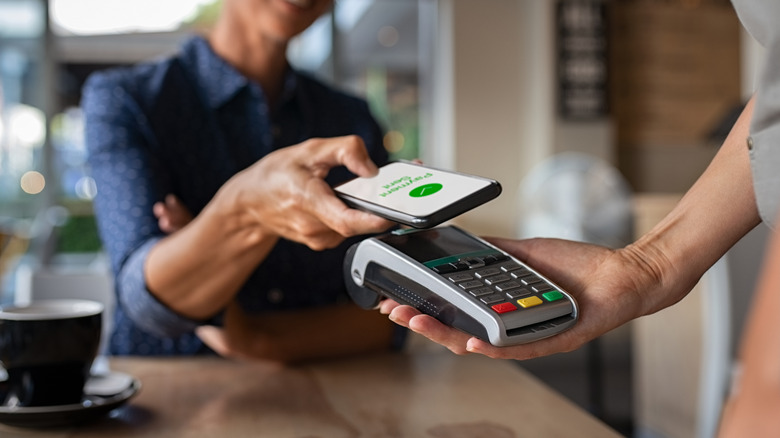
Having the NFC symbol in your Android phone's status bar means that NFC is currently enabled. If you have virtual payment cards in an app like Google Wallet or Samsung Wallet, which enable you to pay for goods and services by touching your phone to a payment terminal, you're already using NFC. The same applies if you pay to ride the train or bus by tapping your phone on a kiosk next to the train turnstile or bus driver. Some event ticketing apps also use NFC, requiring you to tap your phone to enter a concert or sports game.
Not only do NFC payments let you leave your wallet at home, but they are actually more secure than paying with your actual credit or debit card. Since your mobile wallet app does not use your actual card information to complete the payment, there's no way for scammers to steal your information during a transaction.
But payments and ticketing only scratch the surface of what NFC can do. Some Bluetooth speakers have an NFC sensor that will pair with your phone when tapped. You can also use dirt-cheap NFC stickers to trigger smart routines for your device or smart home. For example, you can put one on your bedside table that turns off all your lights, adjusts the thermostat, and puts your phone on silent until the morning. The possibilities are practically endless, so for more ideas, check out our roundup of the coolest ways to use NFC on your Android phone. However, if you do not use NFC, you may disable the feature. Read ahead to learn how.
How to get rid of the N symbol on your Android smartphone
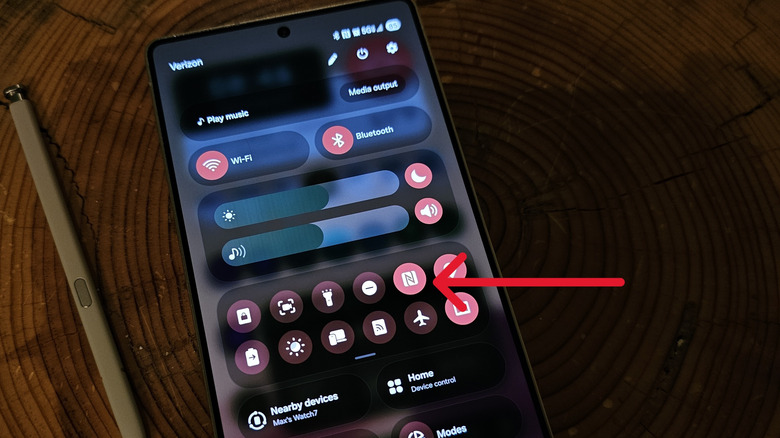
If you do not use NFC and don't feel like diving into it, or if you just don't want the symbol taking up space on your status bar, you should turn it off to save a bit of battery. Luckily, it's extremely easy to do so.
On most Android phones, you can disable the feature through the quick settings panel. The panel will have a list of settings toggles arranged in a grid, one of which is for NFC. Tapping that icon should turn off the feature and remove the icon from the top of your phone. Some phones will require you to swipe down twice to access the quick settings panel, while others, including the latest Samsung Galaxy devices, let you access quick settings by swiping down once from the right-hand side of the top of your screen.
If you can't find the NFC toggle in quick settings, open the Settings app by tapping the small gear icon at the top or bottom of your quick settings panel. On Samsung Galaxy devices, tap Connections, then turn off the toggle next to the setting labeled NFC and contactless payments. On a Google Pixel device, tap Connected Devices, then tap Connection Preferences. Tap NFC on the next menu, then toggle the switch at the top of the NFC page. The steps may vary for devices from other brands, so refer to your phone's documentation if you can't find the NFC settings.