

What Those Dots Under The Icons On Your MacBook Dock Are For

Apple's macOS has its fair share of quirks and a subtle design philosophy that distinguishes it from its biggest rival, Windows. Despite those differences, macOS has a surprising amount of overlap with Windows in both form and function. The Dock in macOS is akin to the Windows Taskbar; they effectively serve the same purpose, just going about it in slightly different ways. The Dock in macOS has heritage going all the way back to Mac OS X, and still serves as the primary way users launch applications in macOS Tahoe 26.
A feature distinct to the macOS Dock is how it handles applications that are currently running. Even if an app doesn't have a visible window or you've closed the window, the app remains open. Those dots underneath the icons on the Dock indicate that those apps are running in the background. This isn't a feature everyone loves, but fortunately, it can be changed, as there's a surprising number of macOS settings you may not know you can change, including changes to the Dock itself.
How to really quit apps in macOS
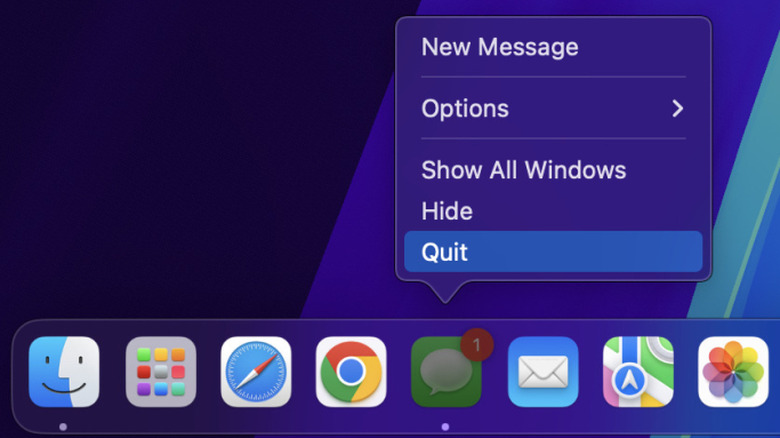
As Apple notes in its support documentation on quitting apps, clicking the red "x" in the upper left-hand of the window doesn't close the app, but instead moves it to the background. There are a number of reasons why Apple does this, but macOS has a unique way it manages background processes and app termination in an effort to preserve system resources and focus on user experience. Whether you've jumped ship from Windows with a new MacBook Neo or you're a macOS veteran, in order to remove the dots beneath app icons, you'll need to take a different approach.
There are three ways to achieve this. First, you can control + click on the app's icon in the Dock, then select "quit" in the corresponding window. Second, you can use the keyboard shortcut command + Q to quit an app with an open window. Lastly, you can navigate to the Apple menu in the top left-hand corner of the desktop, and select "Force Quit." This will open a window with all currently running apps, which can then be quit.
 Eric Hamilton/SlashGear
If you would rather disable this feature entirely, click the Apple menu and navigate to "System Settings." Once the System Settings window opens, select "Desktop & Doc" from the left-hand side panel. Inside the Dock & Desktop option, scroll down to the "Show indicators for open applications" and toggle it off. This should prevent any dots from appearing under app icons, with the exception of Finder – this is permanent, and there is currently no way to change it. As a bonus tip, you can also manage all of your open apps and your desktop with Mission Control. On newer Macs, you can launch Mission Control with the F3 key.