

5 Maintenance Tips To Help Extend The Lifespan Of Your Printer

Printers are essential gadgets for offices and homes around the world, and their lifespans depend so much on their type and other factors like usage habits. According to HP's average estimates, a home printer like an inkjet could give you between 3 years and 7 years of use. An ink-tank model or a laser printer might suit your preferences better, but whichever type you're using, regular care is the key to keeping one working at its best for longer.
If you've recently bought a new printer, you'll be glad to know that its maintenance doesn't have to be complicated. From targeted cleaning to managing paper jams and the benefits of simply using it regularly, here are some easy things you can do every day to help extend its lifespan. You might not know what collate means when printing, but bearing these tips in mind when using your device could save you a lot of bother.
Test pages and regular use
If you work in a busy office, you might have a printer running throughout the day. On the other hand, your home printer might only see occasional use. While the former type might have a far greater workload to deal with, it may also be equipped with more rugged components and diagnostic tools to handle that. There are also some great basic printers for printing a lot at home, but being used too infrequently can have a negative effect, too.
Inkjet printers work by spraying minuscule "jets" of ink from a moving print head, and the ink in the cartridges can dry and degrade if not regularly used. For this reason, European print and IT distributor UFP suggests that an inkjet printer be used weekly and that test sheets be employed to see whether any of the colors are drying or running out. The cartridges themselves should be stored carefully away from extremes of temperature or moisture, and not unwrapped until you need to install them.
Of course, you won't always have things to print very often, but getting into the habit of regularly using your device will go a long way to ensuring its longevity. You don't need to have a lot of technical knowledge in order to help ensure your printer lasts longer, as simply running it regularly helps keep the nozzles working smoothly. At the same time, the more frequently a printer is used, the more strain can be put on its components, and the more frequently it may need to be cleaned.
Keep the nozzles and other components clean
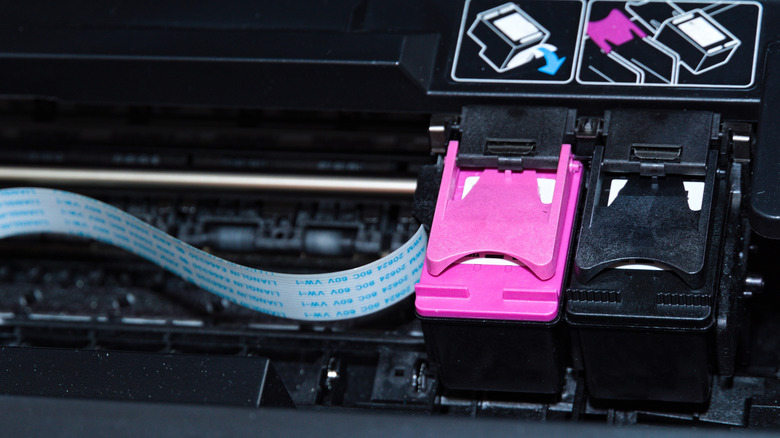
With an inkjet, there is often a self-cleaning function. Pesky blockages can be time-consuming to remove by hand. This is where these automated functions come in, allowing the device to use controlled ink jets to remove any debris or dried ink blockages.
Sometimes, the device will perform or schedule this cleaning itself. For example, some Brother models have regular maintenance checks built into their firmware, and can determine the appropriate amount of ink to use to remove the blockage efficiently. The frequency will depend on the environmental factors, such as the temperature, in order to protect the components. The Online User's Guide for the MFC‑J1205W and MFC‑J1215W notes that these systems also perform the cleaning automatically when needed. They also have a Special cleaning mode, albeit one that consumes considerably more ink, with more force to attempt to resolve issues that repeated cycles of other cleaning settings could not.
Users can set them to only clean the black print head or all colors together, as well. This doesn't mean that there's no need for manual care. An obstruction that cannot be cleared out immediately could cause a lot of damage to the internal workings of the machine if not manually taken care of, though the delicate components of an inkjet mean that great care should be taken. It's all about understanding the automatic cleaning capabilities of your device, what you can take care of by yourself, and what you should potentially leave to the professionals.
Take paper jams seriously
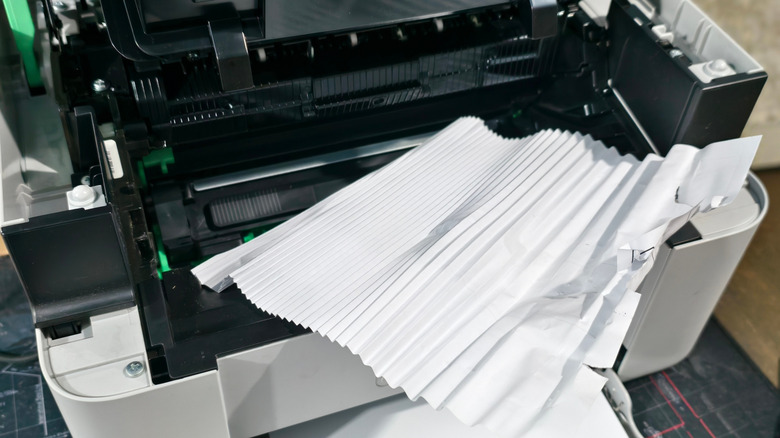
Hard-working printers can be unceremoniously filled with paper, and even if they aren't overloaded, it's all but inevitable that blockages will happen. Fortunately, it can be quite a quick fix to open them up and address the jam. One-off occasions are nothing to worry about, but it's worth monitoring if you notice that this arises a lot with a particular printer. There could be more happening beneath the surface.
Laser printers are rather different beasts from inkjet models. Instead of the print head and the sprays of liquid ink, they use a drum and a laser beam, which is combined with the toner that's heated to make the print on the paper. This is one of the big differences between ink and toner, and these heated internals can make it very dangerous for paper to find its way into part of the system that it shouldn't. Laser printers should also be kept in well-ventilated areas. With paper jams, there's often a risk of the paper tearing as it's retracted, and small fragments remaining inside the machine can make it more likely for further use to result in more jams. This is why it's important to follow the manufacturer's recommended procedure for troubleshooting printing issues.
Tread lightly with manual cleaning
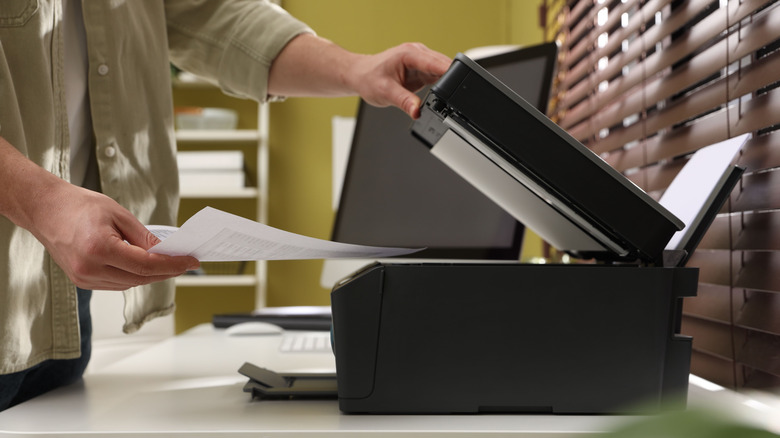
You might find that the automated features on your printer just aren't helping with its performance issues. If your printing is uneven or lower quality, and it isn't a simple matter of low ink, you might be able to fix the problem manually. As with paper jams, though, you've got to be very careful.
With some inkjet printers, you should be able to access the printheads themselves. Inspect them for any residue, and HP advises extracting it by lightly wiping it away. As with other electronics like smartphones, a lint-free cloth should be used for this, because it's so easy to damage these fragile surfaces. On that note, you should be particularly careful with the contacts on the rear of the printhead. Don't place unnecessary pressure on them.
Depending on the type of printer you're using, and where the residue is, equipment like a dedicated cleaning solution and measures to protect the printhead from static electricity as you work may be necessary. Always check the manual's troubleshooting guidance for potential cleaning dos and don'ts specific to your model, and consider professional servicing if you aren't confident.
Recognize any danger signs
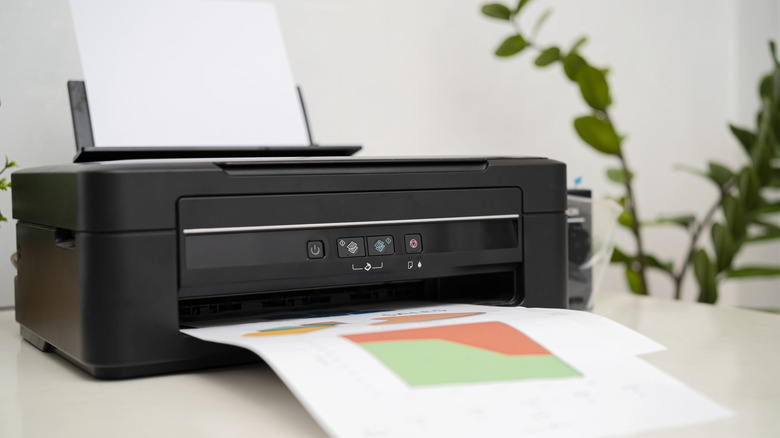
Catching a mechanical issue early can be the difference between an easy fix you can perform yourself and a costly service (if not an all-new device). Printer models can vary widely, but whichever one you use, there are potential danger signs they share that you should be aware of.
Changes in usual performance are the most obvious. For instance, if you notice a 3D printer isn't moving as smoothly or as quietly as usual, this could be an early indicator that the z-axis lead screw requires cleaning. Similarly, noisier operation of a conventional printer, like an inkjet, might be the first sign that there's an issue inside. Should jamming issues become more frequent, or performance otherwise lack quality, the same applies.
From smartphones to refrigerators, our appliances and systems are becoming better at diagnosing their own issues and alerting us via notifications. If you receive any pop-ups or warnings, take heed rather than being tempted to swipe them away.
For the long-term health of your system, regularly check the condition of components such as the rollers and the tray, be sure everything's aligned, and there aren't any signs of wear. HP suggests that monthly checks of these factors, combined with careful use on a day-to-day basis, can help your machine last longer. A comprehensive servicing for those jobs that you can't perform yourself could potentially save money in the long run over buying a replacement model, depending on factors such as the coverage you have.