

Sleep Mode Vs Shutdown: Which Is Better For Your PC?
Nobody is nostalgic about the times when computers used to take minutes to fully boot up. Of all the differences between SSDs and HDDs, the dramatic speed improvement is likely what people appreciate most. Modern laptops and desktop computers take only a few seconds to start, assuming you don't have a ton of services hogging up the startup process. Still, an even quicker way to jump back into your workflow is by putting your computer to sleep.
For thin-and-light laptops like the MacBook Air, you'd think that powering the system down completely would save the most battery, and you'd be right. However, chips have gotten more efficient, and operating systems have gotten smarter. Microsoft claims that the sleep mode on Windows PCs uses very little power. If you're going to be away from your machine for a brief period, perhaps to grab some lunch, then sending it to sleep instead of shutting it down may be the smarter move.
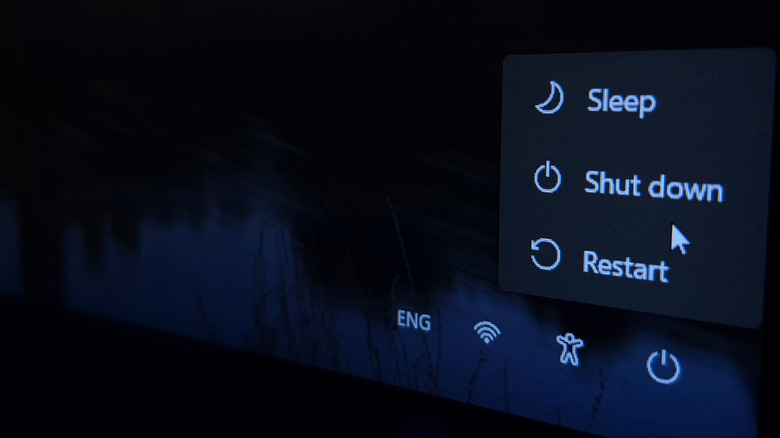
Although both Windows and macOS prompt you to save your work before you shut down your computer, another advantage of using sleep mode is that you don't lose any unsaved progress. This could include documents, browser tabs, or simply a video that's paused in the middle. To put your computer to sleep, access the Start menu, click on the power icon, and select "Sleep." On macOS, click on the tiny Apple logo in the top-left corner and select "Sleep."
When is it recommended to shut down your computer?
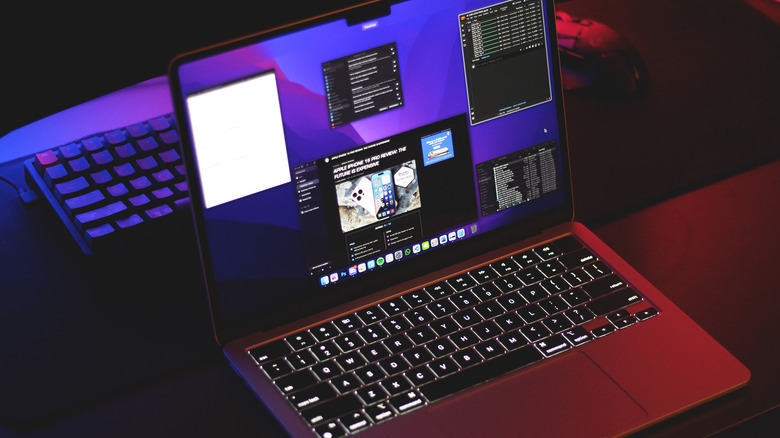
A faster way to put your laptop to sleep is simply by closing the lid. It will then wake up relatively quickly when you reopen it. Laptops run on lithium-ion batteries but generally consume less power than a traditional desktop computer, so the amount of battery you'd theoretically be saving by shutting it down instead of putting it to sleep might be minimal. That said, there are instances where a full system shutdown does make sense.
If you're going to be away from your laptop for hours or days, it doesn't make much sense to leave it in a low-power state. Shutting it off completely will extend your battery life and ensure your laptop boots up fresh when you next need it. If you're going on a long road trip or a vacation, save your work and shut down your laptop. It's also what's recommended when you're boarding a flight.
The case with desktop computers is pretty similar. You can configure the power button action in Windows settings such that a short press puts the system to sleep. You can wake it back up by pressing the power button again or clicking any button on your keyboard or mouse. Unlike a laptop that stays in sleep mode until you open its lid, certain processes might wake up a desktop computer. Thus, if it's not too big a hassle, it's better to shut it down overnight.