

Nintendo Switch 2 Tips: How To Turn On Boost Mode (And Why You Might Want To)
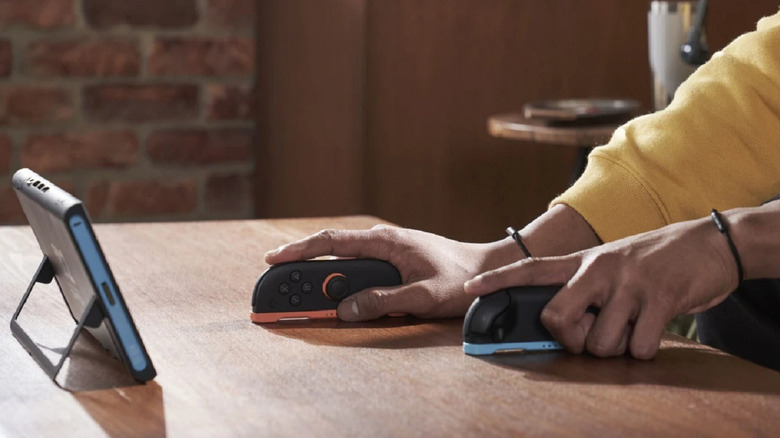
Nintendo's ninth-generation console is packed with features and settings designed to improve the Switch 2's performance. Although many of those features were included in the console on launch, like the custom integrated Nvidia DLSS processor, another new feature was added through a system software update. That feature is called Handheld Mode Boost.
The Nintendo Switch 2's Handheld Boost Mode should be self explanatory. When enabled, it boosts your console's performance while you're playing in handheld mode, so it operates to the same standard that it would while docked through the TV while running select compatible software. The feature was added with the Switch 2's 22.0.0 software update, which launched on March 16, 2026.
Handheld Boost Mode is particularly intended to boost your Switch 2's graphical performance. However, you'll only be able to see this performance boost while running games released for the console's predecessor: the original Switch. That means that Switch 2 games like "Pokopia" or "Donkey Kong Bananza" will run exactly the same as they did before. You're probably only going to make much use of it if you find yourself making use of the Switch 2's backwards compatibility often, and don't tend to play your console in TV Mode.
How to turn on Handheld Mode Boost for the Nintendo Switch 2
Turning on Handheld Mode Boost just takes a few steps:
-
Navigate to the Home menu by pressing the Home button on your Joy-Con or Pro Controller.
-
Open System Settings and scroll until you find the System sub-menu.
-
Select System, then scroll until you find Nintendo Switch Software Handling.
-
Select Handheld Mode Boost to toggle the setting on.
Selecting this option turns on Handheld Boost Mode until you turn it off again. When you're ready to turn it off, you just need to follow the same steps again from the start. If you can't find the option to switch on Handheld Mode Boost despite following the steps above, you probably need to update your Switch 2 to the newest software update. You can check which system version you're running, and update your Switch 2 easily all at once:
-
Navigate to the Home menu.
-
Open System Settings.
-
Scroll through the column on the left until you find System, and open it.
-
Look for the button labelled System Update. Before selecting it, look at the text underneath to see which system version you're running.
-
If you need to update your Switch 2, select the System Update button.
Your Switch 2 probably already updates itself automatically, but if for whatever reason that hasn't happened, this will allow you to push an update to your system manually. Just make sure you've saved your game beforehand, as this can close your suspended software and restart your console. You're also going to need to have a stable internet connection for your console to be able to install updates.
The Switch 2's Handheld Boost Mode comes with pros and cons
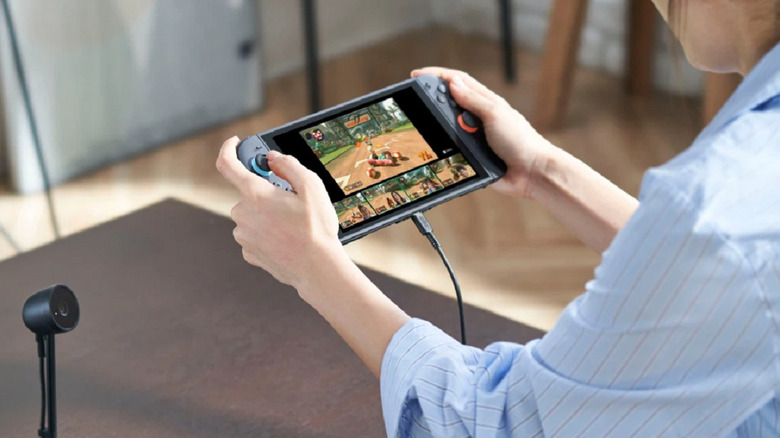
Running your Switch 2 in Handheld Boost Mode definitely has merit if you're playing a title released for the original Switch in handheld mode. A quick, easy boost to your performance could enhance your gaming experience noticeably — especially if you were drawn to upgrade to the Switch 2 in part because of its improved graphics.
However, the feature isn't totally without its detractions. Beside the fact that it won't impact the performance of Switch 2 software, it can also drain your battery more quickly. At the best of times, the Switch 2's battery life only tends to last for somewhere between two and six-and-a-half hours on a single charge. So unless you have a mobile power bank nearby to extend your Switch 2's battery life, you may wish to tread carefully while using Handheld Boost Mode.
Moreover, running your console in Handheld Boost Mode can also shut off some of its other functionalities. For example, your Switch 2's touchscreen will be disabled, and your Joy-Con 2 controllers will work like Pro-Controllers. Some instructions you get on-screen or mid-game also might be mismatched with the mode you're playing in. These factors won't necessarily be dealbreakers for you — particularly considering that the touchscreen isn't used often anyway, for instance — but it is worth keeping them in mind in case they're important to you, or for running a specific game.