

Your PC Likely Has 'Performance Mode' – But Is It Actually Worth Using?
AAA games, over the years, have made remarkable leaps in visual quality, which is why a decent gaming PC might end up costing you at least $1,000. With the price of components going haywire, now's the time to squeeze every bit of performance out of the hardware you can grab. Gaming at 1080p or 1440p is a good start, and most modern mid-range GPUs are designed to handle games at these resolutions quite well. Tuning down in-game visual settings and turning off nice-to-haves like ray tracing can also contribute positively.
Assuming you're playing on Windows, you may have heard about or spotted a performance mode of sorts. If you're looking to maximize performance, enabling it almost seems like a no-brainer. If you're wondering what this performance mode does, toggling it on makes a few changes to your computer's power plan, which prioritizes performance over efficiency.
This is a software feature that's available on all Windows desktop and laptop PCs, and is different from the dedicated turbo mode button that a few gaming laptops ship with. If you do have a physical button on your laptop, it will help push your GPU further when connected to a power source. We will be going over the performance mode setting within Windows itself — what exactly it changes, and if it's safe to use.
How performance mode works on Windows
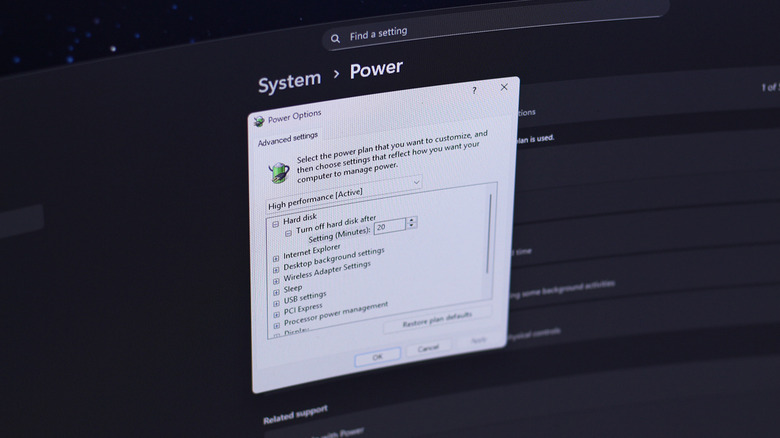
You can change performance presets on Windows by navigating to Settings > System > Power, and expanding the "Power Mode" option. It offers three modes: Best Power Efficiency, Balanced, and Best Performance. There isn't much information on what these toggles do, and you are likely not going to see massive changes in performance if your PC is decently specced. In true Windows fashion, though, there is a whole other set of power options you can configure through the legacy Control Panel.
Search for Control Panel in the Start Menu, and navigate to Hardware and Sound > Power Options. Here, you can quickly select one of three power plans, or click on "Change plan settings" and then "Change advanced power settings" on the next page to customize them further. This set of options gives us a better understanding of the things affected when you switch on performance mode.
Some of these are efficiency-related options, like automatic sleep settings or a hard disk timeout feature. If you expand the "Processor power management" option, you can set both the minimum and maximum processor state, which tells Windows how aggressively your CPU should be working. You can set the upper limit to 100%, which allows your CPU's clock speed to boost to its maximum rated frequency whenever required. It's fair to assume toggling on the Best Performance mode makes these tweaks for you. Conversely, switching to the Best Power Efficiency option will instruct Windows to prioritize efficiency over performance.
Should you be using performance mode?
Now that we've taken a look at the options available under the advanced power settings, it's fair to conclude that the Best Performance mode doesn't magically increase your PC's horsepower. It will, however, reduce or disable certain power-saving features, allowing your PC to make the most out of its hardware. If anything, these options largely affect how eco-friendly your PC is.
If you own a desktop computer, switching to the Best Power Efficiency mode doesn't make a lot of sense — unless you're looking to conserve as much electricity as possible. There are no downsides to turning on the Best Performance mode in this case. However, for laptops, which aren't always plugged into a power source, the equation changes quite a bit. Turning on Best Performance mode on laptops may directly impact battery life, thermals, and fan noise.
If switching to the Best Performance mode doesn't yield positive results for you, there are other, more potent ways to make Windows run faster. These include disabling startup apps that you don't need or removing bloatware that doesn't serve much purpose. If you're using an older computer, upgrading your storage drive to an SSD or adding more RAM will dramatically improve performance. Overclocking your PC is an option too if you're looking to squeeze every bit out of your CPU and GPU — though this comes with a fair bit of risk.