

How Long Does A Nintendo Switch Pro Controller Last? Here's What Users Say
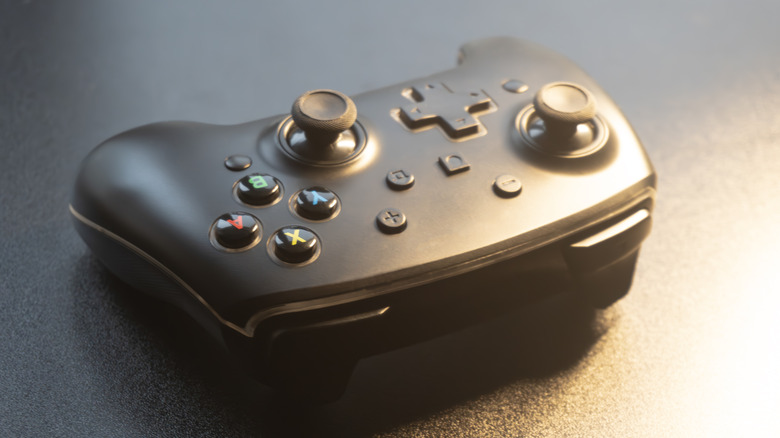
Gamers have been praising the long lifespan of their Nintendo Switch Pro Controllers. While Nintendo doesn't offer any expectations for its Pro Controllers' lifespans, it seems like plenty of users have owned theirs since the controller intially launched alongside the Switch in 2017 and report that they are still going strong."The Switch Pro controllers are probably among the best in the market in terms of build quality and reliability. It's the Toyota Camry of controllers," one gamer stated on Reddit. Another added that even the controller's white grips have looked the same after five years of gaming.
Not only is the Pro Controller holding up physically, but many gamers have also applauded its consistently impressive battery life over the years. "I've had mine since Christmas 2017, still works with no issues. Even battery life is still great. During my 110 hours I put into Zelda Tears of the Kingdom, I only had to charge it twice," another Nintendo fan commented on Reddit. One player reported that their Pro Controller easily lasted for 30-plus hours of gameplay after each charge, seven years into their ownership.
How to fix Pro Controller drift
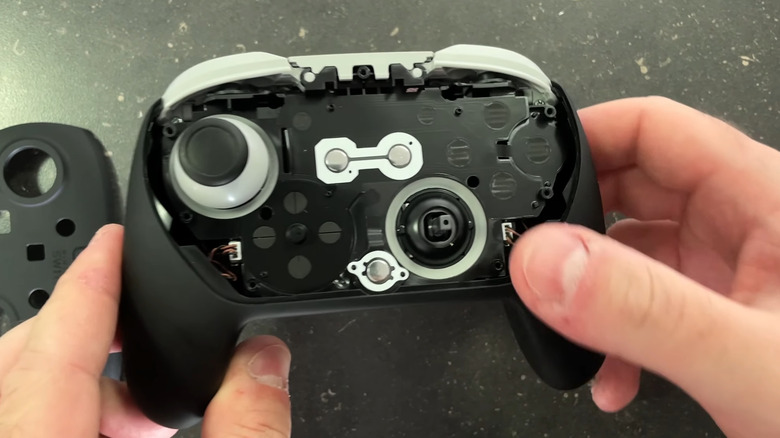
While the Nintendo Switch Pro Controller is consistently commended for how well it holds up over years of use, there is one issue that has been mentioned by multiple gamers — drift. Similar to the Nintendo Switch Joy-Con's infamous drift issue, Pro Controller users will often see their joystick moving without any input from them, causing the cursor to move on screen even if they aren't touching it. It's a common problem with Nintendo's controllers, but there are ways you can fix drift.
If you are experiencing drift on your Pro Controller, use a cleaning wipe around the two analog sticks, allowing the alcohol to pick up dust and other debris. You can use a dust spray for the same effect. Then, press the joysticks down and spin them around, cleaning any more debris you see. If this doesn't work, use a wedge to remove the controller's entire face plate. This will reveal plastic covers on the bottom left and right of the controller, which can be removed with plastic tweezers. This allows you to take out a second protective layer to reveal the full analog sticks. Pull them out, and use the dust spray to get any leftover debris. Put the Pro Controller back together, and you'll hopefully have removed the drift. If not, locate the "Sync" button at the top and use that button to reconnect your controller to the console.
Can you use the OG Pro Controller on the Nintendo Switch 2?
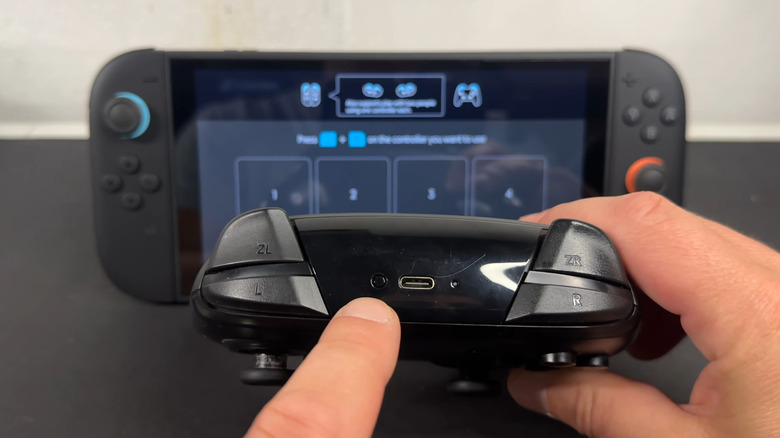
Luckily for these long-time Pro Controller users, they can use their beloved controllers on the Switch's worthy successor, the Nintendo Switch 2. The only limitation is that you can't use the home button to turn on the Switch 2. If you want to pair your Pro Controller to the Switch 2, go to the console's "Controllers" menu on the Home screen. Select "Change Grip/Order" from there. Then, switch to your Pro Controller, pressing its "Sync" button at the top. After holding it down for a few seconds, your Pro Controller will show up on the Nintendo Switch 2. Press the "A" button, and it should now be paired.
It's definitely a relief for Nintendo fans who have kept their long-lasting Pro Controllers, since there is no reason to purchase the Switch 2 Pro Controller if you have a perfectly good and long-lasting option already. However, plenty of Nintendo gamers will tell you that the new Pro Controller is a step up from the original, thanks to its comfortable grip and smooth analog sticks. The new controller also includes an audio jack and additional buttons on the grips.